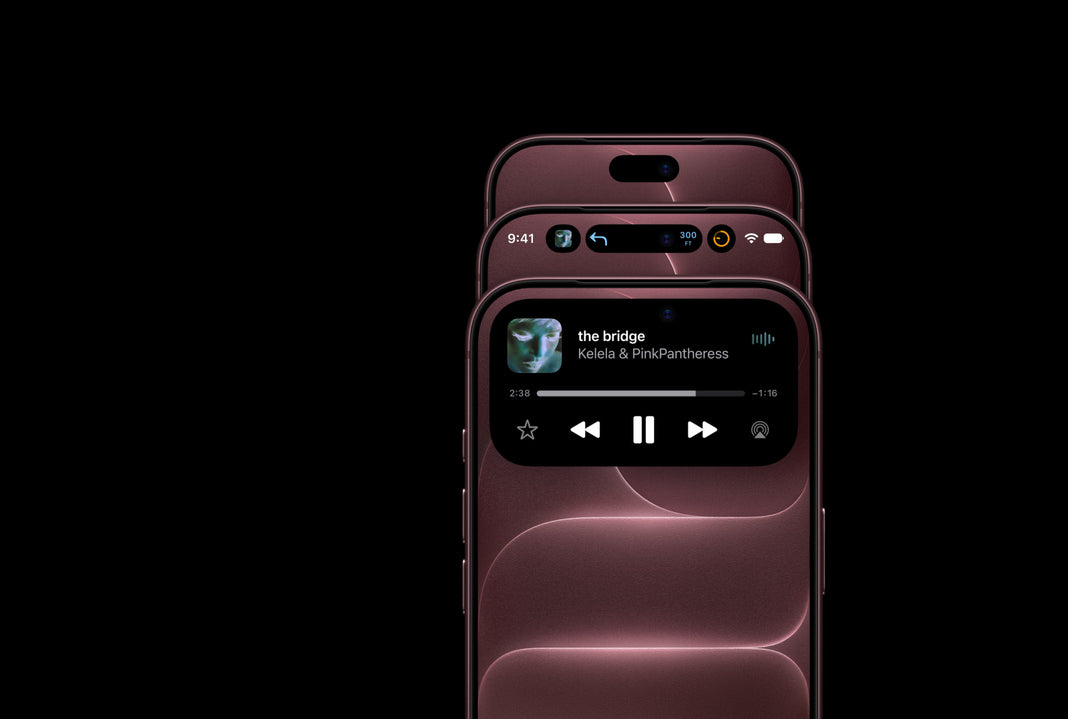
Using dynamic island on your iPhone 18 Pro Max can fix a surprising number of small problems, and it is a skill worth having on the iPhone 18 Pro Max — but only if you do the right version of it. The same phrase covers several different actions on an iPhone, and they are not equal. This guide explains using Dynamic Island on your iPhone 18 Pro Max step by step, gentlest first, so you can stop as soon as the job is done and never do more than you need to.
The short answer is this: Start a timer, play music, or start a call — Dynamic Island appears automatically at the top of the screen. Tap Dynamic Island once to expand it and see the full activity, such as the song playing or the timer counting down. That is the whole job in its simplest form, and the rest of this guide is there for the days when the simple form does not work — when the screen freezes, when a button is stiff, or when the setting you need is in a different menu from the one you expected.
Before you start, take a minute to note what is actually wrong. Is the phone slow, is an app crashing, is the screen staying on, or is the battery draining fast? That answer decides which version of the job you need, and it stops you from doing the strongest version to fix a problem that the gentlest version would have solved in two minutes.
This guide is written for the iPhone 18 Pro Max, and the steps work on iOS as it ships on that phone. The menus are named exactly as they appear on screen, so you can follow them without guessing, and every internal link in the guide goes to a live guide on aafunky.com that covers a related job in the same detail.
Before You Start
Before you start using Dynamic Island on your iPhone 18 Pro Max, it helps to know what you are actually doing and why it works. The iPhone 18 Pro Max is designed so that the everyday version of this job is quick, while the deeper version is tucked away in no Settings menu is needed — Dynamic Island works automatically, where it cannot be tapped by accident. Knowing which one you need before you start saves you from doing the stronger version when the gentler one would have been enough, and it saves you from repeating the job when the first attempt does not stick.
The first thing to check is the state of the phone itself. Is it charged, is it responding to touch, and is the thing you want to change actually a setting, a button, or an app? If the phone is frozen, the answer is different from the answer when the phone is working normally, and the steps below cover both cases, in order, so you can stop as soon as the job is done.
It also helps to have a minute of patience. Most iPhone jobs fail not because the steps are hard, but because a step is rushed — a button is held for too short a time, a slider is dragged too early, or a confirmation is tapped before the screen has finished loading. Go slowly through the steps in this guide, check the screen after each one, and the job will work the first time.
The Main Method, Step by Step
The main method is the one most people should use. Start a timer, play music, or start a call — Dynamic Island appears automatically at the top of the screen. That is the whole job in its simplest form, and for most people it is also the whole answer. If it works, you are done, and there is no need to read the rest of this guide, although the troubleshooting section at the end is worth a look if the same problem keeps coming back.
Take the steps one at a time and watch the screen as you go. Tap Dynamic Island once to expand it and see the full activity, such as the song playing or the timer counting down. The phone will give you a clear sign at each stage — a slider, a menu, a countdown, or a changed icon — and if you do not see that sign, stop and try the step again rather than pushing on. A missed step early on is the most common reason a simple job seems not to work.
When the main method finishes, check the result before you put the phone down. Long-press Dynamic Island to open its controls, such as pause and skip for music, or the call controls during a phone call. If the result is what you expected, the job is done. If it is not, do not repeat the same steps immediately — read the next section first, because the fix is usually a small detail, such as a setting in a different menu, rather than the main method done twice.
The Alternative Method
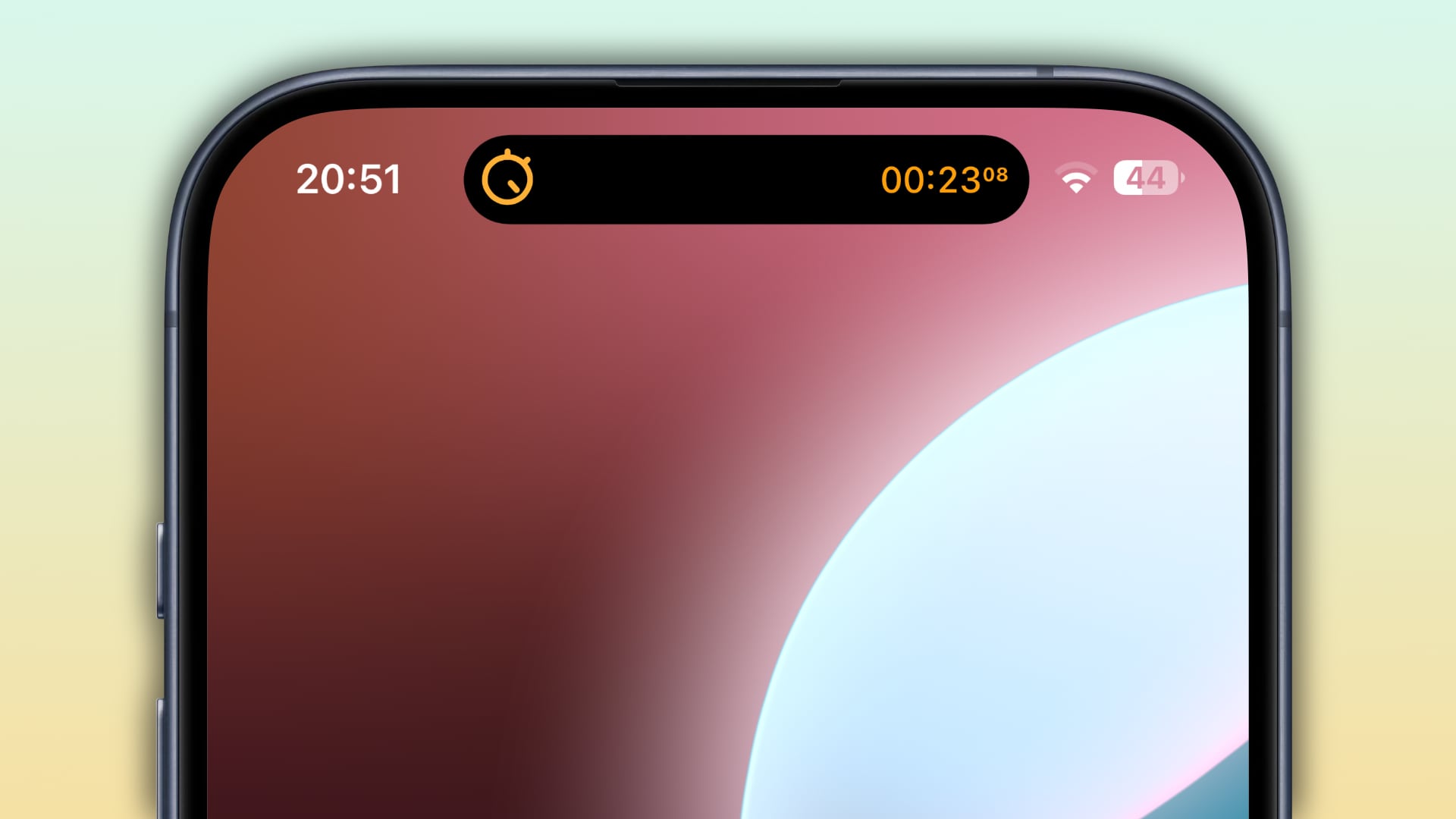
There is always a second way to do the same job, and it is worth knowing for the days when the main method is awkward. Swipe left or right on Dynamic Island when two activities are running to switch between them. This method takes a few more taps, but it uses only the screen, which makes it the better choice when a button is stiff, when the phone is in a thick case, or when you are showing someone else and want them to see each step clearly.
The alternative method ends in exactly the same place as the main method, so use whichever one feels easier on the day. To stop an app appearing there, turn off its Live Activities in the app’s own settings, or in Settings, then Face ID and Passcode, where Live Activities can be switched off. The phone does not remember which method you used, and there is no penalty for choosing the slower one. What matters is that the job finishes cleanly, with the screen showing the result you expected.
If neither method works, the problem is probably not the method at all. Check the battery first — a phone with a nearly flat battery can behave strangely — then check that iOS is up to date, because Apple fixes small faults like these in software updates more often than people realise. Go to Settings, then General, then Software Update, and install anything that is waiting.
When the Screen Will Not Respond
When the phone will not respond, the normal method cannot work, because it needs the screen to respond to your touch. That is the moment for the fallback in this guide. If Dynamic Island does not appear, check that the app supports Live Activities and that your model supports Dynamic Island. This is a safe fallback, and it does not delete your photos, apps, or messages, although it is not something to use as your everyday method — it is for the days when the phone is genuinely stuck.
After the fallback, give the phone a minute to settle. It will restart, ask for your passcode, and then show the Home Screen, and it may feel warm or a little slow for the first few minutes while it finishes starting up. That is normal. Test the thing that was going wrong, and if it works now, the job is done.
If the phone still will not respond after the fallback and a charge, do not keep repeating it. Connect the phone to a computer with a USB-C cable and try a restore there, or contact Apple Support and describe exactly what happened and when. Repeating the same button sequence ten times will not change the result, and a professional check is faster than a tenth attempt.
What to Check Afterwards
Once the main job is done, spend a minute checking the things around it, because a small change can have a side effect you did not expect. For using Dynamic Island on your iPhone 18 Pro Max, the most common side effect is a setting that has changed with it — a sound, a notification, or a paired device that needs to be set up again. Go through the settings that matter to you and confirm they are still the way you want them.
It is also worth checking the battery after the job, especially if the phone restarted. The first day after a restart or a reset, the phone re-indexes photos and files, which uses extra power, so a warm phone and faster drain on that first day are normal. If the drain continues into the second or third day, check Settings, then Battery, to see which app is using the most power.
Finally, use the phone normally for a day before you decide whether the job worked. A fix that looks good for ten minutes and then fails again was probably not the fix, and a fix that holds for a full day, through calls, messages, and a night on charge, is a fix you can trust. Note what you did, so you can repeat it if the problem ever comes back.
Troubleshooting: When It Does Not Work
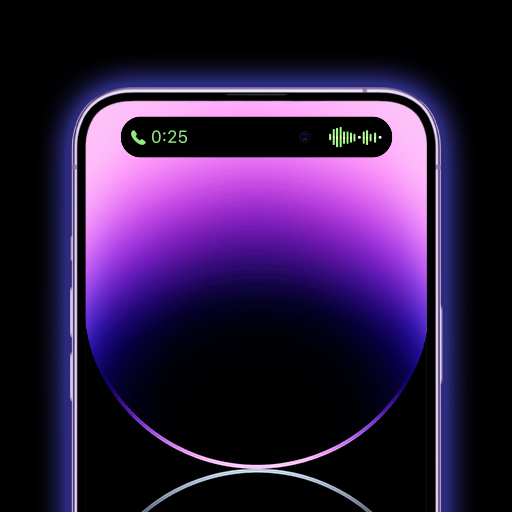
Most problems with using Dynamic Island on your iPhone 18 Pro Max come down to one of a few simple causes, and they are worth checking in order before you try anything drastic. The first is the battery: a phone below ten percent can refuse to do things it normally does without complaint, and a phone that has been hot in the sun can slow itself down to protect its battery. Charge it, let it cool, and try again.
The second cause is storage. An iPhone that is nearly full will struggle with almost everything, from saving a photo to finishing a recording, and it will often blame the wrong thing. Check Settings, then General, then iPhone Storage, and free up space by deleting old videos, offloading apps you do not use, or moving photos to iCloud.
The third cause is software. If the phone has an update waiting, install it, because the fault you are seeing may already be fixed in the newer version of iOS. And if one particular app is always involved when the problem happens, delete that app and reinstall it from the App Store — a fresh copy of the app fixes more faults than a fresh copy of the phone does.
When This Will Not Fix the Problem
There are times when using Dynamic Island on your iPhone 18 Pro Max is the wrong tool for the job, and knowing that saves you an hour. If the problem is hardware — a cracked screen, a button that does not click, a charging port full of lint, or a battery that drains in hours — no setting, button sequence, or reset will repair it. Those are physical problems, and they need a physical fix, either cleaning or a repair.
The same is true for problems with your carrier or your account. If calls drop in one place only, or if mobile data fails while Wi-Fi works, the fault may be in the network, not the phone. Test the SIM in another phone, or test another SIM in your phone, if you can. That one test tells you whether the phone or the network is at fault.
Be careful, too, with repeating the same fix over and over. Doing the same reset or the same button sequence five times does not make it work better the fifth time, and each attempt costs you time restoring settings and data. One careful attempt, done properly, is the test. If it does not work, change the approach rather than repeating it.
The One Warning to Remember
A warning is worth repeating here, because it is the one people forget. Dynamic Island sits at the top of the screen. If you do not see it, check that the app supports Live Activities and that your model supports Dynamic Island. Read that again before you start, and if you are not sure which version of the job you need, choose the gentler one first. You can always do the stronger version afterwards, but you cannot undo the stronger version once it has run.
If you take one habit away from this guide, make it this: check the result, then stop. Too many iPhone problems are made worse by fixing a thing that was already fixed, or by changing three settings at once and then not knowing which one helped. Change one thing, test it, and only then change the next.
That is the whole approach to using Dynamic Island on your iPhone 18 Pro Max on the iPhone 18 Pro Max: start gentle, use the alternative method when the main one is awkward, keep the fallback for a frozen screen, and stop as soon as the job is done. Done that way, it is a two-minute job, and your phone stays exactly the way you want it.
Frequently Asked Questions
What is Dynamic Island on iPhone 18 Pro Max? It is the pill-shaped area at the top of the screen that expands to show Live Activities, alerts, and controls for what the phone is doing.
How do I turn off Dynamic Island? You cannot turn Dynamic Island itself off, but you can turn off Live Activities for individual apps in their settings, or in Settings, then Face ID and Passcode.
Why does Dynamic Island not show my timer? The app must support Live Activities. Start the timer in the Clock app, then look at the top of the screen while you use another app.
Can I use Dynamic Island while using another app? Yes, that is its main job. It stays at the top of the screen so you can see a timer, a call, or music without leaving the app you are in.
Does Dynamic Island work with third-party apps? Yes, if the app supports Live Activities. Food delivery, sports, and ride apps are the most common ones that do.
Tap It, Long-Press It, Let It Work
Dynamic Island on an iPhone 18 Pro Max is at its best when you stop thinking about it and let it work: start a timer or a song, and it sits at the top of the screen, ready to expand with a tap and to control with a long-press. Two activities at once is no problem — swipe between them.
If an activity never appears, check that the app supports Live Activities. The Island itself needs no setup, no switch, and no settings — it is already on, waiting for something to show.
Related iPhone 18 guides: how to use Dynamic Island on iPhone 15, how to use Dynamic Island in iPhone 15, how to set timer on iPhone 15 camera, and how to use Action Button on iPhone 15.