
If you have ever opened Safari on your iPhone 15 and found dozens of tabs waiting for you, you are not alone. Tabs pile up fast. You tap a link from a message, open a recipe while cooking, check a news story on the bus, and before you know it there are fifty tabs sitting in the background. Safari keeps them all open until you close them, and the list only grows.
Too many open tabs do more than look messy. They make it harder to find the page you actually want, and each one uses a small amount of memory and battery. Safari is good at freezing tabs you are not using, so your phone will not grind to a halt, but a huge stack of tabs still slows down the tab switcher and makes searching through them a chore. Clearing them out every now and then keeps Safari fast and tidy.
This guide shows you every way to close tabs on iPhone 15. You will learn how to close one tab, how to close all of them at once, how to make Safari close old tabs for you automatically, and what to do with Private tabs and Tab Groups. Pick the method that fits your situation and your tabs will be under control in under a minute.
Before You Start: What Happens When You Close a Tab?
Closing a tab removes that web page from Safari, but it does not delete anything else. Your browsing history stays saved, so you can still find a closed page again through the History menu or by typing part of its address. Your bookmarks, Reading List and saved passwords are completely unaffected. Closing tabs is safe, and you cannot break anything by doing it.
There is one thing to keep in mind. If a tab holds something you have not saved, such as a half-written form, a shopping basket, or an article you were reading, closing the tab will lose that unsaved state. The page itself is easy to reopen from History, but the form or basket may be empty when you go back. Before you close everything at once, glance through the tab grid and save anything important first.
It also helps to know the difference between closing a tab and closing Safari. Swiping Safari away from the App Switcher does not close your tabs. When you open Safari again, every tab is still there. The only way to clear tabs is to close them inside Safari, using the methods below. Quitting the app and reopening it changes nothing.
Finally, closing tabs in one Tab Group does not touch the tabs in your other groups. If you use Tab Groups for work and personal browsing, each group keeps its own set of tabs. The close-all methods in this guide only affect the group you are currently looking at, which is useful to know before you tap anything.
Method 1: Close Tabs One at a Time
Closing tabs one by one is the best choice when you only want to remove a few. It gives you full control, because you choose exactly which pages stay and which go. Start by opening Safari on your iPhone 15 and tapping the Tabs button in the bottom right corner. It looks like two overlapping squares.
The tab overview opens and shows all your open tabs as a grid of small previews. Each preview has a small X in its top corner. Tap the X on any tab to close it. The tab disappears straight away, and the remaining tabs slide up to fill the gap. There is no confirmation message, so be sure before you tap.
You can also close a single tab by swiping it away. In the tab overview, touch a tab preview and drag it to the left. The tab slides off the screen and closes. This is quick once you get used to it, and it works well when you are clearing several tabs in a row with one hand.
If you only need to close the tab you are currently viewing, there is an even faster way. Long-press the Tabs button at the bottom right of the screen. A small menu appears with a few options, including Close This Tab. Tap it and the current page closes, taking you to the next open tab or to the Start Page if it was your last one.
- Open Safari on your iPhone 15.
- Tap the Tabs button (two overlapping squares) in the bottom right corner.
- Look through the grid of tab previews to find the tab you want to remove.
- Tap the small X in the top corner of that tab preview, or swipe the preview to the left.
- Repeat for each tab you want to close, then tap Done to return to browsing.
This method is perfect for a quick tidy-up. If you have more than twenty tabs open, though, closing them one by one takes a while. In that case, use the next method and close them all at once instead.
Method 2: Close All Tabs at Once
When your tab count has grown out of control, closing them one by one is a waste of time. Safari has a built-in way to close every open tab in the current Tab Group with two taps. It is fast, and it works the same way on every iPhone 15 running a recent version of iOS.
Open Safari and tap the Tabs button in the bottom right corner to see the tab overview. Now, instead of tapping the X on each tab, touch and hold the Done button at the bottom right of the screen. Keep your finger on it for about a second until a menu pops up.
The menu shows one option: Close All Tabs, with the number of open tabs next to it. Tap it, and Safari closes every tab in the current Tab Group at once. You land on a fresh Start Page, ready to start browsing from scratch. The whole thing takes about five seconds.

There is a second way to reach the same menu, which some people find easier. While you are viewing a web page in Safari, long-press the Tabs button itself (the two overlapping squares at the bottom right). A menu appears with options including Close All Tabs and Close This Tab. Tap Close All Tabs and confirm if asked. Both routes do exactly the same thing, so use whichever feels more natural.
Before you close everything, take a quick look at the tab count shown at the bottom of the screen. It tells you how many tabs are open, so you know what you are about to remove. If the number surprises you, that is a good sign this clean-out was overdue. If you change your mind at the last second, tap outside the menu to dismiss it without closing anything.
- Open Safari on your iPhone 15.
- Tap the Tabs button in the bottom right corner to open the tab overview.
- Touch and hold the Done button at the bottom right until a menu appears.
- Tap Close All Tabs (the number shown tells you how many will close).
- Alternatively, long-press the Tabs button on any web page and choose Close All Tabs from the menu.
If you closed a tab by mistake, do not worry. Safari lets you reopen recently closed tabs. Tap the Tabs button, then touch and hold the plus (+) button at the bottom left. A list of recently closed tabs appears, and you can tap any one of them to bring it back. This works for tabs you closed one by one as well as tabs closed with the close-all option.
Remember that this method only closes tabs in the Tab Group you are viewing. If you use more than one group, switch to each group and repeat the steps. Your Private tabs are separate too, and closing all tabs in normal browsing leaves your Private tabs untouched.
Method 3: Make Safari Close Old Tabs Automatically
If you would rather never think about tab clutter again, let Safari handle it for you. There is a setting that automatically closes tabs after a set time, so old pages disappear on their own while recent ones stay open. It is one of the most useful Safari settings on iPhone 15, and most people do not know it exists.
Open the Settings app and scroll down to Safari. Tap it, then scroll down to the Tabs section and tap Close Tabs. You will see four choices: Manually, After One Day, After One Week, and After One Month. Manually is the default, which means Safari never closes a tab unless you do it yourself.
Choose After One Week for a good balance. Tabs you opened in the last seven days stay put, which covers anything you are still working on, while older tabs close themselves quietly in the background. If you want a stricter clean-up, choose After One Day. Anything you opened yesterday or earlier disappears automatically, so Safari stays nearly empty.

This setting only affects tabs you open from now on in the sense that Safari checks the age of each tab and closes the ones older than your chosen period. It does not matter whether you opened the tab yesterday or last month. Once a tab passes the age limit, Safari removes it the next time it tidies up. You do not need to do anything else.
There is one catch to know about. Automatic closing can remove a tab you meant to keep, if you opened it a week ago and never went back to it. If you often keep research or shopping pages open for a long time, bookmark them instead of relying on the tab staying open. A bookmark survives any automatic clean-up and is easy to find later.
- Open the Settings app on your iPhone 15.
- Scroll down and tap Safari.
- Scroll to the Tabs section and tap Close Tabs.
- Choose After One Day, After One Week, or After One Month.
- Go back to Safari and browse normally — old tabs will now close themselves.
To stop automatic closing, come back to the same screen and choose Manually. Your existing tabs are not affected by changing the setting, so you can switch it on and off whenever you like without losing anything that is currently open.
Closing Private Tabs and Tab Groups
Private tabs live in a separate space from your normal tabs. When you close all tabs in normal browsing, your Private tabs stay open, and the same is true in reverse. This is by design, because Private browsing keeps your history separate. To close Private tabs, switch to Private mode first, then use the same methods above.
To get to your Private tabs, tap the Tabs button, then tap the tab group name at the bottom of the screen (it usually says Start Page or the name of your current group). A list appears with Private at the top. Tap Private and your private tabs appear. Now long-press Done and tap Close All Tabs to clear them, just as you would with normal tabs.
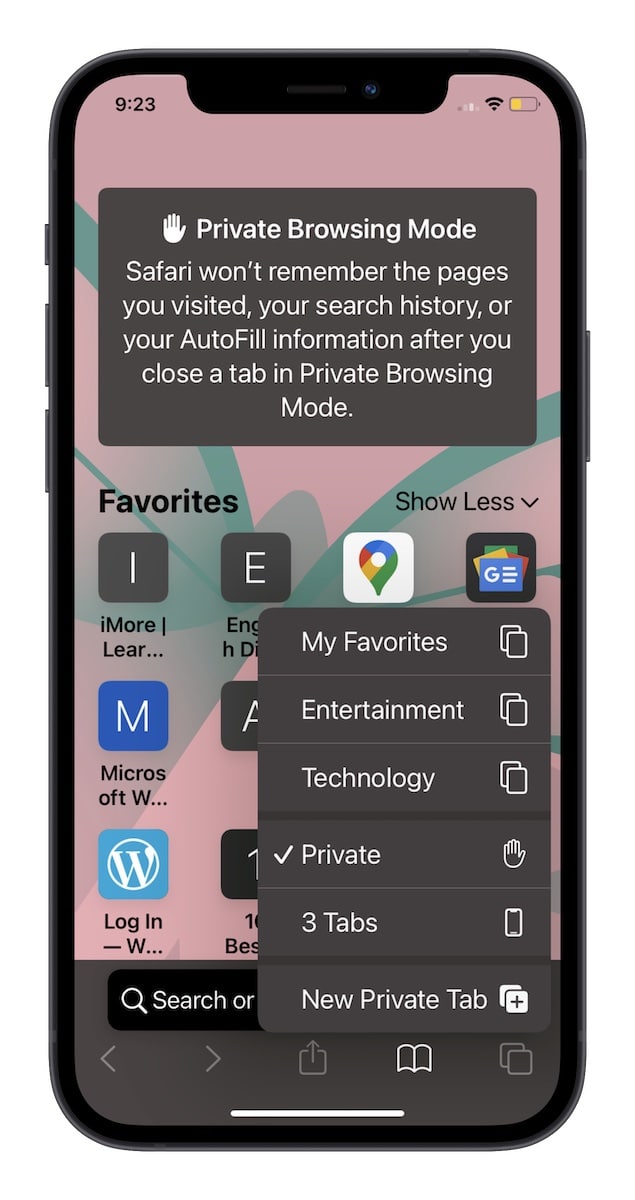
Tab Groups work the same way. Each group is its own collection of tabs, and closing all tabs only affects the group on screen. If you have a Work group and a Personal group, you need to open each one and close its tabs separately. This is actually helpful, because you can clear out one group while keeping the other one intact.
To delete a whole Tab Group, tap the Tabs button, tap the group name at the bottom, and touch and hold the group you want to remove. Choose Delete from the menu. Deleting a group closes every tab inside it and removes the group itself. Only do this when you are sure you no longer need any of those tabs.
One more useful habit is to check the Start Page from time to time. Scroll down on the Start Page and you will see sections for your Tab Groups and Private tabs. It gives you a quick overview of how many tabs are hiding in each group, which helps you decide where the clutter actually is.
Tips for Keeping Safari Tabs Under Control
The easiest way to avoid tab overload is to close tabs as soon as you finish with them. When you have read an article or finished a purchase, close the tab before moving on. It takes one tap and stops the pile from growing. If you do this most of the time, you will rarely need the close-all option.
Use bookmarks for pages you want to keep. A bookmark is a much better home for a page than an open tab, because it does not use memory, it never gets closed by accident, and you can organise bookmarks into folders. Tap the Share button on any page and choose Add Bookmark to save it in seconds.
Try the Reading List for articles you want to read later. It saves the page for offline reading and keeps it in one tidy list, instead of leaving the tab open for days. Open the Share menu and tap Add to Reading List, then find your saved articles in the Bookmarks menu under Reading List.
If you often open links from other apps, change how Safari handles them. In Settings, then Safari, you can choose whether links open in a new tab or in the background. Opening links in the background keeps your current page in place and stops every tap from adding another tab to the stack.
Finally, make a weekly habit of checking your tab count. The Tabs button shows the number of open tabs at a glance. If it climbs past twenty, spend thirty seconds closing the ones you no longer need. A quick weekly tidy-up is much easier than a big clean-out once a month, and Safari will feel faster for it. If your iPhone 15 is also acting up in other ways, our guide on how to hard reset iPhone 15 can help when the phone stops responding.
Troubleshooting: Tabs That Will Not Close or Keep Coming Back
Sometimes a tab refuses to close, or tabs you just closed seem to reappear. The most common cause is iCloud syncing tabs between your devices. If you use Safari on a Mac or iPad with the same Apple ID, tabs can sync back from the other device. Turn off Safari in Settings, then your name, then iCloud, if you do not want tabs shared between devices.
If the tab overview feels frozen or tapping the X does nothing, force quit Safari and try again. Swipe up from the bottom of the screen (or double-click the Home button on older models) to open the App Switcher, swipe Safari away, then reopen it. This clears the temporary glitch without closing any of your tabs, so you can try again.
Another common problem is the Close All Tabs option not appearing. This usually happens because you tapped Done instead of long-pressing it. A quick tap simply exits the tab overview. Press and hold Done for a full second and the menu will appear. The same applies to the Tabs button: a quick tap opens the overview, while a long press opens the menu.
If Safari keeps reopening the same tabs after you close them, check whether a website is set as your homepage or a shortcut is reopening it. Also check that you are not looking at a different Tab Group, which has its own tabs. Switch groups from the bottom of the tab overview and close the tabs in each one. When Safari behaves oddly after an update, a restart often helps too — see our guide on how to turn off iPhone 15 screen for the button steps, or restart from Settings, then General, then Shut Down.
Frequently Asked Questions
How do I close all Safari tabs on iPhone 15 at once?
Open Safari, tap the Tabs button in the bottom right corner, then touch and hold the Done button until a menu appears. Tap Close All Tabs. You can also long-press the Tabs button on any web page and choose Close All Tabs from the menu that appears.
Does closing tabs delete my browsing history?
No. Closing a tab only removes that page from the open tab list. Your browsing history is kept separately and you can find closed pages again in the History menu, or by typing part of the address in the address bar. Bookmarks and Reading List items are also unaffected.
Can I reopen a tab I closed by mistake?
Yes. Tap the Tabs button, then touch and hold the plus (+) button at the bottom left of the tab overview. A list of recently closed tabs appears. Tap any tab in the list to reopen it. This works for tabs closed one by one and for tabs closed with the close-all option.
Why do my tabs keep coming back after I close them?
The usual cause is iCloud Safari syncing tabs from another device signed in to the same Apple ID, such as a Mac or iPad. The tabs are being restored from the other device. You can turn off Safari sync in Settings, then your name, then iCloud. Also check that you are not viewing a different Tab Group, which has its own separate tabs.
How do I close Private tabs on iPhone 15?
Switch to Private mode first. Tap the Tabs button, tap the group name at the bottom, and choose Private. Then touch and hold Done and tap Close All Tabs. Closing tabs in normal browsing never affects your Private tabs, because the two are kept completely separate.
Can Safari close old tabs automatically?
Yes. Go to Settings, then Safari, then Close Tabs, and choose After One Day, After One Week, or After One Month. Safari will automatically remove tabs older than the period you choose. Pick Manually on the same screen to turn automatic closing off again.
Is there a limit to how many tabs Safari can open?
Safari does not set a small hard limit, and it can hold hundreds of tabs, but performance and usability suffer long before that. The tab switcher becomes hard to search and each tab uses a little memory. Keeping the count under twenty or so, and using bookmarks for pages you want to keep, is a much better habit.
Conclusion
Closing tabs on iPhone 15 is simple once you know where the controls are. Close single tabs with the X or a swipe, close everything at once by long-pressing Done in the tab overview, and let Safari tidy up automatically by setting Close Tabs to a week or a month. Remember that Private tabs and Tab Groups are separate, so clear each one on its own when needed.
The best approach is a mix of the three methods. Use the close-all option for a big clean-out today, turn on automatic closing so the pile never grows back, and close single tabs as you finish with them. Your Safari will stay fast, your tab switcher will stay usable, and you will always be able to find the page you actually need. For more iPhone 15 help, see our guide on how to get iPhone 15 out of SOS mode and our iPhone 15 setup guide for beginners.