Putting an iPhone 18 on vibrate is the middle ground between a ringing phone and a completely silent one. The phone will not make a sound when a call or message arrives, but it will buzz in your hand or your pocket, so you still know something is happening. It is the right setting for a meeting, a lecture, a library, or any place where a ringtone would be rude but a missed call would be worse.
This guide explains how to put iPhone 18 on vibrate, step by step. It covers the silent switch and the Action Button, the vibration settings in Sounds and Haptics, how to make the vibration stronger or create a custom pattern, and how to test that vibration is actually working.
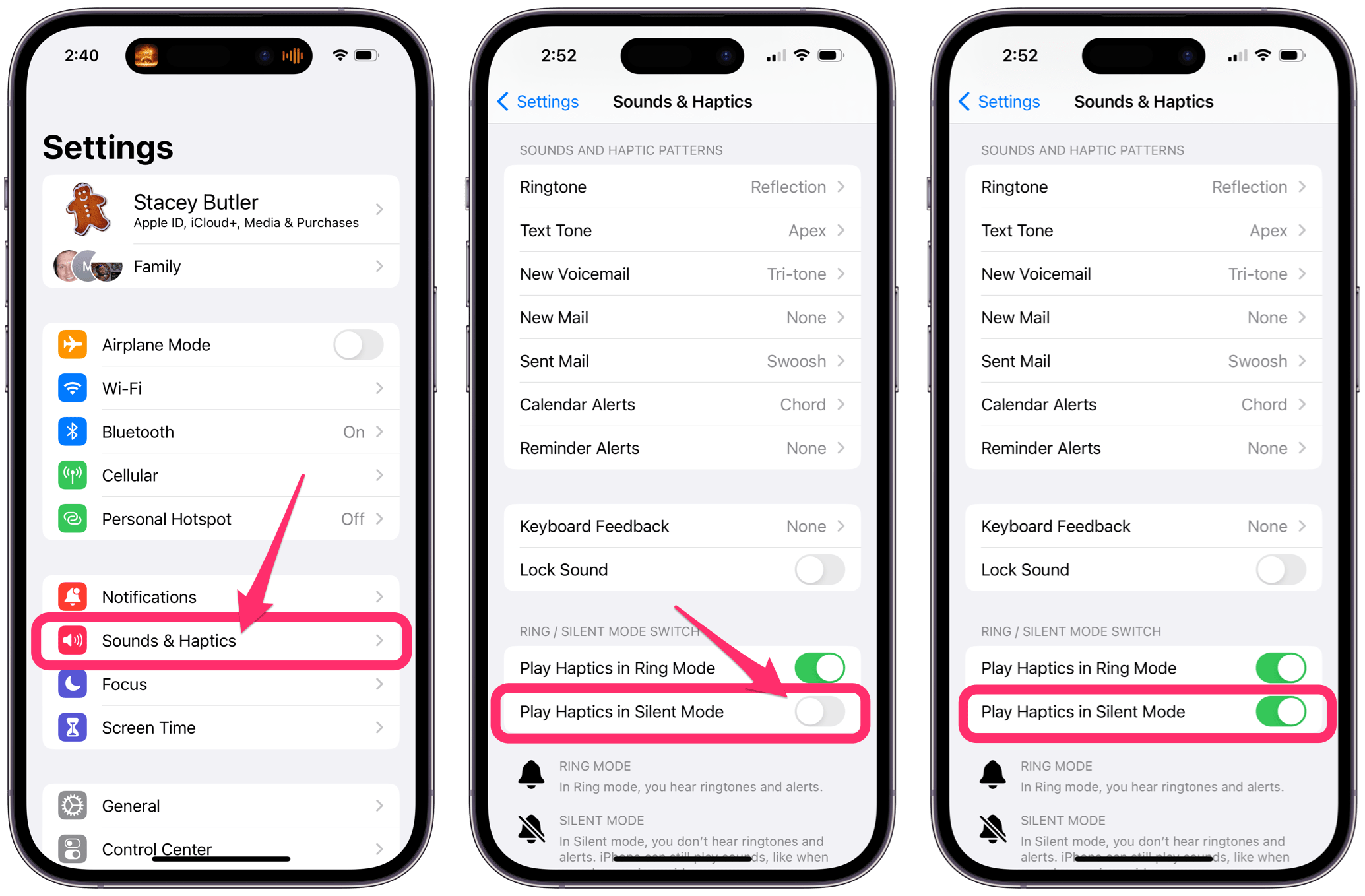
The short answer is this: flick the silent switch towards the back of the phone, or press and hold the Action Button on a Pro model, until you see Silent Mode On. Then go to Settings, then Sounds and Haptics, and make sure Vibrate on Silent is turned on. The phone will now vibrate instead of ringing.
Vibrate is not the same as silent. A phone on vibrate still alerts you, just quietly. A phone with vibration turned off as well is completely silent, and you will miss calls unless you are looking at the screen. Knowing which one you have set is the key to using vibrate well.
Put iPhone 18 on Vibrate with the Silent Switch
On the iPhone 18 and iPhone 18 Plus, the silent switch on the left edge is the fastest way to put the phone on vibrate. Flick it towards the back of the phone, away from the screen, until you see a small orange line. The phone will vibrate briefly and show Silent Mode On on screen, with a bell icon crossed out.
In silent mode, the phone vibrates for calls and alerts instead of playing a sound, as long as vibration is turned on in Settings. That is the default, so for most people the switch alone is enough. If your phone does not vibrate in silent mode, the vibration setting has been turned off, and you will need to turn it back on in Sounds and Haptics.
The switch works even when the screen is off, and it works without unlocking the phone. You can flick it in your pocket, without looking, just by feeling for the switch. That makes it the best option when a call comes in at the wrong moment and you need to silence it fast.
To take the phone off vibrate, flick the switch back towards the screen until the orange line disappears. The phone will vibrate again and show Silent Mode Off, which means the ringer is back on. Check the switch when you leave a meeting, because it is easy to forget and miss calls for hours.
Put iPhone 18 Pro on Vibrate with the Action Button
The iPhone 18 Pro and iPhone 18 Pro Max have no silent switch. Instead, they have the Action Button on the left edge, above the volume buttons. Press and hold it for about a second, until you feel a vibration and see Silent Mode On appear on screen. The phone is now on vibrate, and it will buzz instead of ringing.
Press and hold the Action Button again to turn the ringer back on. You will feel a vibration and see Silent Mode Off. A quick tap does nothing, which stops the phone from switching modes by accident when you pick it up or put it in your pocket.
If pressing and holding the Action Button does something else, such as opening the camera, it has been customised. Go to Settings, then Action Button, and check what it is set to. Choose Silent Mode if you want it to control vibrate and silent mode, which is the default behaviour when the phone is new.
The Action Button is also useful for accessibility, because it needs only one finger and one press, rather than a switch that needs to be flicked. If the silent switch on an older phone was hard for you to use, the Action Button is easier, and it gives you the same result with a clearer confirmation on screen.

Turn On Vibration in Settings
The switch and the Action Button only work if vibration is turned on in Settings. Go to Settings, then Sounds and Haptics, and look for the vibration options near the top. There are two: Vibrate on Ring, which makes the phone vibrate when the ringer is on, and Vibrate on Silent, which makes it vibrate when the ringer is off.
For the phone to vibrate in silent mode, Vibrate on Silent must be on. Turn it on if it is off, and leave it on unless you want the phone to be completely silent. Vibrate on Ring is also worth leaving on, because it means you will feel a call even in a noisy place where you cannot hear the ringtone.
In the same screen, you can choose a vibration pattern for the ringtone. Tap Ringtone, then Vibration, and choose one of the built-in patterns, such as Accent, Heartbeat, or Rapid. Each one feels different, so try a few and pick the one you notice most easily. A longer, stronger pattern is easier to feel through a thick case or a coat pocket.
You can also create a custom vibration pattern. Tap Create New Vibration, then tap the screen in the rhythm you want, and save it with a name. A custom pattern is useful if you want a specific contact to have a specific buzz, so you can tell who is calling without looking at the phone.
Make Vibration Stronger or Easier to Feel
If you often miss calls because you do not feel the vibration, make the pattern stronger. Choose a longer pattern, such as Heartbeat or Rapid, rather than a short one, and make sure the phone is in a pocket where you will feel it, rather than in a bag where the buzz is muffled.
A thick case can muffle vibration, especially a heavy leather or wallet case. Try the phone without the case, and see whether the vibration feels stronger. If it does, consider a thinner case, or keep the phone in a pocket rather than a bag when you are waiting for an important call.
The phone vibrates more noticeably on a hard surface than on a soft one. On a wooden desk, the vibration is loud and clear. On a bed or a sofa, it is muffled and easy to miss. If you put the phone down while you are waiting for a call, put it on a hard surface, face down, so the vibration is as noticeable as possible.
Check that System Haptics is turned on, in Settings, then Sounds and Haptics, under System Haptics. That setting controls the small vibrations the phone makes for taps and swipes, and while it does not control call vibration directly, turning it off can make the phone feel less responsive overall, which some people mistake for a vibration fault.
Vibrate for Messages, Mail, and Other Alerts
Vibration is not only for calls. You can set a vibration pattern for text messages, mail, and other alerts, so you can tell what kind of notification has arrived without looking. Go to Settings, then Sounds and Haptics, tap Text Tone, then Vibration, and choose a pattern that is different from your ringtone vibration.
You can do the same for individual contacts. Open Contacts, choose the person, tap Edit, then Text Tone, then Vibration, and pick a pattern for that person. That way, a message from your partner can feel different from a message from your boss, and you will know which one it is before you look.
Mail and calendar alerts can also have their own vibration patterns, in the same Sounds and Haptics screen. Set a gentle pattern for mail, which is rarely urgent, and a stronger pattern for calendar alerts, which usually are. That small difference saves you from checking the phone for every email.
If you get too many vibrations, turn off vibration for the apps that do not matter. Go to Settings, then Notifications, choose the app, and turn off Sounds. That stops the phone from vibrating for that app’s notifications, while leaving vibration on for calls and messages that matter.
Test That Vibrate Is Working
After you set the phone to vibrate, test it. Ask someone to call you, or call yourself from another phone, and feel for the buzz. If the phone vibrates, the setting is working. If it does not, check the silent switch, the Action Button, and the Vibrate on Silent setting in Sounds and Haptics.
Test it in the pocket or bag where you normally carry the phone, not just in your hand. A vibration that is obvious in your hand can be invisible in a thick coat pocket, and that is the test that matters. If you cannot feel it in your pocket, choose a stronger pattern or carry the phone somewhere you will feel it.
If the phone does not vibrate at all, even in your hand, restart it. A restart clears temporary faults in the vibration motor’s control, and it is the first fix Apple Support will suggest. If a restart does not help, check that the phone is not in a Focus mode that silences all alerts, and check that Do Not Disturb is off.
A phone that never vibrates, even after a restart and a settings check, may have a faulty vibration motor. The motor is a small part inside the phone, and it can fail, especially after a drop. If you suspect that, contact Apple Support, because the motor needs a repair, not a settings change.
Vibrate, Silent, and Do Not Disturb: Which to Use
Vibrate is the middle setting: no sound, but a buzz you can feel. Silent, with vibration off, is the quietest setting: no sound and no buzz, so you will miss calls unless you are looking at the screen. Do Not Disturb is a different kind of silence: it stops the phone from lighting up and making a sound, but it can still allow calls from certain people.
Use vibrate when you need to be quiet but you still need to know when someone calls. A meeting, a lecture, a library, and a cinema are all vibrate situations. Use full silent when even a buzz would be rude, such as in a theatre or a place of worship, and use Do Not Disturb when you want to silence the phone for a set time, such as overnight.
Do Not Disturb and vibrate can work together. If Do Not Disturb is on, the phone will not vibrate for most calls, even if vibrate is turned on. If you want the phone to vibrate for an important caller while Do Not Disturb is on, add that person to the allowed list in Settings, then Focus, then Do Not Disturb.
The simplest rule is this: if you need to know, use vibrate. If you need to be undisturbed, use Do Not Disturb. If you need to be completely silent, turn vibration off as well. Knowing which one you have set, and why, is the difference between a phone that helps you and a phone that makes you miss calls.
Turn Vibrate Off Again
To take the phone off vibrate and back to ringing, flick the silent switch back towards the screen, or press and hold the Action Button until you see Silent Mode Off. The phone will vibrate once to confirm, and the ringer will be back on.
If you turned vibration off in Settings as well, turn it back on in Settings, then Sounds and Haptics, under Vibrate on Ring and Vibrate on Silent. Otherwise, the phone will ring but it will not buzz, and you may miss calls in a noisy place where you cannot hear the ringtone.
If you used a Focus mode to silence the phone, turn the mode off in Control Center, or wait for its scheduled end. A Focus mode will keep silencing calls even if the silent switch is off, so turning the switch back on is not enough on its own.
Make a habit of checking the phone when you leave a quiet place. A glance at the left edge will tell you whether the orange line is showing, or whether the Action Button has silent mode on. That two-second check will save you from missing calls for hours because the phone was still on vibrate.
Frequently Asked Questions
How do I put my iPhone 18 on vibrate only? Flick the silent switch to silent, or press and hold the Action Button on a Pro model, then make sure Vibrate on Silent is on in Settings, then Sounds and Haptics.
Why does my iPhone 18 not vibrate in silent mode? Vibrate on Silent is probably turned off. Go to Settings, then Sounds and Haptics, and turn on Vibrate on Silent.
Can I make the vibration stronger? Yes. Choose a longer pattern such as Heartbeat or Rapid in Settings, then Sounds and Haptics, then Ringtone, then Vibration, or create a custom pattern.
Does vibrate work for text messages too? Yes. You can set a vibration pattern for text messages in Settings, then Sounds and Haptics, then Text Tone, then Vibration.
Will my alarm vibrate in silent mode? Alarms sound even in silent mode, and they vibrate as well. Silent mode does not affect alarms.
Vibrate Means Quiet, Not Missed
Putting an iPhone 18 on vibrate is a flick of a switch or a press of the Action Button, plus a check that Vibrate on Silent is turned on in Settings. The phone will buzz instead of ringing, so you stay quiet without missing the call.
Choose a pattern you can feel, test it in the pocket where you carry the phone, and remember to turn the ringer back on when you leave the quiet place.
Related iPhone 18 guides: how to put iPhone 15 on silent, how to turn on vibration on iPhone 15, how to set iPhone 15 to vibrate, and how to make iPhone 15 vibrate on silent.