Vibration is useful when you need to feel a call, but it can also be annoying. A phone buzzing on a table during a meeting, a vibration in the middle of the night, or a constant buzz from every message can drive anyone mad.
This guide shows you how to turn off vibration on your iPhone 15, step by step. You will learn how to stop vibration for calls and texts, how to switch off keyboard and system haptics, and how to turn vibration off for the whole phone with one setting. Follow the steps in order and test each one as you go.
If you want the opposite — to switch vibration back on — our guide on how to turn on vibration on iPhone 15 covers every setting in the other direction.
What Vibration and Haptics Mean on iPhone 15
Vibration is the strong buzz your phone makes when a call or alert arrives. Haptics is the smaller, gentler tap you feel when you type, press a button or use a gesture. Both come from the same small motor inside the phone, called the Taptic Engine.
The iPhone 15 lets you control them separately. You can stop vibration for calls but keep the gentle tap when you type, or the other way round. That is useful, because everyone uses their phone differently.
There is also a difference between ring mode and silent mode. Your phone can vibrate in one mode and stay still in the other. Many people are confused when their phone vibrates in silent mode even though they turned vibration off for ringing. The two settings are separate, and this guide covers both.
Before You Start
Decide what you actually want to stop. Do you want the phone to never vibrate at all, even in silent mode? Or do you only want to stop it buzzing for calls while keeping alerts? The answer decides which setting to change.
If you want total silence, skip to the Accessibility method below. It is one switch that turns off all vibration on the phone. If you only want to stop certain alerts, use the Sounds and Haptics methods instead.
Keep in mind that turning vibration off does not silence sounds. If your phone is in ring mode, it will still play the ringtone. To stop sound as well, flip the Ring/Silent switch on the side of the phone, or turn the volume down. Vibration and sound are controlled separately.
Method 1: Turn Off Vibration for Ring Mode
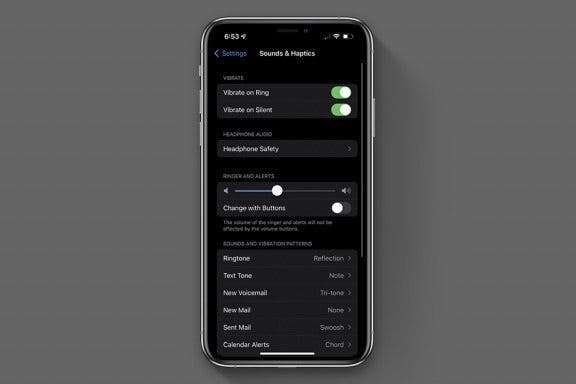
Open the Settings app on your iPhone 15. It is the grey icon with gears on your home screen. Tap Sounds and Haptics. This screen controls all sounds, vibration and haptics on the phone.
Look for the section called Play Haptics in Ring Mode. It sits near the top of the screen. Tap the switch next to it to turn it off. The switch turns grey when it is off.
With this off, your phone will not vibrate when a call comes in while the Ring/Silent switch is set to ring. It will still play your ringtone, so you will hear the call. Only the buzzing stops.
Test it right away. Ask someone to call you, or call your own number from another phone. The phone should ring without vibrating. If it still vibrates, check that you changed the right switch, and also check the Accessibility method below, because that setting can override this one.
Method 2: Turn Off Vibration for Silent Mode
Many people turn vibration off for ring mode and are surprised when the phone still buzzes in silent mode. That is because silent mode has its own separate setting.
Open Settings, then tap Sounds and Haptics, just like before. Look for Play Haptics in Silent Mode, right below the ring mode setting. Tap the switch to turn it off.
With both switches off, your phone will not vibrate in either mode. This is the setting most people want when they say they want vibration off. It is easy to miss the second switch, so check both.
Now flip the Ring/Silent switch on the side of your phone to silent mode and ask someone to call you. The phone should stay completely still and quiet. If it still buzzes, the global Accessibility setting is probably still on, which is covered in Method 5.

Method 3: Turn Off Vibration for Texts and Other Alerts
Calls are not the only thing that vibrates. Texts, emails, reminders and app alerts can all buzz. Each one has its own vibration setting, tucked inside its sound setting.
Open Settings, then tap Sounds and Haptics. Scroll down to the list of sounds: Ringtone, Text Tone, New Voicemail, New Mail, Calendar Alerts, Reminder Alerts, and more. Tap Text Tone.
At the top of the Text Tone screen, tap Vibration. You will see a list of vibration patterns, including the standard ones and any custom patterns you made. Scroll to the top and choose None. This stops vibration for text messages.
Go back and repeat the same steps for the other alerts you want to silence. Tap Ringtone, then Vibration, then None, to stop vibration for calls from the ringtone setting itself. Do the same for New Mail, Calendar Alerts and Reminder Alerts if those buzzes bother you.
This method is useful when you want to keep vibration for calls but stop it for everything else. A phone that buzzes for every email can be tiring, and turning those off one by one gives you back some peace without missing important calls.
Method 4: Turn Off Keyboard and System Haptics
Even with alert vibration off, your phone may still tap gently when you type or press buttons. That is system haptics, and it has its own switches.
Open Settings, then tap Sounds and Haptics. Scroll to the bottom of the screen. You will see Keyboard Feedback.
Tap it, and switch off Haptic. Your keyboard will stop tapping as you type. The click sound has its own switch on the same screen, if you want to silence that too.
Go back to the Sounds and Haptics screen and scroll to the very bottom. You will see a switch called System Haptics. Turn it off.
This stops the small taps you feel when you change a setting, use a gesture, or press and hold an icon. It does not affect calls or alerts, only the small feedback taps.
Some people like system haptics and only hate the strong call vibration. If that is you, leave System Haptics on and only change the settings in Methods 1 to 3. The choice is yours, and you can change it back any time.
Method 5: Turn Off All Vibration with Accessibility
If you want vibration gone completely, there is one master switch. It overrides every other vibration setting on the phone, which makes it the most reliable method.
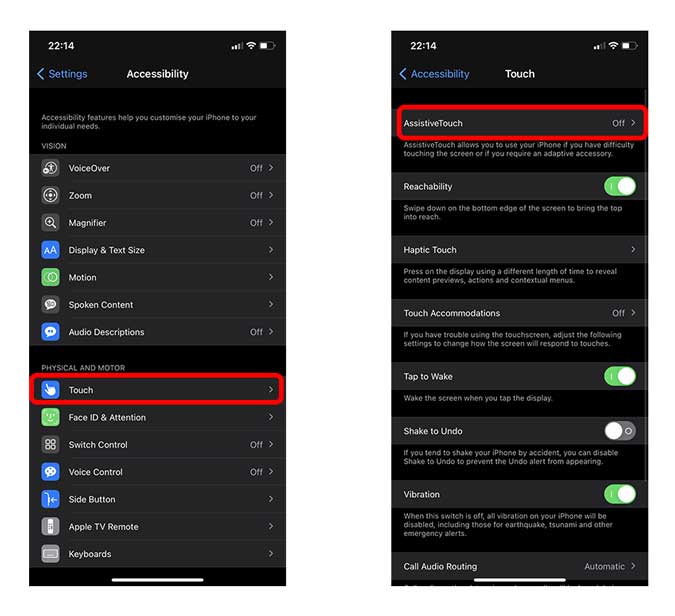
Open Settings, then tap Accessibility. It is in the main Settings list, below General. Tap Touch, which is in the Physical and Motor section.
Scroll down and find the Vibration switch. Tap it to turn it off. The switch turns grey. From now on, your iPhone will not vibrate for anything: not calls, not texts, not alerts, not alarms, not system haptics.
This is the setting to check first when vibration will not stop. If your phone keeps buzzing after you changed the Sounds and Haptics settings, the Accessibility Vibration switch is almost always the reason. Many people switch it on by accident, or it was on by default and they never knew it existed.
To turn vibration back on later, follow the same path and switch Vibration on again. Your other vibration settings stay as you left them, so the phone goes back to your previous setup.
Turn Off Vibration for One Contact
Sometimes only one person is the problem. A contact who calls late at night, or a group chat that never stops, can be silenced without changing your whole phone.
Open the Contacts app and find the person. Tap their name, then tap Edit at the top right. Scroll down to Ringtone and tap it.
At the top of the screen, tap Vibration and choose None. Tap Done, then Done again to save.
Now calls from that person will ring without vibrating. Texts from them use the Text Tone setting instead, so repeat the steps with Text Tone if their messages are the problem. Tap the Text Tone row in the same Edit screen, then Vibration, then None.
You can also give a contact a silent ringtone, so their calls make no sound and no vibration at all. That is the quietest option for someone you want to ignore without blocking them completely.
Turn Off Vibration for Alarms
Alarms vibrate as well as ring, which can wake a partner in the same bed. To stop alarm vibration, open the Clock app and tap Alarms at the bottom. Tap Edit, then tap the alarm you want to change.
Tap Sound. At the top of the sound list, tap Vibration. Choose None.
Tap Back, then Save. The alarm will still play its sound, but it will not vibrate.
Repeat this for each alarm you want to change. There is no single switch for all alarms, so you have to do them one by one. It only takes a few seconds each.
If you want the alarm to be completely silent, that is not possible in the Clock app. Alarms are designed to wake you up, so Apple does not let you turn their sound off entirely. The closest option is a very quiet sound with no vibration.
Use Focus Mode to Stop Vibration at Night
If vibration only bothers you at certain times, Focus mode is a better answer than turning it off forever. Focus lets you silence calls and alerts on a schedule, such as every night from 10 pm to 7 am.
Open Settings, then tap Focus. Tap Do Not Disturb. Switch it on, or tap Add Schedule to set the hours you want it to run. While Do Not Disturb is active, calls and alerts are silenced, and the phone does not vibrate for them.
You can allow calls from certain people even during Do Not Disturb. Under the People section, add your family or anyone whose calls you cannot miss. Everyone else stays silent until the Focus ends.
Focus also works with Sleep mode, which dims the lock screen and hides notifications. Set it up in the Health app under Sleep, or in Settings under Focus, then Sleep. Your phone will go quiet every night automatically, without you touching a switch.
Troubleshooting: My iPhone Still Vibrates
If your iPhone still vibrates after you changed the settings, work through this checklist. The cause is almost always one setting you missed.
First, check the Accessibility Vibration switch. Open Settings, then Accessibility, then Touch, and look at Vibration. If it is on, turn it off. This one switch overrides everything else, so it is the most common cause.
Second, check both Play Haptics switches. Open Settings, then Sounds and Haptics, and look at Play Haptics in Ring Mode and Play Haptics in Silent Mode. Both need to be off. Many people only turn off one and wonder why the phone still buzzes in the other mode.
Third, check the alert itself. A text message uses the Text Tone vibration setting, not the ringtone setting. An email uses New Mail. Open the Sounds and Haptics list and set Vibration to None for each alert that still buzzes.
Fourth, restart your iPhone. Settings sometimes need a restart to take full effect, especially after an iOS update. Press and hold the side button and either volume button, drag the power slider, wait thirty seconds, then hold the side button to turn the phone back on. If the screen is frozen and you cannot use the slider, see our guide on how to turn off the iPhone 15 screen.
Fifth, check for a software problem. Go to Settings, then General, then Software Update. If an update is available, install it.
Apple sometimes fixes vibration bugs in updates. If the phone vibrates constantly or at random times with no alert at all, that may be a hardware fault, and you should contact Apple Support or visit an Apple Store.
Troubleshooting: Vibration Stopped Working Completely
If you turned vibration back on and it still does not work, the problem may be the motor, not the settings. First, check the Accessibility Vibration switch again and make sure it is on. This switch is the most common cause of vibration disappearing entirely.
Next, check the two Play Haptics switches in Sounds and Haptics. Both need to be on for vibration to work in ring mode and silent mode. Also check the Ringtone and Text Tone vibration settings, and make sure they are not set to None.
Try a restart. A restart fixes most temporary glitches in the vibration motor’s software. If that does not help, check for an iOS update.
If vibration still does not work after all of that, the Taptic Engine may be faulty. Contact Apple Support, especially if the phone is still under warranty.
Do not try to open the phone yourself. The Taptic Engine is a sealed part, and opening the phone voids the warranty and can damage other parts. Let Apple or an authorised repair shop handle it.
Vibration, Battery and Silent Mode
Turning vibration off saves a small amount of battery, because the motor uses power every time it buzzes. The saving is small, so do not turn vibration off just for battery. The real benefit is peace and quiet, not battery life.
Remember that the Ring/Silent switch only controls sound. In silent mode, your phone still vibrates unless you turn off Play Haptics in Silent Mode. Many people flip the switch and assume the phone is silent, then get embarrassed when it buzzes on a table in a quiet room. Check that setting now, before your next meeting.
If you want the phone to be truly silent, combine three things: flip the Ring/Silent switch to silent, turn off Play Haptics in Silent Mode, and turn on Do Not Disturb. Together, they make the phone completely still and quiet. That combination is also the fastest way to silence your phone when you walk into a cinema or a hospital.
Frequently Asked Questions
How do I turn off vibration on my iPhone 15 completely?
Open Settings, then Accessibility, then Touch, and switch off Vibration. That one switch turns off all vibration on the phone, including calls, texts, alerts, alarms and system haptics. It overrides every other vibration setting.
Why does my iPhone still vibrate in silent mode?
Silent mode has its own vibration setting. Open Settings, then Sounds and Haptics, and turn off Play Haptics in Silent Mode. The Ring/Silent switch only controls sound, not vibration, so you need to change this setting separately.
How do I stop my iPhone vibrating for text messages only?
Open Settings, then Sounds and Haptics, then Text Tone, then Vibration, and choose None. This stops vibration for texts while keeping it for calls. You can do the same for emails and calendar alerts from the same screen.
Does turning off vibration affect alarms?
The Accessibility Vibration switch turns off vibration for alarms too. If you want to stop vibration for one alarm only, open the Clock app, edit that alarm, tap Sound, then Vibration, and choose None. The alarm will still play its sound.
Can I turn off vibration for just one person?
Yes. Open Contacts, tap the person, tap Edit, then Ringtone, then Vibration, and choose None. Calls from that person will ring without vibrating. Do the same with Text Tone if their messages are the problem.
Will turning off System Haptics stop call vibration?
No. System Haptics only controls the small taps you feel when you type or press buttons. Call vibration is controlled by the Play Haptics switches and the Ringtone vibration setting. Turn those off to stop call vibration.
Why did my iPhone stop vibrating after an update?
An update can reset or change vibration settings. Check the Accessibility Vibration switch first, then the Play Haptics switches in Sounds and Haptics. If both are on and vibration still does not work, restart the phone and check for another update.
Conclusion
Turning off vibration on your iPhone 15 is a matter of knowing which switch to change. For calls, turn off Play Haptics in Ring Mode and Silent Mode. For texts and other alerts, set Vibration to None inside each sound setting. For keyboard taps, switch off Keyboard Feedback and System Haptics.
For total silence, use the Accessibility Vibration switch. It is the one setting that turns off all vibration on the phone, and it is the first thing to check when vibration will not stop. Focus mode and Do Not Disturb are the better answer when you only want quiet at certain times, such as overnight.
Test your changes after you make them. Ask someone to call or text you, and check that the phone stays still. If it still buzzes, work through the checklist in the troubleshooting section. Most vibration problems are one missed setting, not a broken phone.
For more iPhone 15 help, see our guide on setting up your iPhone 15 and our guide to turning the screen off quickly.