Unlocking your iPhone 18 Pro should be the easiest thing you do all day. You pick it up, you look at it, and it unlocks. That is Face ID doing its job. But there are days when it does not work: you are wearing sunglasses, the phone is flat on a table, your face is partly covered, or the phone asks for a passcode instead.
This guide explains how to unlock iPhone 18 Pro, step by step. It covers Face ID, the passcode, and what to do when neither works. It also covers unlocking with an Apple Watch, and how to unlock the phone when the screen is broken or the buttons do not respond.
The main method is Face ID. Raise the phone or tap the screen to wake it, look at the screen, and swipe up from the bottom. The lock icon at the top will open, and the Home Screen will appear. If Face ID does not recognise you, you will be asked for your passcode instead.
Unlock with Face ID
Face ID uses the TrueDepth camera at the top of the screen to scan your face. It works in the dark, it works with glasses, and it works with most hats. It does not work if your face is covered by a mask that hides your nose and mouth, although iPhone 18 Pro can use Face ID with a mask if you turn that option on.
To unlock, wake the phone first. You can raise it, tap the screen, or press the Side button. Then look directly at the screen, with the phone about 25 to 50 centimetres from your face. Hold it upright, not sideways, because Face ID works best in portrait orientation.
When Face ID recognises you, the padlock icon at the top of the screen will change from locked to open. Swipe up from the bottom of the screen to go to the Home Screen. On the Lock Screen, you can also just look at a notification and tap it, and Face ID will unlock the phone and open the app.
If Face ID fails, do not keep trying over and over. After a few failed attempts, the phone will ask for your passcode. That is normal, and it is a security rule. Enter the passcode, and Face ID will try again next time. If it keeps failing, clean the front camera area and try again.
Set Up Face ID on iPhone 18 Pro
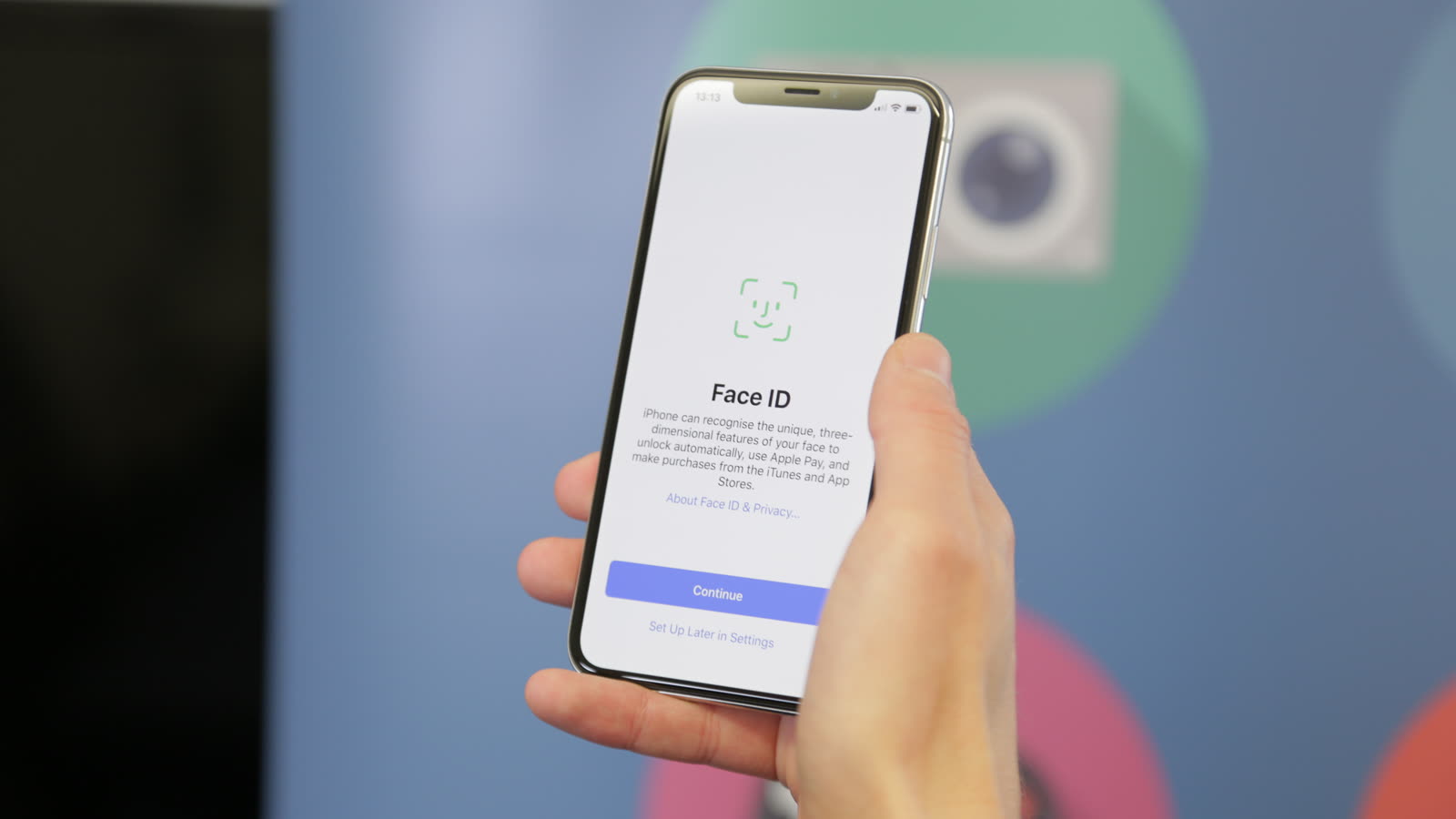
If Face ID was not set up when you first got the phone, you can set it up now. Open Settings, tap Face ID and Passcode, and enter your passcode. Tap Set Up Face ID, then tap Get Started.
Hold the phone in front of your face, and move your head slowly in a circle, as the screen shows you. The camera needs to see your face from different angles. Do the circle twice, once for the first scan and once for the second. The whole process takes about a minute.
If you wear glasses most of the time, set up Face ID while wearing them. You can also add an alternate appearance, for example with glasses on or with a different hairstyle, by tapping Set Up an Alternate Appearance in the same settings screen. That helps Face ID recognise you in both looks.
Face ID with a mask is a separate option on iPhone 18 Pro. In the Face ID settings, turn on Face ID with a Mask, and do a new scan while wearing your mask. The phone will learn the top half of your face, and it will unlock even when your mouth and nose are covered.
Unlock with Your Passcode
Your passcode is the backup when Face ID does not work. It is also required after a restart, after 48 hours without unlocking, or after five failed Face ID attempts. If you see the passcode screen, tap the numbers to enter your code, and the phone will unlock.
If you forget your passcode, you cannot unlock the phone without erasing it. That is Apple’s security design, and there is no way around it. You will need to put the phone into recovery mode on a computer and restore it, which erases everything, and then restore from a backup if you have one.
Make your passcode something you can remember, but not something obvious like 123456 or your birth year. A six-digit code is a good balance between security and convenience. You can change it in Settings, under Face ID and Passcode, then Change Passcode.
If the passcode screen does not appear, or the numbers do not respond to touch, the screen may be faulty. Try a force restart first. If that does not help, you will need a repair, because there is no other way to enter a passcode without a working screen.

Unlock with an Apple Watch
If you wear an Apple Watch, you can set it to unlock your iPhone 18 Pro. This is useful when you are wearing a mask and Face ID cannot see your face, or when your hands are full. Open Settings on the iPhone, tap Face ID and Passcode, and turn on the switch next to your Apple Watch under Unlock with Apple Watch.
For this to work, the watch must be on your wrist, unlocked, and close to the phone. When you wake the phone and Face ID fails, the watch will unlock the phone instead, and you will feel a small tap on your wrist. Swipe up to go to the Home Screen.
Unlock with Apple Watch does not work for purchases. Apple Pay and App Store purchases still need Face ID or your passcode. That is a security rule, and it cannot be changed. The watch unlock is only for getting into the phone.
If the watch unlock stops working, check that both devices have Bluetooth on, that the watch is unlocked, and that the setting is still on. Turning the setting off and on again usually fixes it. Make sure both devices are updated to the latest software as well.
Fix Face ID When It Will Not Unlock the Phone
Start with the simple things. Clean the top of the screen, where the TrueDepth camera sits, with a soft, dry cloth. A fingerprint, a screen protector that covers the camera, or a case that overlaps the top edge can all block Face ID. Remove the case once and try again.
Check that you are holding the phone the right way. Face ID needs to see both of your eyes, your nose, and your mouth, or at least the top half of your face if you use the mask option. If you are lying in bed with the phone close to your face, or holding it too far away, it may fail. Hold it at arm’s length and look directly at it.
Check for a software update. Open Settings, tap General, then Software Update. A Face ID problem that appears after an update is sometimes fixed by the next update. Install it, restart the phone, and try Face ID again.
If Face ID still fails, reset it. Open Settings, tap Face ID and Passcode, tap Reset Face ID, and set it up again from scratch. You will need your passcode to do this. If the reset fails, or if you see a message saying Face ID is not available, the TrueDepth camera may be damaged, and the phone will need a repair.
Unlock iPhone 18 Pro When the Screen Is Broken
If the screen is cracked but still responds to touch, you can still unlock it with Face ID or your passcode, as long as the front camera is not damaged. Wake the phone, look at it, and swipe up. If the touch does not work in part of the screen, try rotating the phone, or use a different finger to tap the passcode numbers.
If the screen does not respond at all, you cannot unlock the phone by touch. Connect the phone to a computer with a cable, and use the computer to back it up, if the phone has been trusted on that computer before. If it has never been trusted, the phone will need a repair before you can get your data.
Do not try to unlock a broken phone by guessing the passcode many times. After too many wrong attempts, the phone will lock itself for longer and longer, and eventually it will disable itself. Take it to a repair shop instead, and tell them you need the data, not just a new screen.
Keep Face ID Working Well
Face ID learns your face over time. The more you unlock with it, the better it gets at recognising you in different light, with different hairstyles, and with or without glasses. If it fails once, do not worry. Enter your passcode, and Face ID will use that successful unlock to learn a little more about your face.
Keep the front camera clean. A smudge, a fingerprint, or a screen protector that covers the top edge can block the infrared light Face ID needs. Wipe the top of the screen with a soft cloth once a day, and check that your case does not overlap the camera area.
Check the angle. Face ID works best when the phone is upright and about an arm’s length away. Holding it flat on a table and looking down at it from above is the most common reason for a failure. Pick the phone up, hold it in front of your face, and try again.
If you change your look a lot, add an alternate appearance. Go to Settings, tap Face ID and Passcode, and tap Set Up an Alternate Appearance. Do a second scan with your usual alternative look, such as with glasses on. Face ID will then recognise both looks without any extra effort from you.
Frequently Asked Questions
Why does Face ID not work with sunglasses?
Most sunglasses are fine, but some block the infrared light that Face ID uses. If Face ID fails with sunglasses on, take them off to unlock, or turn off Require Attention for Face ID in Settings, under Face ID and Passcode. That makes Face ID a little less strict, though slightly less secure.
Can I unlock iPhone 18 Pro without Face ID or a passcode?
No. Apple does not offer a way to unlock an iPhone without Face ID or a passcode, and that is deliberate. Any method that claims to do it is either a scam or a tool that erases the phone. Keep your passcode safe, and make sure you have a backup.
How do I unlock iPhone 18 Pro if I forgot the passcode?
You cannot unlock it without erasing it. Put the phone into recovery mode, connect it to a computer, and restore it. That erases the phone, including the forgotten passcode. Then set it up again and restore from your iCloud or computer backup.
Does Face ID work in the dark?
Yes. Face ID uses infrared light, which works in complete darkness. It does not need the room to be bright. If it fails at night, the problem is usually the angle, or the phone being too close to your face in bed.
Why does my iPhone 18 Pro ask for a passcode every morning?
After 48 hours without unlocking with Face ID, or after a restart, the phone requires the passcode. It also requires it after five failed Face ID attempts. If you use the phone every day, you should only see the passcode screen after a restart.
For first-time setup, read how to set up iPhone 15 for beginners and how to activate iPhone 15. If the phone is frozen, how to force restart iPhone 15 will help, and if you need a deeper reset, how to do a hard reset on iPhone 15. To keep the phone quiet while it is locked, see how to put iPhone 15 on silent, and to change what the Lock Screen shows, how to turn off iPhone 15 screen.