Resetting an iPhone 18 Pro can fix a surprising number of problems, from a phone that freezes to settings that no longer behave the way they should. The word reset covers several different actions on an iPhone, though, and they are not equal. A simple restart only turns the phone off and on again, while resetting all settings wipes your preferences but keeps your photos and apps, and erasing all content removes everything and returns the phone to its factory state.
This guide explains how to reset iPhone 18 Pro, step by step, in that order — gentlest first. It starts with a restart and a force restart, then moves to resetting settings, network settings, and finally a full factory reset. It also explains what to back up before you start, and how to check that the reset actually fixed the problem.
The short answer is this: for most problems, try a restart first, then Reset All Settings in Settings, then General, then Transfer or Reset iPhone. Only choose Erase All Content and Settings when you are selling the phone, giving it away, or when nothing else has fixed a serious fault. Back up first, because an erase cannot be undone.
Before you reset anything, take a minute to note what is actually wrong. Is the phone slow, is an app crashing, is Wi-Fi dropping, or is the battery draining fast? That answer decides which reset you need, and it stops you from erasing the whole phone to fix a problem that a restart would have solved in two minutes.
Restart Your iPhone 18 Pro First
A restart is the gentlest reset, and it is the one to try first. It closes every app, clears temporary memory, and starts iOS fresh, which fixes many small glitches without touching any of your data. Press and hold the side button and either volume button together until the power-off slider appears, then drag the slider to the right and wait for the screen to go fully black.
Wait about thirty seconds after the screen goes dark, then press and hold the side button again until the Apple logo appears. The phone will take a minute or so to start up, and you will need to enter your passcode. Once you are back on the Home Screen, test the thing that was going wrong and see whether it still happens.
If the screen is frozen and the slider will not appear, use a force restart instead. Quickly press and release the volume up button, quickly press and release the volume down button, then press and hold the side button until the Apple logo appears. Do not hold the volume buttons down; the quick taps are what tell the phone to restart. Our guide on how to force restart iPhone 15 walks through this button sequence in detail.
A restart is safe to repeat, and it never deletes photos, messages, or apps. If the problem comes back within a few hours, move on to resetting settings, because the fault is probably in a saved preference rather than in a temporary glitch.
Back Up Before You Reset Anything Serious
Any reset beyond a restart deserves a backup, and a full erase demands one. The easiest backup is iCloud: open Settings, tap your name at the top, tap iCloud, then iCloud Backup, and tap Back Up Now. Make sure you are on Wi-Fi and the phone is charging, because a large backup can take a while, and a half-finished backup is no use to anyone.
Check that the backup actually finished before you continue. Go back to the iCloud Backup screen and look at the time of the last successful backup. It should say today, and the time should be just now. If it says the backup failed, check that you have enough iCloud storage, and free space or buy a little more if you need to.
You can also back up to a computer, which costs nothing extra. Connect the phone with a USB-C cable, open Finder on a Mac or iTunes on a Windows PC, select the phone, and choose Back Up Now. Tick the option to encrypt the backup if you want it to include saved passwords and Health data, and remember the encryption password, because without it the backup cannot be restored.
Photos deserve a second check, because they are the thing people regret losing most. Open the Photos app and make sure your recent pictures are there, then check that iCloud Photos is on, or that the pictures have copied to your computer. If you use another photo service, open it and confirm it has synced before you reset anything.

Reset All Settings on iPhone 18 Pro
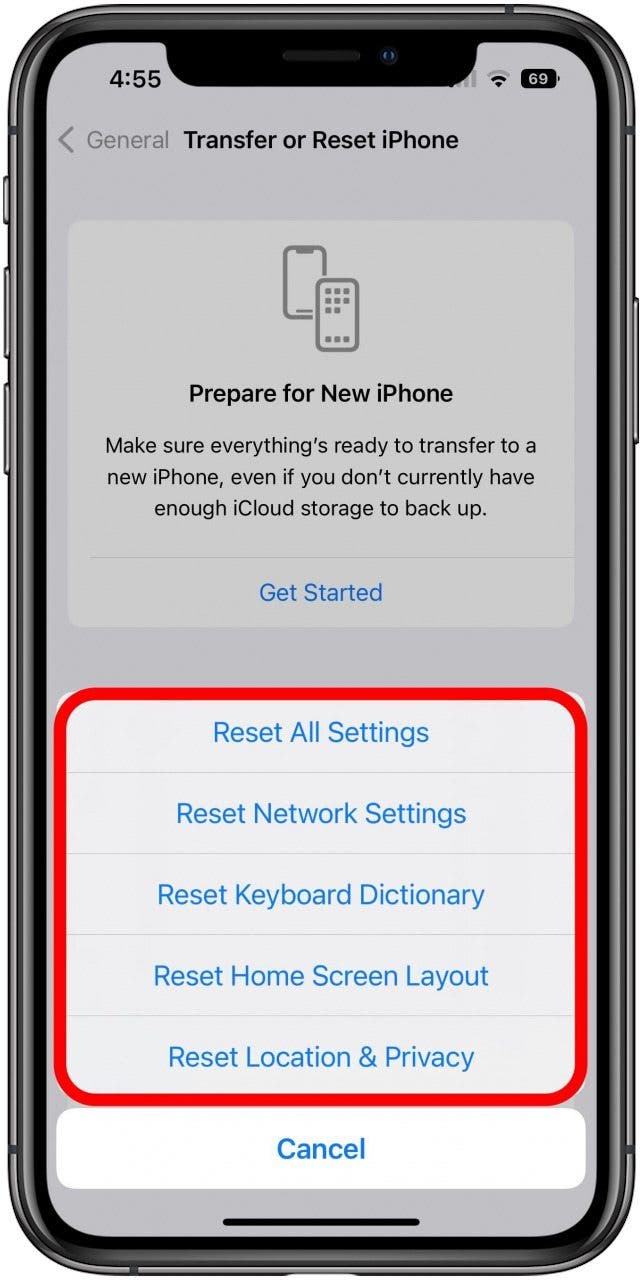
Reset All Settings is the middle option, and it is the best choice when the phone misbehaves but your data is fine. It returns every setting to its factory default — Wi-Fi passwords, wallpaper, sounds, privacy choices, and display settings — but it keeps your photos, apps, messages, and files exactly where they are. It is the reset to use when several settings seem wrong at once.
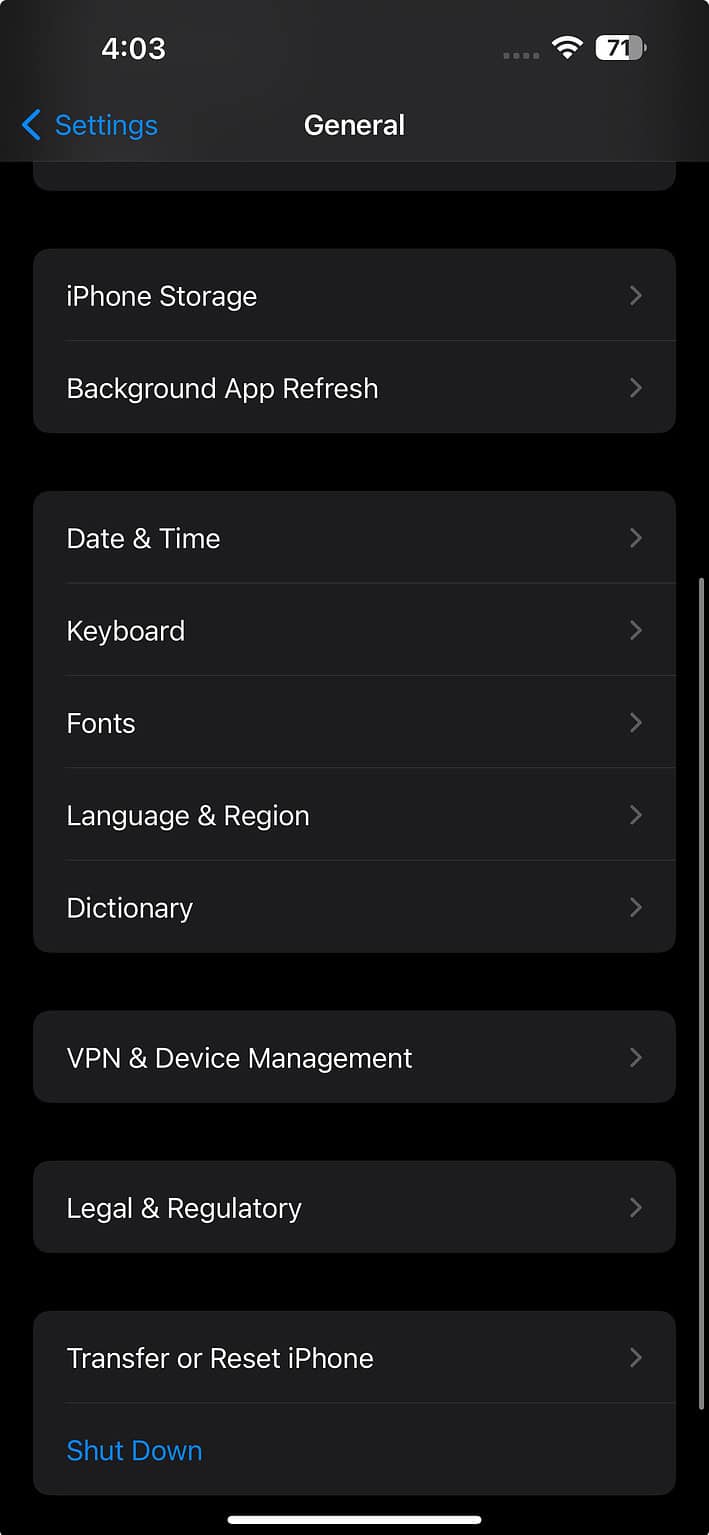
To use it, open Settings, tap General, then scroll down and tap Transfer or Reset iPhone. Tap Reset, then tap Reset All Settings, and enter your passcode when asked. The phone will restart, and when it comes back you will need to reconnect to Wi-Fi, re-enter a few passwords, and set your wallpaper and sounds again.
This reset is especially useful after a software update, when an old setting can clash with the new version of iOS. If your battery drains fast after an update, or if notifications behave oddly, resetting all settings often clears the conflict without the pain of a full erase. Give the phone a day after the reset before you judge it, because it will be re-indexing and settling in.
One warning: Reset All Settings also removes Apple Pay cards, so you will need to add them again in the Wallet app. It also turns off some permissions you granted to apps, so the first time you open each app it may ask again. That is normal, and it is a small price for a clean set of settings.
Reset Network Settings When Connections Fail
If the problem is Wi-Fi, mobile data, or Bluetooth, reset only the network settings instead of everything. Go to Settings, then General, then Transfer or Reset iPhone, tap Reset, and choose Reset Network Settings. This clears saved Wi-Fi networks and passwords, mobile settings, Bluetooth pairings, and VPN settings, and then restarts the phone.
After the restart, reconnect to your Wi-Fi network by going to Settings, then Wi-Fi, tapping your network name, and entering the password. Re-pair your Bluetooth headphones, speaker, or car by putting the accessory in pairing mode and choosing it in Settings, then Bluetooth. If you use a VPN for work, you will need to set that up again too.
Network settings are worth resetting when Wi-Fi keeps dropping, when the phone shows full signal but the internet does not work, or when Bluetooth devices connect and then disconnect. A single bad saved network can cause all of those symptoms, and clearing the list is faster than trying to find the one bad entry. Test the connection right after the phone restarts, before you reconnect to Wi-Fi, so you can see whether the reset worked on mobile data alone.
If the connection still fails after a network reset, check the other end before you blame the phone. Restart your router, try a different Wi-Fi network, and check whether other devices have the same problem. If only your phone struggles, and a network reset did not help, the next step is Reset All Settings, or a full restore through a computer.
Erase All Content and Settings: The Full Factory Reset
Erasing all content and settings is the strongest reset, and it returns the iPhone 18 Pro to the state it was in when it left the factory. Everything goes: photos, apps, messages, accounts, and settings. Use it when you are selling or giving away the phone, or when a serious software problem has survived every gentler reset. Never use it as a first step.
Before you erase, sign out of your Apple Account if you are handing the phone to someone else, and turn off Find My. Go to Settings, tap your name, scroll down, and tap Sign Out, then enter your Apple Account password. This removes Activation Lock, so the next owner can set the phone up. If you skip this step, the phone will still ask for your password after the erase.
To erase, go to Settings, then General, then Transfer or Reset iPhone, and tap Erase All Content and Settings. Read the summary screen, which shows what will be removed, then tap Continue and enter your passcode. The phone will erase itself and restart to the Hello screen, which can take several minutes. Do not interrupt it while it is working.
When the Hello screen appears, the phone is ready to set up as new or to restore from the backup you made earlier. If you are keeping the phone, restore from iCloud or your computer backup, and check that your photos, messages, and apps have come back. If you are selling it, leave it on the Hello screen and hand it over like that.
Reset Your iPhone 18 Pro from a Computer
You can also reset the phone from a computer, which is useful when the screen does not respond or when the phone will not start properly. Connect the phone to a Mac with Finder or a Windows PC with iTunes, using a USB-C cable. If the phone asks whether to trust the computer, tap Trust, and enter your passcode.
In Finder or iTunes, select the phone, then choose Restore iPhone. The computer will download the latest version of iOS and install it, which wipes the phone and gives you a clean system. This takes longer than an on-device erase, because of the download, so use a stable internet connection and do not unplug the cable halfway through.
If the phone will not appear in Finder or iTunes, put it in recovery mode. Quickly press volume up, quickly press volume down, then press and hold the side button until the recovery screen appears, then connect it to the computer. Choose Restore when the computer offers it, and let the process finish before you touch the phone.
A computer restore is the deepest reset available, and it is the one Apple Support will usually ask you to try for a stubborn software fault. If the phone still misbehaves after a computer restore and a setup as a new phone, with no backup restored, the problem is more likely hardware, and a repair visit is the next step.
What to Do After the Reset
After any reset, spend ten minutes checking the basics before you reload everything. Connect to Wi-Fi, sign in to your Apple Account, and check that calls, messages, and mobile data work. Open the apps you use most and confirm they open and behave normally, and check that your photos and contacts are present if you restored a backup.
Re-add the things a reset removes. That means Apple Pay cards, Wi-Fi passwords, Bluetooth pairings, and any VPN or work profile. It also means checking notification settings for the apps that matter, because a reset can turn off alerts you rely on. Go through Settings, then Notifications, and turn the important ones back on.
Watch the battery for the first day. After a reset, the phone re-indexes photos and files, which uses extra power, so a warm phone and faster drain on day one are normal. If the drain continues into the second or third day, check Settings, then Battery, to see which app is using the most power, and update or remove it.
If the original problem is gone, you are done. If it is still there after a full erase and a setup as new, do not keep resetting the phone — repeating the same reset will not change the result. Note exactly when the problem happens and what you were doing, then contact Apple Support with those details, because that is what they will need to diagnose it.
When a Reset Will Not Fix the Problem
A reset fixes software, not hardware. If the screen has a crack, if the battery swells, if the phone gets hot for no reason, or if a button does not click, no reset will repair it. The same is true for a charging port full of lint, or a speaker blocked by dirt. Those are physical problems, and they need a physical fix.
A reset also will not fix a problem with your carrier or your account. If calls drop in one place only, or if mobile data fails while Wi-Fi works, the fault may be in the network, not the phone. Test the SIM in another phone, or test another SIM in your phone, if you can. That one test tells you whether the phone or the network is at fault.
Be careful with repeated factory resets. Erasing the phone over and over does not make it healthier, and each erase costs you time restoring your data. One clean erase, done properly, with a setup as a new phone, is the test. If the fault survives that, it is time for professional help rather than another reset.
Finally, keep your software up to date. Many of the faults that make people reach for a reset are actually bugs that Apple has already fixed in a newer version of iOS. Go to Settings, then General, then Software Update, and install any update that is waiting, then test the phone again before you reset anything.
Frequently Asked Questions
Will resetting my iPhone 18 Pro delete my photos? A restart and Reset All Settings do not delete photos. Erase All Content and Settings does delete everything, including photos, so back up to iCloud or a computer first.
What is the difference between Reset All Settings and Erase All Content? Reset All Settings restores preferences to factory defaults but keeps your photos, apps, and files. Erase All Content and Settings removes everything and returns the phone to its factory state.
Do I need my Apple Account password to reset? You need your passcode for most resets. For an erase before selling the phone, you also need your Apple Account password to sign out and turn off Activation Lock.
How long does a factory reset take? The erase itself usually takes a few minutes, but downloading iOS on a computer restore can take longer. Restoring a large backup afterwards can take an hour or more on slow Wi-Fi.
Will a reset fix a frozen iPhone 18 Pro? A force restart usually fixes a freeze. If the phone keeps freezing, Reset All Settings is the next step, and a full erase is the last software step before a repair check.
Reset the Right Way, Once
Resetting an iPhone 18 Pro is a ladder, not a single button. Start with a restart, climb to Reset All Settings if the problem is in your preferences, and only erase everything when you are selling the phone or when nothing else has worked. Back up before the bigger steps, sign out before you hand the phone on, and test the phone properly after each step.
Done in that order, a reset is a useful tool rather than a gamble. Most iPhone 18 Pro problems clear at the first or second rung, and your photos and apps stay exactly where they belong.
Related iPhone 18 guides: how to hard reset iPhone 15, how to factory reset iPhone 15 Pro, how to set up iPhone 15 for beginners, and how to force restart iPhone 15.