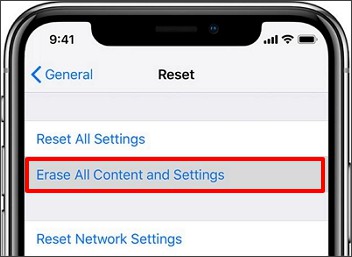
A factory reset is the biggest step you can take with your iPhone 15 Pro. It erases every photo, message, app, account, and setting, and returns the phone to the exact state it was in when it was new. That makes it powerful, and it also makes it dangerous if you start it without a backup.
People factory reset their iPhone 15 Pro for a few clear reasons. They may be selling the phone or giving it to a family member, and they want no personal data left on it. They may be fixing a stubborn software problem that no restart or settings reset has solved. Or they may have forgotten a passcode and need a fresh start through a computer.
This guide walks you through the whole process in the safe order. First, back up your data. Then sign out of your Apple ID and switch off Find My.
Then run the erase from Settings. Finally, set the phone up again or leave it ready for its new owner. Follow the steps in order, and do not skip the backup.
The most important sentence in this whole guide is this one: a factory reset cannot be undone. Once the erase is complete, your photos and messages are gone from the phone unless you have a copy somewhere else. A backup is the only thing that stands between a clean fresh start and a permanent loss.
Take your time. Read each section before you tap anything, and check the backup twice before you start the erase. Ten minutes of care now can save you years of lost photos later.
Before You Start: What a Factory Reset Really Does
A factory reset, which Apple calls Erase All Content and Settings, deletes all of your personal data and returns every setting to its default. Your photos, videos, messages, contacts, notes, and apps are all removed. Your Apple ID is signed out, your passcode is removed, and the phone shows the Hello screen, just as it did the first time you switched it on.
It does not damage the phone, and it does not remove the software itself. The phone keeps its current version of iOS, and it works exactly as a new phone would. What changes is that nothing personal remains on it. That is why a factory reset is the right step before selling or giving away a phone.
It is also different from a smaller reset. Reset All Settings returns your settings to their defaults but keeps your photos and apps. Reset Network Settings only clears Wi-Fi passwords and network settings. A factory reset is the full erase, and it is the only reset that removes everything.
Before you start, make sure you know your Apple ID password. You will need it to sign out and to switch off Find My. If you have forgotten it, reset the password first on another device or at the Apple ID website. Do not start the erase while you are locked out of your own account, because the phone may ask for the password again afterwards.
Charge the phone to at least half full, or keep it plugged in while you work. An erase takes a few minutes, and a phone that runs out of power halfway through can get stuck. A charger nearby removes that risk completely.
Step 1: Back Up Your iPhone 15 Pro
Backing up is the single most important step, and it must come first. A backup is a copy of your photos, messages, contacts, app data, and settings, stored in iCloud or on a computer. After the reset, you can restore that copy and get everything back.
There are two ways to back up. iCloud backup is the easiest for most people, because it happens over Wi-Fi and needs no cable. A computer backup using Finder on a Mac or iTunes on a Windows PC is the better choice if you have a lot of data or a slow internet connection.
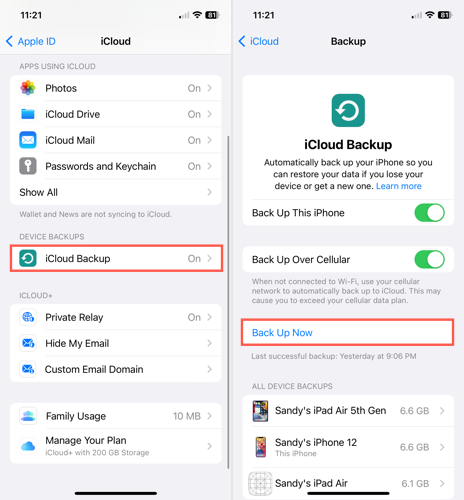
Back Up to iCloud
Follow these steps:
- Connect your iPhone 15 Pro to Wi-Fi and plug it into a charger.
- Open Settings and tap your name at the very top of the screen.
- Tap iCloud, then tap iCloud Backup.
- Check that iCloud Backup is switched on. If it is off, switch it on.
- Tap Back Up Now and wait for the backup to finish.
- When it finishes, check the time shown under Back Up Now. It should say the current time.
If iCloud says you do not have enough storage, you have a few choices. You can buy more iCloud storage, delete old backups of devices you no longer use, or back up to a computer instead. Do not skip the backup because of a storage warning. A computer backup costs nothing and holds the same data.
Back Up to a Computer
Follow these steps:
- Connect your iPhone 15 Pro to your Mac or Windows PC with a USB-C cable.
- On a Mac, open Finder and select your iPhone in the sidebar. On a Windows PC, open iTunes and select your iPhone.
- If the phone asks Trust This Computer, tap Trust and enter your passcode.
- Choose Back up all of the data on your iPhone to this Mac or This Computer.
- Tick Encrypt local backup if you want to save passwords and health data as well. You will need to set a backup password, so choose one you will remember.
- Click Back Up Now and wait until the backup finishes. Do not unplug the cable early.
After either type of backup, open the backup list and confirm the date and time are current. A backup from last month is better than nothing, but it will not include your newest photos. A fresh backup taken today is the only one you should trust before an erase.
Check the things that matter most to you by hand. Open Photos and check that recent pictures are there.
Open Contacts and check that new numbers are saved. If you use WhatsApp or another messaging app, check whether it has its own backup, because some apps keep their own copy in iCloud or Google Drive. Our guide on how to set up your iPhone 15 explains how restoring from a backup works when you start the phone again.
Step 2: Sign Out of Apple ID and Switch Off Find My
Before you erase, sign out of your Apple ID. This also switches off Find My, which is the feature that lets you locate a lost phone. If you erase the phone without signing out first, the phone may stay locked to your Apple ID, and the next owner will not be able to set it up. This is called Activation Lock, and it is a security feature that protects stolen phones.
Follow these steps:
- Open Settings and tap your name at the top of the screen.
- Scroll to the bottom and tap Sign Out.
- Enter your Apple ID password when the phone asks for it.
- If the phone asks whether to keep a copy of your data on the device, you can switch off the options, because you are about to erase everything anyway.
- Tap Sign Out again, then tap Sign Out once more to confirm.
- Wait for the phone to finish signing out and return to the main Settings screen.
After signing out, check that Find My is off. Go to Settings, tap your name if you are still signed in, then tap Find My. If you have signed out correctly, Find My should no longer be active. If the phone still shows your name at the top of Settings, you are still signed in, so repeat the steps above.
Do not skip this step if you are selling the phone. A buyer who receives a phone still linked to your Apple ID cannot activate it, and you will have to sign out remotely later. Signing out now takes two minutes and avoids that problem entirely.
If you are resetting the phone for yourself, to fix a problem, you can skip signing out and let the erase sign you out automatically. Even then, knowing your Apple ID password matters, because the phone may ask for it during setup afterwards. Write it down somewhere safe before you continue.
Step 3: Remove Your SIM and eSIM
If your iPhone 15 Pro uses a physical SIM card, take it out before you hand the phone to someone else. The SIM holds your mobile number, and you will need it in your next phone. Push the SIM eject tool, or a straightened paper clip, into the small hole on the SIM tray, and the tray will pop out.
If you use an eSIM, the erase will ask whether to delete it. An eSIM is a digital SIM stored on the phone, with no physical card. When the phone asks during the erase, choose to delete the eSIM if you are giving the phone away, so the new owner does not inherit your number.
If you are resetting the phone for yourself and plan to keep using the same number, you can choose to keep the eSIM. The phone will keep it through the erase, and your number will still work after setup. If you are unsure, delete it and set it up again afterwards. Your carrier can send a new eSIM, and our guide on how to delete an eSIM on iPhone 15 explains the eSIM screen in more detail.
Also unpair your Apple Watch if you have one. Open the Watch app, tap your watch, tap the info button, and tap Unpair Apple Watch. This removes the watch from your account and backs it up at the same time. A watch left paired to an erased phone can be hard to set up again.
Method 1: Factory Reset from Settings
This is the normal way to factory reset an iPhone 15 Pro, and it works when you can still use the phone and remember your passcode. It takes only a few minutes, and the phone does the rest by itself.
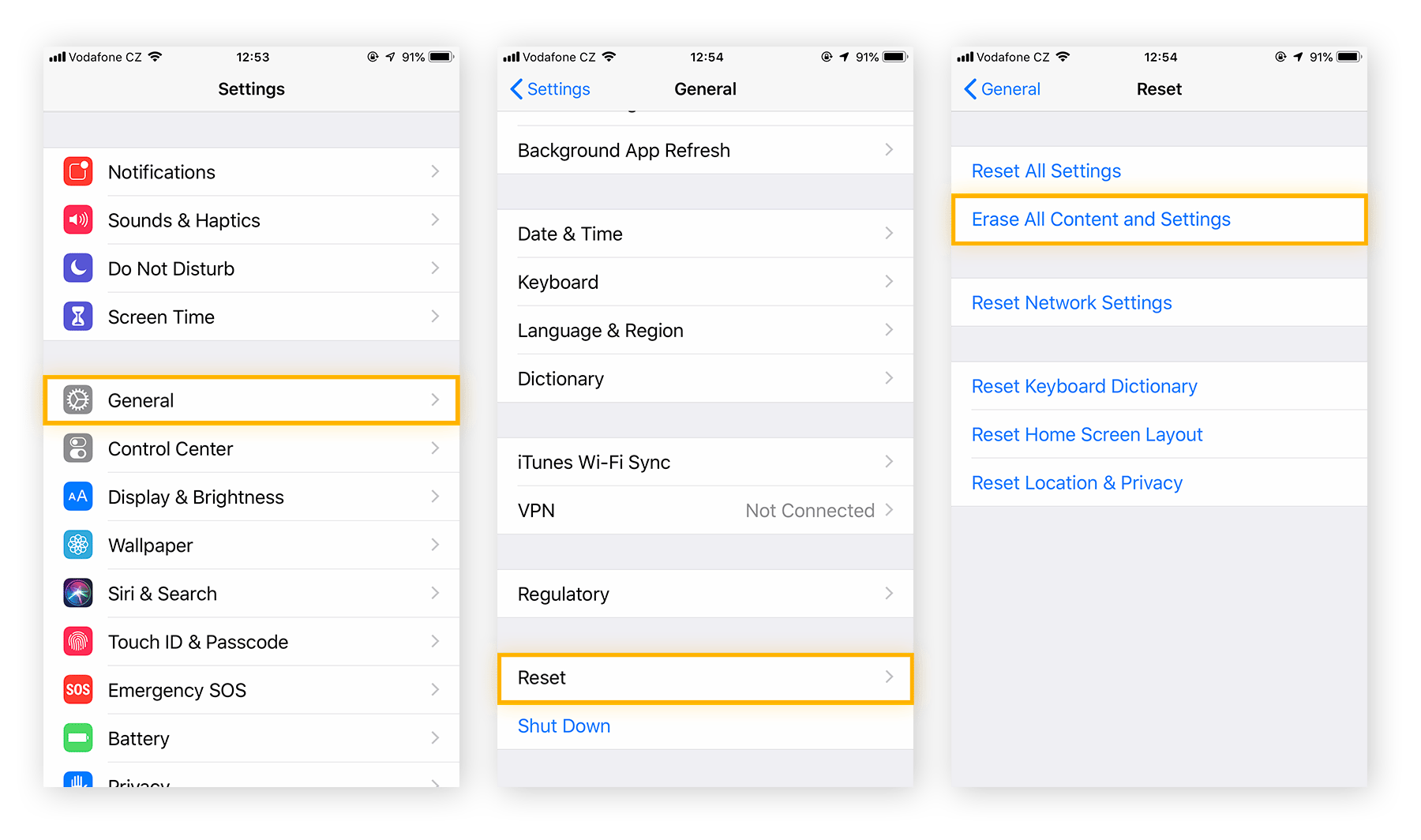
Follow these steps:
- Open Settings on your iPhone 15 Pro.
- Tap General.
- Scroll down and tap Transfer or Reset iPhone.
- Tap Erase All Content and Settings at the bottom of the screen.
- Tap Continue on the screen that explains what will be erased.
- Enter your passcode when the phone asks for it.
- Enter your Apple ID password if the phone asks you to sign out of Find My.
- Choose whether to delete or keep your eSIM, if the phone asks.
- Tap Erase iPhone to confirm. The phone shows the Apple logo and a progress bar.
- Wait until the erase finishes and the Hello screen appears. Do not press any button while it works.
The phone may take several minutes to finish, depending on how much data is stored on it. A phone with a lot of photos and apps takes longer than a nearly empty one. Leave it alone, keep it plugged in, and let the progress bar reach the end.
When the Hello screen appears, the reset is complete. The phone is now in factory condition. If you are selling it, stop here and switch it off. If you are keeping it, continue to the setup steps below.

Method 2: Factory Reset with a Computer
Use a computer when you cannot open Settings, when you have forgotten your passcode, or when the phone is stuck on the Apple logo. This method erases the phone through Finder on a Mac or iTunes on a Windows PC, and it also reinstalls the software.
Follow these steps:
- Connect your iPhone 15 Pro to your Mac or Windows PC with a USB-C cable.
- Put the phone into recovery mode. Press and quickly release the volume up button, press and quickly release the volume down button, then press and hold the side button until the recovery mode screen appears.
- On your Mac, open Finder and select your iPhone. On a Windows PC, open iTunes and select your iPhone.
- A message appears saying there is a problem with the iPhone. Click Restore.
- Confirm that you want to restore the phone to factory settings.
- Wait while the computer downloads the software and erases the phone. This can take some time, so do not unplug the cable.
- When the process finishes, the phone shows the Hello screen. You can disconnect it and set it up again.
Recovery mode can be tricky the first time, because the button presses must be quick. If the Apple logo appears instead of the recovery screen, you held the side button for too long or pressed the volume buttons too slowly. Let the phone start, then try the sequence again, a little faster.
After a computer restore, the phone may still ask for the Apple ID and password that were used before the reset. This is Activation Lock, and it is normal. Enter the same Apple ID details, and the phone will let you continue. If you bought the phone second-hand and do not know the previous owner’s details, you will need to contact them, because Apple cannot remove Activation Lock without proof of purchase.
Our guide on how to force restart your iPhone 15 uses the same button sequence, so it is a good place to practise the timing before you try recovery mode.
Method 3: Set Up Your iPhone 15 Pro Again
After the reset, you can set the phone up as new or restore your backup. Setting it up as new is the right choice if you are giving the phone away, or if you want a completely clean start with no old data. Restoring a backup is the right choice if the phone is still yours and you want your photos and apps back.
Follow these steps to set up again:
- On the Hello screen, swipe up or press the Home indicator to begin.
- Choose your language and your country or region.
- Connect to a Wi-Fi network and enter the password.
- On the Apps and Data screen, choose Restore from iCloud Backup or Restore from Mac or PC, or choose Set Up as New iPhone.
- Sign in with your Apple ID and password.
- If you chose a backup, pick the newest one and wait for it to download. Keep the phone on Wi-Fi and plugged in while it restores.
- Follow the remaining screens to set up Face ID, a passcode, Siri, and Apple Pay.
- Wait for your apps to download again. This can take a while if you had many apps.
Restoring a backup brings back your photos, messages, contacts, and most app data, but it does not bring back the problem that made you reset the phone. If the problem returns straight after the restore, the cause may be inside the backup itself, such as a faulty app or a corrupt setting. In that case, set the phone up as new instead, and add your apps back one by one.
Check your most important things first after the restore. Open Photos and look for recent pictures.
Open Messages and check that conversations are there. Open your banking app and sign in again, because banking apps often need a fresh sign-in after a reset. If anything is missing, check whether it was included in the backup before you worry.
Tips Before and After a Factory Reset
Write down the passwords you will need. Your Apple ID password is the most important, followed by your Wi-Fi password and your email password. After a reset, the phone forgets all of them, and typing them from memory under pressure is harder than it sounds.
Check your two-factor authentication. If your iPhone is your trusted device for Apple ID sign-in, you may need another trusted device or a trusted phone number to receive the verification code. Make sure you can receive that code on another device before you erase the phone.
Save anything stored only on the phone. Voice memos, notes, and files in the Files app may not be in your backup if they were stored locally. Move them to iCloud Drive or email them to yourself before you start the erase.
Turn off any app that uses the phone as a security key. Some banking and work apps use the phone itself to approve sign-ins. After a reset, those apps may need to be set up again, and you may need a backup code from the service to get back in.
After the reset, update the phone before you restore a large backup. A fresh phone may offer a software update on the setup screen. Installing it first means the backup restores onto the newest software, which avoids compatibility problems.
Troubleshooting: When a Factory Reset Goes Wrong
If the erase seems stuck on the Apple logo for more than thirty minutes, do not panic. First, make sure the phone is plugged in and charging. Then wait a little longer, because a phone with a lot of storage can take time. If nothing changes after an hour, force restart the phone and try the erase again.
If the phone asks for an Apple ID password you do not know, stop and recover the password first. Go to the Apple ID account page on another device, choose Forgot Password, and follow the steps. The phone will not let you past Activation Lock without the correct details, and there is no shortcut around it.
If the restore from a computer fails halfway, check the cable and the USB port. A loose cable is the most common cause of a failed restore. Use the cable that came with the phone if you can, plug it directly into the computer rather than a hub, and try a different port.
If the backup will not restore, check that you have enough free space on the phone and a stable Wi-Fi connection. A backup larger than the free space on the phone cannot restore fully. Delete anything you do not need, or restore the backup on a computer instead.
If the phone keeps asking for a passcode you have forgotten, a computer restore is the only way forward. It erases the phone completely, including the passcode, and lets you set it up again. You will still need the Apple ID password afterwards, so recover that first if you have also forgotten it.
If the phone is still under warranty and the erase does not fix the problem, contact Apple Support. A problem that survives a full factory reset is likely a hardware fault, such as a failing battery or a damaged component. A reset cannot fix hardware, and a repair may be needed.
When to Factory Reset and When Not To
Factory reset when you are selling or giving away the phone, when a serious software problem survives every other fix, or when you have forgotten the passcode and must start again. In those cases, a full erase is the correct and safest step.
Do not factory reset for a small problem. A frozen app, a slow keyboard, or a Wi-Fi connection that drops now and then can usually be fixed with a restart, a settings reset, or a network reset. A full erase is far more work than those fixes, and it carries the risk of losing data.
Try the smaller steps first. Restart the phone, update the software, and reset all settings if needed. Our guide on how to hard reset your iPhone 15 explains the difference between a hard reset and a full erase, so you can choose the smaller step with confidence.
Never factory reset as a way to free up storage. Deleting unused apps, old videos, and large message attachments frees far more space with far less risk. A factory reset for storage is like rebuilding a house because one room is untidy.
Frequently Asked Questions
Does a factory reset delete everything on my iPhone 15 Pro?
Yes. A factory reset erases all photos, messages, apps, contacts, settings, and accounts from the phone. It returns the phone to factory condition. The only way to get your data back is to restore a backup made before the reset, so back up first.
Do I need my Apple ID password to factory reset my iPhone 15 Pro?
You need it to sign out of your Apple ID and switch off Find My before the reset, and the phone may ask for it again during setup afterwards. If you do not know the password, recover it first on another device. Without it, Activation Lock can stop you or the next owner from using the phone.
How long does a factory reset take on iPhone 15 Pro?
The erase itself usually takes a few minutes, depending on how much data is on the phone. Setting the phone up again and restoring a backup can take much longer, sometimes an hour or more for a large backup. Keep the phone on Wi-Fi and plugged in while it restores.
Will a factory reset remove the iOS software?
No. A factory reset keeps the current version of iOS and only removes your personal data and settings. A computer restore can reinstall the software as well, which is useful if the software itself is damaged, but a reset from Settings does not remove iOS.
Can I factory reset my iPhone 15 Pro without a passcode?
Yes, but only with a computer. Put the phone into recovery mode, connect it to a Mac or Windows PC, and choose Restore in Finder or iTunes. This erases the phone including the passcode. You will still need the Apple ID password afterwards because of Activation Lock.
Should I remove my SIM card before a factory reset?
Take out a physical SIM card if you are selling or giving away the phone, so your number stays with you. For an eSIM, the erase will ask whether to delete it. Delete it if the phone is changing owner, and keep it if the phone is staying with you.
Will a factory reset fix a slow iPhone 15 Pro?
It can help if the slowness is caused by corrupt settings or a faulty app, because the erase removes both. But it will not fix a hardware problem, a failing battery, or a phone that is simply full. Try a restart and a settings reset first, and only use a full erase when those steps have not helped.
Conclusion
A factory reset on the iPhone 15 Pro is a powerful tool, and it works well when you use it in the right order. Back up first, sign out of your Apple ID, remove your SIM or eSIM, and only then tap Erase All Content and Settings. That order protects your data and makes sure the next owner can use the phone.
If you are keeping the phone, restore your backup after the reset and check your photos, messages, and apps before you call the job done. If you are selling it, stop at the Hello screen and switch the phone off. Either way, the phone is now clean, fresh, and ready for whatever comes next.
Remember that a factory reset cannot be undone, so never rush it. A few minutes spent on a backup is worth far more than any time the reset itself saves. Do it once, do it properly, and your iPhone 15 Pro will be ready for its next chapter.