Knowing how to reset iPhone 15 is useful when the phone feels slow, an app keeps crashing, a setting is stuck, or you are preparing to sell or give the phone away. A reset can mean many different things, from restarting the phone to erasing everything on it, and choosing the wrong one can cost you your photos and data. This guide explains how to reset iPhone 15, step by step, for a fresh start — starting with the safest options and ending with the full factory reset.
Before you reset anything, the most important step is a backup. A soft reset or a settings reset will not delete your data, but a factory reset will erase everything. Back up to iCloud or to a computer first, so you can restore your photos, messages, and apps afterwards. If you are not sure which reset you need, read the comparison below and pick the lightest option that fixes your problem.
A fresh start does not always mean erasing the phone. For many problems — slow performance, Wi-Fi trouble, a frozen app — a simple restart or a settings reset is enough. Only use the full erase option when you are selling the phone, giving it away, or when nothing else has fixed a serious problem. The steps below are in order from safest to strongest, so work through them one at a time.
Which Reset Do You Need?
There are four main kinds of reset on iPhone 15, and they do very different things. A restart simply switches the phone off and on again. It clears temporary files and closes background apps, but it keeps all your data and settings. Use it first for almost any small problem.
Resetting all settings returns every setting to its original value — Wi-Fi passwords, wallpaper, notification choices, and privacy settings — but it keeps your photos, apps, and messages. Use it when a setting is behaving strangely and you cannot find which one is causing the trouble. You will need to reconnect to Wi-Fi and set up your preferences again afterwards.
Resetting network settings is a smaller version of the same idea. It only clears Wi-Fi, mobile data, VPN, and Bluetooth settings. Use it when Wi-Fi will not connect, mobile data is slow, or Bluetooth keeps dropping. It is quicker than a full settings reset, and it fixes most connection problems.
A factory reset, also called Erase All Content and Settings, deletes everything on the phone and returns it to the state it was in when you first bought it. Use it only when you are selling or giving the phone away, or when a serious software problem survives every other fix. Always back up first, and always sign out of your Apple Account before erasing a phone you are passing on.
Method 1: Restart iPhone 15 for a Quick Fresh Start
A restart is the fastest fresh start, and it fixes a surprising number of problems. Press and hold the side button and either volume button together until the power-off slider appears. Drag the slider to switch the phone off, wait until the screen is completely black, then press and hold the side button until the Apple logo appears.
The whole process takes less than a minute. When the phone starts again, enter your passcode and check whether the problem is gone. If an app was crashing, open it again. If Wi-Fi was slow, try loading a page. In many cases, that is all it takes.
If the screen is frozen and the slider will not appear, use a force restart instead. Press and quickly release the volume-up button, press and quickly release the volume-down button, then press and hold the side button until the Apple logo appears. This does not delete anything, and our guide on how to force restart iPhone 15 explains the timing in detail.
Make restarting a weekly habit. A phone that stays on for weeks builds up temporary files and background processes, and a weekly restart clears them out. It is the simplest maintenance you can do, and it keeps the phone feeling fast without any risk.
Method 2: Back Up iPhone 15 Before Any Bigger Reset
Before you reset settings or erase the phone, back it up. The easiest way is iCloud. Open Settings, tap your name at the top, tap iCloud, then tap iCloud Backup, and tap Back Up Now. Keep the phone on Wi-Fi and plugged in until the backup finishes. You can see the time of the last successful backup on the same screen.
If you do not have enough iCloud space, back up to a computer instead. On a Mac, connect the phone with a USB-C cable, open Finder, select your iPhone, and click Back Up Now. On a Windows computer, use iTunes or the Apple Devices app. A computer backup is free, it includes almost everything on the phone, and it is the safest option before a factory reset.
Check the backup before you continue. Open Settings, tap your name, tap iCloud, and look at the backup date and time. If the backup is old or it failed, fix it first. A reset is easy to undo when you have a fresh backup, and very hard to recover from when you do not. Photos in iCloud Photos and messages in iCloud are also worth checking, since they restore separately from the main backup.
Also write down or save anything that a backup does not include. That includes passwords saved outside iCloud Keychain, two-factor authentication codes, and any app data that lives only on the phone. Take screenshots of important settings if you are about to reset all settings, so you can put them back quickly afterwards.

Method 3: Reset All Settings on iPhone 15
Resetting all settings is the middle option: it fixes stubborn setting problems without deleting your personal data. Open Settings, tap General, then scroll down and tap Transfer or Reset iPhone. Tap Reset, then tap Reset All Settings. Enter your passcode when asked, and confirm.
The phone restarts, and when it comes back, your settings are back to their defaults. Your wallpaper returns to the standard one, your Wi-Fi networks are forgotten, and your notification and privacy choices are reset. Your photos, apps, messages, and files stay exactly where they were.
After the reset, reconnect to Wi-Fi first, then go through the settings that matter most to you. Check your wallpaper, your ringtone, and your notification settings. Reconnect Bluetooth devices such as AirPods and your car, since those pairings are cleared too. Our guide on how to turn the ringer on iPhone 15 is a useful check after a settings reset, since sound settings are one of the things that change.
Use this reset when a setting is stuck and you cannot find it, when the phone behaves oddly after an update, or when you have changed so many settings that you want a clean slate. It is also a good step before a factory reset — if a settings reset fixes the problem, you may not need to erase the phone at all.
Method 4: Reset Network Settings on iPhone 15
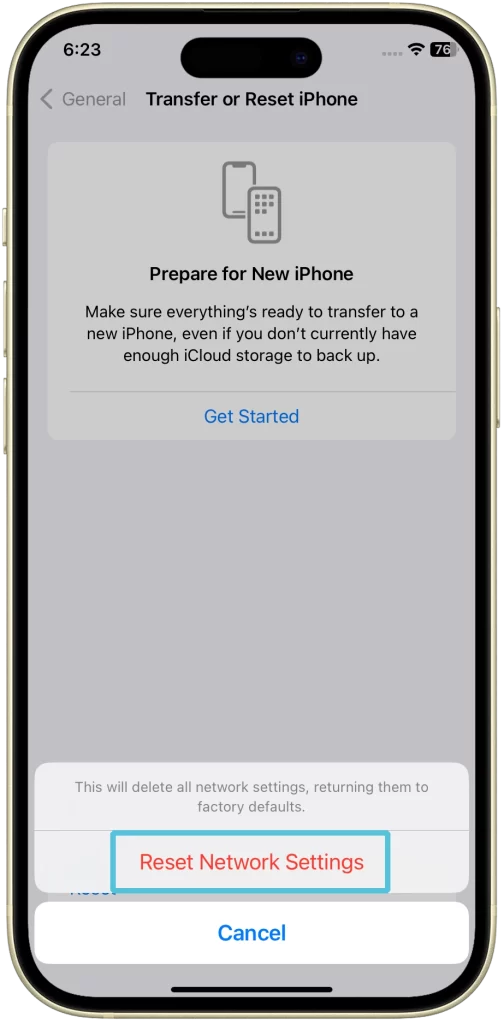
Network problems are one of the most common reasons to reset an iPhone, and a network reset is the targeted fix. Open Settings, tap General, tap Transfer or Reset iPhone, tap Reset, then tap Reset Network Settings. Enter your passcode and confirm.
The phone restarts, and all Wi-Fi networks, mobile data settings, VPN profiles, and Bluetooth pairings are cleared. You will need to reconnect to Wi-Fi and enter the password again, and pair Bluetooth devices again. Mobile data settings from your carrier usually return automatically, but check that mobile data works before you leave Wi-Fi.
Try this reset when Wi-Fi keeps disconnecting, when the phone will not join a network it used to join, when mobile data is very slow, or when Bluetooth audio keeps cutting out. It is much quicker than a full settings reset, and it solves most connection problems in one step. If the problem is with a single Wi-Fi network, try forgetting that network first — tap the network name in Settings, then Wi-Fi, then Forget This Network — before resetting everything.
Method 5: Factory Reset iPhone 15 — Erase All Content and Settings
A factory reset is the strongest reset, and it should be the last resort. It erases every photo, message, app, and setting on the phone. Only use it when you are selling or giving the phone away, or when a serious problem has survived a restart, a settings reset, and a network reset.
First, back up the phone, as described above. Then sign out of your Apple Account, so the next owner cannot be locked out by Activation Lock. Open Settings, tap your name, scroll down, and tap Sign Out. Enter your Apple Account password when asked. Also turn off Find My, which happens automatically when you sign out.
Then go to Settings, tap General, tap Transfer or Reset iPhone, and tap Erase All Content and Settings. Read the screen carefully — it tells you what will be erased and what is backed up. Tap Continue, enter your passcode, and confirm. The phone erases itself, which can take a few minutes, and then restarts to the Hello screen, exactly as it did when it was new.
If you are keeping the phone, you can now restore from your backup during setup, or set it up as a new phone for a truly fresh start. Our guide on how to set up iPhone 15 for beginners walks through the setup screens, and our guide on how to activate iPhone 15 covers the activation step. If you are selling the phone, leave it on the Hello screen and let the new owner set it up themselves.
Never erase a phone you are selling without signing out first. If Activation Lock stays on, the buyer cannot set the phone up, and you will have to help them remove it later. A phone that is properly erased and signed out is ready for its new owner, and your personal data is gone for good.

After the Reset: Setting Up iPhone 15 Again
After a factory reset, the phone shows the Hello screen in several languages. Swipe up to start setup, choose your language and region, and connect to Wi-Fi. You can then choose to restore from an iCloud backup, restore from a computer, transfer from another iPhone, or set the phone up as new.
Restoring from a backup brings back your apps, photos, messages, and settings. It can take a while, depending on how much data you have and how fast your Wi-Fi is, so keep the phone plugged in and on Wi-Fi until it finishes. Apps download one by one in the background, so the phone may look empty at first — give it time.
Setting up as new is the cleanest fresh start. You get a phone with no old apps, no old settings, and no leftover clutter. It takes more time to set up, because you have to sign in to every app again, but it is the best choice when the old setup was the problem. If you choose this option, sign in to your Apple Account first, then add your email, messaging, and banking apps one by one.
After any reset, check the basics: make a test call, send a test message, open the camera, and check that Wi-Fi and mobile data work. If something does not work, it is easier to fix it now, while the setup is still fresh, than to discover it days later. Our guide on how to do a hard reset on iPhone 15 is also worth knowing, since a hard reset is the button version of a restart and is useful when the screen freezes during setup.
Common Problems After Resetting iPhone 15
One common problem is that the phone asks for the old Apple Account password during setup. This is Activation Lock, and it is a security feature. If it is your phone, enter your Apple Account password. If you bought the phone second-hand and it asks for the previous owner’s password, contact the seller — only they can remove the lock.
Another common issue is that a backup will not restore. This usually happens when the backup was made on a newer version of iOS than the phone now has. Update the phone to the latest iOS first, then try restoring again. If the backup is in iCloud and it still will not restore, check that you are signed in to the same Apple Account that made the backup.
Sometimes the phone feels slow for a day or two after a restore. This is normal — the phone is re-downloading apps, re-indexing photos, and rebuilding search data in the background. Plug it in, leave it on Wi-Fi overnight, and it should feel fast again by the next day. If it is still slow after two days, check your storage in Settings, under General and iPhone Storage, and free up space if the phone is nearly full.
If Wi-Fi or mobile data does not work after a network reset, check that you reconnected to the right network and entered the password correctly. Try forgetting the network and joining it again. If mobile data still does not work, check your carrier settings and make sure your plan is active. A quick call to your carrier can fix a provisioning problem that no reset will solve.
Frequently Asked Questions
Does resetting iPhone 15 delete my photos?
A restart and a settings reset do not delete photos. A network reset does not delete photos either. Only a factory reset — Erase All Content and Settings — deletes photos, and only if they are not backed up. If your photos are in iCloud Photos, they return when you sign in again. If they are only on the phone, back them up before any factory reset.
How long does a factory reset take?
The erase itself usually takes two to five minutes, depending on how much data is on the phone. Setting the phone up again takes longer — restoring from a backup can take from a few minutes to a few hours, depending on your data and Wi-Fi speed. Give yourself plenty of time, and do not start a factory reset when you need the phone urgently.
Can I reset iPhone 15 without a passcode?
You need the passcode for most resets, and for a factory reset you also need your Apple Account password. If you have forgotten the passcode, you will need to use a computer to put the phone into recovery mode and restore it, which erases the phone. Apple designed it this way so a stolen phone cannot be reset and reused easily. If you are locked out, our guide on how to factory reset iPhone 15 Pro covers the recovery-mode route in more detail.
Will resetting fix a slow iPhone 15?
Often, yes. A restart fixes most slowdowns, and a settings reset fixes the rest. A factory reset is the strongest fix, but it is rarely needed for slowness alone. Before you erase the phone, check your storage — a phone that is almost full will always feel slow — and delete apps and videos you do not need. Our battery and storage guide on how to save battery on iPhone 15 also helps, since the same habits that save battery often speed the phone up too.
What is the difference between a hard reset and a factory reset?
A hard reset is a force restart using the buttons. It does not delete anything — it just forces the phone to switch off and on again when the screen is frozen. A factory reset erases everything on the phone. The names sound similar, but they are very different, so always check which one a guide means before you follow it.
Should I reset my iPhone 15 before selling it?
Yes, always. Back up your data, sign out of your Apple Account, and then use Erase All Content and Settings. Remove the SIM card and any case or screen protector you are not including in the sale. A properly erased phone protects your privacy and lets the buyer set it up without problems.
Final Thoughts
Resetting iPhone 15 for a fresh start is a ladder, not a single step. Start with a restart, then try a network or settings reset, and only use a factory reset when nothing else works or when you are passing the phone on. Back up first, sign out before erasing, and take your time setting the phone up again afterwards.
Most problems never need the strongest reset. A weekly restart, a little free storage, and the latest iOS update keep an iPhone 15 feeling new for years. Save the factory reset for the moments that truly call for it, and you will get the fresh start you want without losing anything that matters.