Taking a screenshot on your iPhone 15 Pro Max is one of the fastest ways to save what you see on your screen. In a single moment, you can keep a copy of a chat, a receipt, a map, a ticket, or a setting you want to remember later. The image is stored in your Photos app, where you can share it, print it, or look at it again whenever you need it. Once you learn the button combination, the whole action takes less than a second.
The iPhone 15 Pro Max has no Home button, so the method is different from the older iPhones that many people still remember. Instead of pressing a Home button, you press two buttons on the sides of the phone at the same time. Apple also gives you other ways to capture your screen, including an on-screen button, a tap on the back of the phone, and a simple voice command. Each method works well in a different situation, and this guide explains all of them in plain steps.
This step by step guide is written for the iPhone 15 Pro Max, but the button method is the same on the other iPhone 15 models too. You will learn the standard method first, then the hands-free alternatives, then how to capture a full web page, and finally how to edit and share your screenshot. By the end of this guide, you will be able to capture anything on your screen quickly and without any stress.
Before You Start
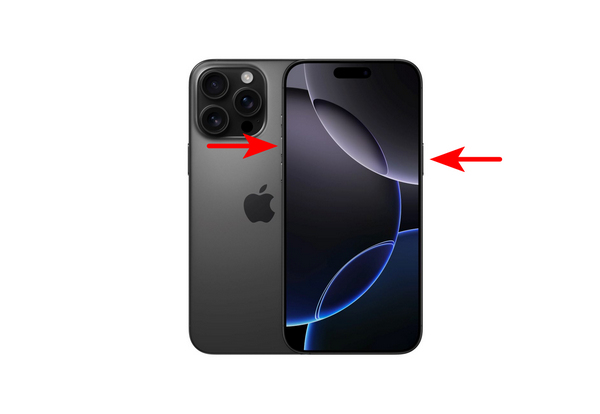
Before you take your first screenshot, take a moment to find the two buttons you will need. The Side button sits on the right edge of your iPhone 15 Pro Max. The Volume Up button is the upper button on the left edge, just below the Action Button. Hold the phone in your hand and feel for both buttons so you know exactly where they are before you try the combination.
Open the screen you want to capture before you press anything. It could be a message, a photo, a web page, or a map. Scroll until the content you need is fully visible on the display. If a pop-up, a banner, or the keyboard is covering part of the screen, close it first, because everything visible on the display will appear in the screenshot.
It is also a good idea to check that your iPhone has enough free storage. Every screenshot is saved as an image file in the Photos app, and it needs space to save. Go to Settings, then General, then iPhone Storage to see how much space is free. If your storage is almost full, delete a few old screenshots or unused apps before you continue.
Finally, make sure your screen brightness is comfortable. A very dim screen can make a screenshot look dark, while a very bright screen can wash out small details. You can adjust the brightness in Control Center by swiping down from the top-right corner of the screen. A normal brightness level gives you the clearest result.
Method 1: Press the Side Button and Volume Up Button
This is the standard method that Apple documents for every iPhone with Face ID, including the iPhone 15 Pro Max. It works on the Lock Screen, on the Home Screen, and inside any app. It does not need any setup, and it works even if you have never changed a setting on your phone.
- Open the screen you want to capture and make sure everything you need is visible.
- Place one finger on the Side button on the right edge of your phone.
- Place another finger on the Volume Up button on the left edge.
- Press both buttons at the same time, then release them quickly.
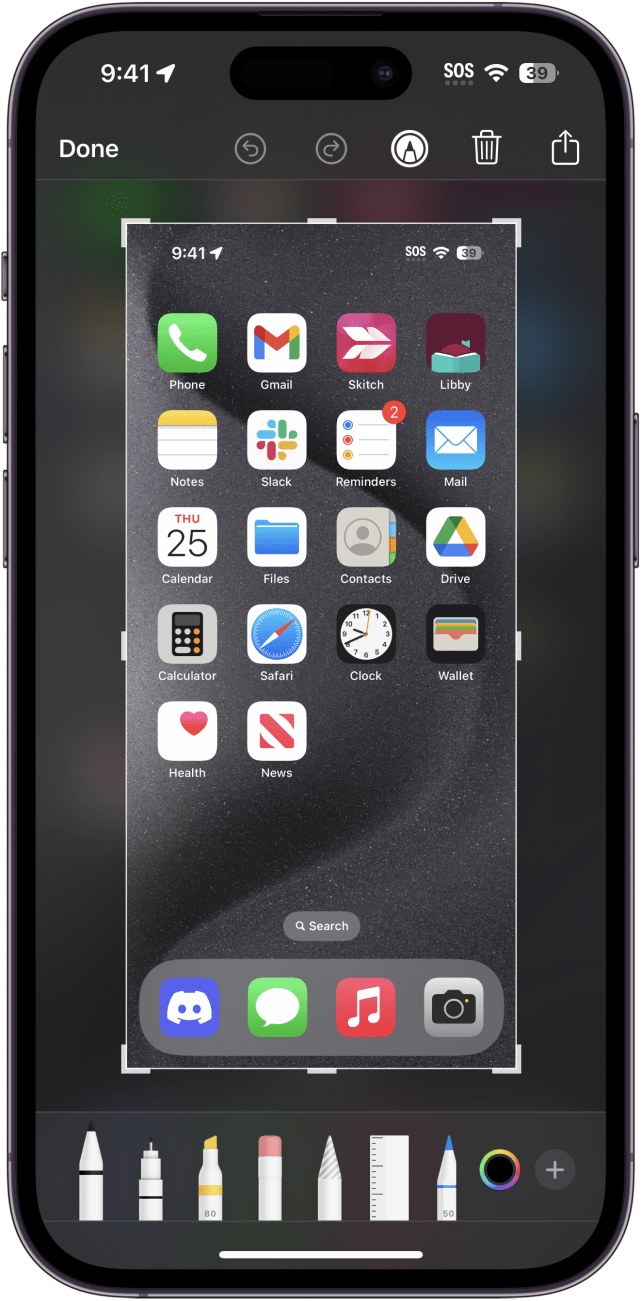
- Look for a small thumbnail of your screenshot in the bottom-left corner of the screen.
- Tap the thumbnail if you want to edit the screenshot right away, or swipe it away to save it as it is.
The key is to press both buttons together and let go fast. If you hold the buttons down for too long, your phone may open the power-off screen or start Siri instead of taking a screenshot. A quick press and release is all you need. If nothing happens on your first try, try again with a slightly faster tap.
When the screenshot is taken, your screen flashes white for a brief moment and you may feel a small vibration. The thumbnail appears in the bottom-left corner for a few seconds. If you do nothing, the thumbnail disappears on its own and the screenshot is saved in your Photos app. You can find it later in the Photos app under Albums, then Screenshots.
If you are new to iPhones with Face ID, this button combination may feel strange at first, because older iPhones used the Home button. Give yourself a few practice tries on a simple screen, such as your Home Screen. After three or four attempts, the movement becomes natural and you will not need to think about it again. The same combination is used on the regular iPhone 15, so if you already know how to screenshot on iPhone 15, you already know this method.
Method 2: Take a Screenshot with AssistiveTouch
AssistiveTouch puts a small floating button on your screen that can do many jobs, including taking a screenshot. This method is useful if the physical buttons are hard to press, if your phone is in a thick case, or if you simply prefer tapping the screen instead of squeezing the sides of the phone. You need to turn it on once, and after that it is always ready.
- Open the Settings app on your iPhone 15 Pro Max.
- Tap Accessibility, then tap Touch.
- Tap AssistiveTouch and turn the switch on.
- A small grey circle appears on your screen. You can drag it to any edge so it stays out of your way.
- Open the screen you want to capture.
- Tap the AssistiveTouch circle, then tap Device, then tap More, then tap Screenshot.
The screenshot is taken as soon as you tap Screenshot in the menu. The thumbnail appears in the bottom-left corner, just like it does with the button method. You can tap it to edit the image, or leave it alone and it will save itself to the Photos app.
You can make this method even faster by setting the screenshot action to a single tap or a double tap on the AssistiveTouch button. Go to Settings, then Accessibility, then Touch, then AssistiveTouch, and look for the Single-Tap, Double-Tap, and Long Press options. Choose Screenshot for the gesture you like best. From then on, one tap on the floating button captures your screen at once.
AssistiveTouch is also helpful if one of your side buttons stops working properly. Instead of waiting for a repair, you can keep taking screenshots with the on-screen button. The floating circle is small and semi-transparent, so it rarely gets in the way of your apps. If you ever want to hide it, go back to Settings, then Accessibility, then Touch, then AssistiveTouch, and turn the switch off.
Method 3: Take a Screenshot with Back Tap
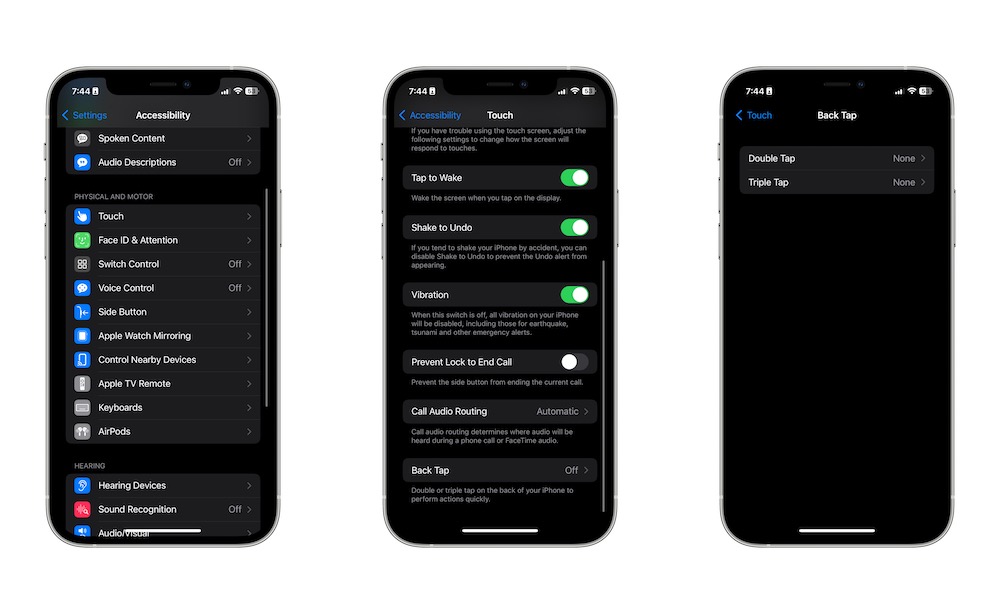
Back Tap is an accessibility feature that lets you double-tap or triple-tap the back of your iPhone to run an action. You can set that action to Screenshot, which means you can capture your screen just by tapping the back of the phone twice with a finger. It is quick, it needs no buttons, and it works while your phone is in a case in most situations.
- Open the Settings app on your iPhone 15 Pro Max.
- Tap Accessibility, then tap Touch.
- Scroll down and tap Back Tap.
- Tap Double Tap, then choose Screenshot from the list.
- Go back and tap Triple Tap if you want a second gesture, and choose another action or leave it set to None.
- Open any screen, then double-tap the back of your phone firmly with one finger.
The screenshot is taken as soon as you double-tap the back of the phone. You will see the same white flash and the thumbnail in the bottom-left corner. If the tap does not work on your first try, tap a little more firmly and a little faster. The taps need to land close together, like a double-click on a mouse.
Back Tap works best when the phone is not resting on a soft surface such as a bed or a sofa, because the surface can absorb the taps. Hold the phone in your hand or place it on a firm table for the best result. A thick case can also make the taps harder for the phone to feel, so you may need to tap a little harder if you use a heavy case.
One thing to keep in mind is that Back Tap can sometimes trigger by accident, for example when you put your phone down quickly. If that happens, just delete the extra screenshot from the Photos app. If accidental screenshots bother you, keep Back Tap off and use the button method instead. The button method is still the most reliable option for most people.
How to Capture a Full Page in Safari
Sometimes a normal screenshot only captures what is visible on the screen, but the web page continues below. Safari has a built-in full page option that captures the whole page in one long image. This is perfect for saving a long article, a full receipt, or a complete list that does not fit on one screen.
- Open Safari and go to the web page you want to save.
- Take a screenshot using the button method or any method above.
- Tap the thumbnail in the bottom-left corner before it disappears.
- At the top of the editing screen, tap Full Page.
- Use the slider on the right side to scroll through the whole captured page and check it.
- Tap Done, then choose Save PDF to Files to save the full page as a PDF file.
The full page is saved as a PDF, not as a photo, because a single image of a very long page would be hard to read. You can open the PDF later in the Files app, share it by message or email, or print it. If you only want part of the page, drag the crop handles on the editing screen before you tap Done.
Note that the Full Page option only appears in Safari and in some other apps that support it. In most other apps, you will only see the normal Screen option. If you need a long capture from another app, take several normal screenshots while you scroll, and then combine them or share them one by one.
How to Edit and Share Your Screenshot
Every screenshot you take can be edited right after you capture it. Tap the thumbnail in the bottom-left corner to open the editing screen. At the bottom, you will see pens, a highlighter, a pencil, and a ruler. Use the pen to circle something, the highlighter to mark important text, or the ruler to draw a straight line.
You can also crop the screenshot to remove parts you do not need. Drag the corners of the image inward until only the part you want remains. If you change your mind, tap the reset option to return to the full image. When you are happy with the edit, tap Done and choose Save to Photos, or tap the share button to send the screenshot to a friend, an app, or a printer.
To share a screenshot later, open the Photos app and go to Albums, then Screenshots. Tap the image you want, then tap the share button at the bottom-left corner. You can send it by message, email, or AirDrop, or save it to Files.
If you want to delete a screenshot, tap the trash icon and confirm. Deleted screenshots stay in the Recently Deleted album for 30 days, so you can recover one if you remove it by mistake.
It is a good habit to delete screenshots you no longer need. They build up quickly, and a large collection can use a surprising amount of storage. Once a week, open the Screenshots album, look through the images, and delete the ones you have already shared or no longer need. Your phone will feel faster and your photo library will stay tidy.
Tips for Better Screenshots
Take your screenshot at the right moment. If you are capturing a video, pause it at the exact frame you want first. If you are capturing a message, wait until the full message has loaded. A small pause before you press the buttons can make the difference between a clean image and one that is missing the detail you wanted.
Turn on Do Not Disturb before you take a screenshot of something important. A notification banner at the top of the screen will appear in your screenshot, and it may cover the content you wanted to save. You can turn on Do Not Disturb from Control Center by swiping down from the top-right corner and tapping the Focus button.
Use the Markup tools to point at the important part of your screenshot before you share it. A simple circle or arrow helps the other person see exactly what you mean. This is especially useful when you are showing someone a setting, an error message, or a step in an app. A short note written with the text tool can explain the image even better.
If you take a lot of screenshots for work or study, create a separate album for them. Open the Photos app, tap Albums, tap the plus button, and create a new album with a clear name. Move the screenshots you want to keep into that album. This keeps them separate from your personal photos and makes them easy to find later.
Troubleshooting
If pressing the Side button and the Volume Up button does nothing, check that you are pressing both buttons at exactly the same time. Pressing one button slightly before the other often opens the volume indicator or the power screen instead. Try pressing them together in one quick motion, and release them immediately.
If the power-off screen appears instead of a screenshot, you are holding the buttons down for too long. The phone reads a long press as a request to power off. A quick tap is all you need. Practise the timing a few times on your Home Screen until the screenshot happens every time.
If Siri opens when you try to take a screenshot, you may be pressing the Side button on its own before the Volume Up button joins it. Make sure both fingers are in place before you press. If the problem continues, restart your iPhone by pressing and quickly releasing the Volume Up button, then the Volume Down button, then pressing and holding the Side button until the Apple logo appears. A restart fixes many small glitches, and the same button sequence is used in our guide on how to hard reset iPhone 15.
If your screenshots are not appearing in the Photos app, check your storage first. Go to Settings, then General, then iPhone Storage. If your storage is full, the screenshot may fail to save.
Free up space by deleting old videos or unused apps, then try again. Also check that you are looking in the right place: open Photos, tap Albums, and look for the Screenshots album under Media Types.
If Back Tap is not working, check that it is still turned on in Settings, then Accessibility, then Touch, then Back Tap. Some cases are too thick for the taps to be felt, so try removing the case and testing again. If it still does not work, use the button method or AssistiveTouch instead, because those methods do not depend on the phone feeling a tap through the case.
Frequently Asked Questions
Where are screenshots saved on iPhone 15 Pro Max?
Screenshots are saved in the Photos app. Open Photos, tap Albums, scroll down to Media Types, and tap Screenshots. Every screenshot you take is stored there in the order you took it. You can also find them in the Recents album mixed in with your photos and videos.
Can I take a screenshot on iPhone 15 Pro Max without buttons?
Yes, you can. Turn on AssistiveTouch in Settings, then Accessibility, then Touch, and use the on-screen button to take a screenshot. You can also set Back Tap to Screenshot and double-tap the back of your phone. Siri can take one too if you say, “Hey Siri, take a screenshot.”
Why does my iPhone 15 Pro Max turn off instead of taking a screenshot?
This happens when you hold the Side button and the Volume Up button down for too long. A long press opens the power-off screen. Press both buttons together and release them quickly, within about half a second. A short, sharp press is the correct action for a screenshot.
How do I take a scrolling screenshot on iPhone 15 Pro Max?
Open the page in Safari, take a normal screenshot, tap the thumbnail, and choose Full Page at the top of the editing screen. Then tap Done and save it as a PDF in Files. This captures the full length of the web page in one file, even the parts below the screen.
Can I edit a screenshot before saving it?
Yes. Tap the thumbnail that appears in the bottom-left corner right after you take the screenshot. The Markup editor opens, and you can crop the image, draw on it, add text, or highlight part of it. When you tap Done, your edited version is saved to the Photos app.
Do screenshots include the time and battery icon?
Yes, a screenshot captures everything visible on your screen, including the status bar with the time, signal, Wi-Fi, and battery icons. If you do not want those in the image, crop the top of the screenshot in the Markup editor, or hide the status bar by opening the screenshot in full screen in the Photos app before sharing it.
Can I take a screenshot while watching a video?
Yes, you can take a screenshot while a video is playing. Pause the video at the frame you want first, then press the Side button and the Volume Up button together. Some streaming apps block screenshots of protected content and will show a black image instead, which is normal and cannot be changed in Settings.
Conclusion
Taking a screenshot on your iPhone 15 Pro Max is simple once you know the button combination. Press the Side button and the Volume Up button together, release them quickly, and your screenshot is saved. If the buttons are hard to reach, AssistiveTouch and Back Tap give you two more ways to capture your screen without squeezing the phone. Each method takes only a second to use, so pick the one that feels most comfortable for you.
Remember to edit your screenshots before you share them, and to delete the ones you no longer need so your photo library stays tidy. The full page option in Safari is worth learning too, because it turns a long web page into a single PDF you can keep or share. With these tools, you can capture, edit, and share anything on your iPhone 15 Pro Max with confidence. If you want to compare the steps on the standard model, our guide on how to take a screenshot on iPhone 15 covers the same methods in detail, and our guide on how to screenshot in iPhone 15 is a useful companion for everyday captures.