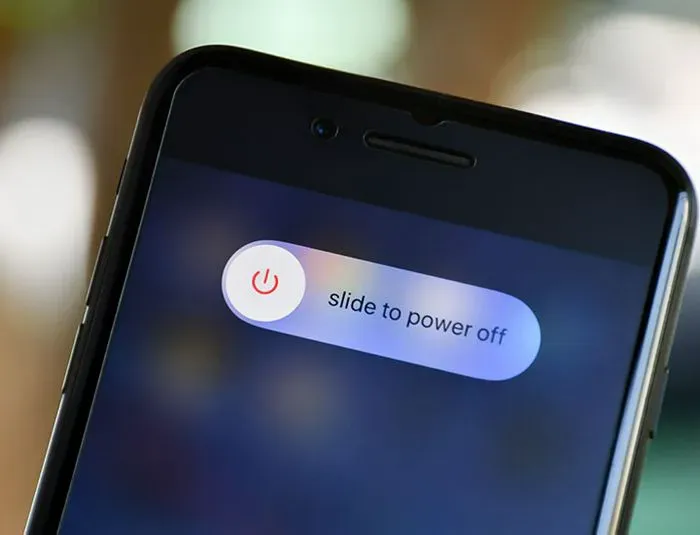
If you have just got your first iPhone 18, turning it off can feel confusing. There is no power button on its own, and pressing the Side button by itself does not turn the phone off. It locks the screen, or it opens Siri, depending on how long you hold it. That is normal, and every new iPhone owner meets the same puzzle.
This guide is written for new users. It explains how to turn off iPhone 18, step by step, in plain words, with no assumed knowledge. It also explains how to turn it back on, what happens while it is off, and when you actually need to turn it off at all.
Here is the whole method in one sentence: press and hold the Side button and the Volume Up button together, wait for the slider to appear, and drag the slider to the right. The phone will turn off. That is it. The rest of this guide explains each part in detail, so you can do it with confidence the first time.
Find the Buttons on Your iPhone 18
Hold your iPhone 18 in your hand and look at the edges. On the right edge, there is one long button. That is the Side button. It is the button you press to wake the phone, to lock the phone, and to turn it on.
On the left edge, there are three things. At the top is a small switch or, on Pro models, the Action Button. Below that are two round buttons. Those are the volume buttons. The top one is Volume Up, and the bottom one is Volume Down. You only need one of them to turn the phone off.
It helps to practise finding the buttons without looking. Hold the phone in one hand, feel for the long button on the right with your thumb, and feel for the top volume button on the left with your index finger. Once you can find them by touch, turning the phone off becomes easy, even in the dark.
Do not worry about pressing the wrong button. Nothing bad happens if you press the Side button alone, or a volume button alone. The phone will simply lock, or the volume will change. You can always try again.
Turn Off iPhone 18, Step by Step
Step one: press and hold the Side button and the Volume Up button at the same time. Use two fingers, one on each side of the phone. Hold them both down, and keep holding. Do not let go after one second.
Step two: wait for the screen to change. After about two seconds, you will see a slider at the top of the screen. It says “slide to power off”. Below it, you will see two more options: one for Emergency SOS, and one for Medical ID. Ignore those two for now.
Step three: put one finger on the white circle on the left of the top slider, and drag it all the way to the right. The slider will move across the screen, and the phone will start to shut down.
Step four: wait. The screen will go black after a few seconds. You may see a small spinning wheel first. That means the phone is finishing its shutdown. When the screen is fully black, the phone is off. Do not press any button while it is shutting down.
If nothing happens, you probably let go of the buttons too early, or you pressed them one after the other instead of together. Try again, pressing both at exactly the same time, and count slowly to three before you look at the screen.
Turn Off iPhone 18 from Settings
If the buttons feel awkward, there is a second way that uses only the screen. Open the Settings app. It is the grey icon with gears on it, usually on your Home Screen. Tap it to open it.
Inside Settings, tap General. It is near the top of the list, with a small gear icon next to it. Scroll down to the very bottom of the General screen. The last option says Shut Down. Tap it.
The same power-off slider will appear. Drag it to the right, just like before, and the phone will shut down. This way is useful if your hands are small, if a button is stiff, or if you simply prefer using the screen.
You can also ask Siri. Say “Hey Siri, turn off my iPhone”. Siri will show a confirmation on the screen. Tap Power Off to confirm. Siri cannot turn the phone off without that tap, so nobody can turn your phone off by shouting at it from across the room.

Turn Your iPhone 18 Back On
To turn the phone back on, press and hold the Side button alone. You do not need a volume button this time. Hold the Side button for a few seconds, until the Apple logo appears on the screen. The Apple logo is a white apple on a black background. When you see it, let go of the button.
The phone will take a short time to start up. You will see the Lock Screen when it is ready. The first time you unlock it after a restart, the phone will ask for your passcode, not Face ID. That is normal. Enter your passcode, and Face ID will work again after that.
If the Apple logo does not appear, the battery may be empty. Plug the phone into a charger using the USB-C cable that came in the box, wait a few minutes, and try again. A phone with no battery needs a little charge before it can start up at all.
What Happens While Your Phone Is Off
When your iPhone 18 is off, it cannot do most of the things you expect from a phone. It cannot receive calls, and anyone who calls you will go to voicemail. It cannot receive messages, and new messages will arrive only after you turn it back on.
It cannot ring an alarm. This is important. If you turn the phone off at night, your morning alarm will not ring. If you need an alarm, leave the phone on, and just lock the screen instead. A locked phone still rings its alarm.
It cannot connect to the internet, and it cannot use GPS. Your location will not update, and apps will not refresh. That is fine if you are not using the phone, and it is one reason turning it off saves battery.
Turning the phone off does not delete anything. Your photos, your contacts, your messages, and your apps are all still there when you turn it back on. A power-off is not a reset, and it does not erase the phone. It simply pauses it until you start it again.
When Do New Users Need to Turn iPhone 18 Off?
Most days, you do not need to turn the phone off at all. The iPhone is made to stay on, sleeping quietly with the screen off when you are not using it. It uses very little power that way, and it is ready the moment you pick it up.
Turn it off before you hand it to a repair shop. Turn it off on a flight if the crew asks for devices to be fully off. Turn it off if the phone is very hot, or if an app is stuck and will not close, because a full shutdown clears the phone’s short-term memory and often fixes the problem.
Turn it off if the battery is nearly empty and you want to save the last few percent until you reach a charger. A phone that is off uses almost no power, so the battery will last much longer switched off than it will on standby.
Do not turn it off every night. It is not necessary, it stops your alarm, and it adds wear for no benefit. Lock the screen instead. Press the Side button once, and the screen goes dark. That is enough for the night.
Practice Once, Then You Will Remember It
The first time you turn your iPhone 18 off, do it when you have a few minutes to spare, not when you are in a hurry. Sit down, hold the phone comfortably, and go through the steps slowly. Press the buttons, watch the slider appear, drag it, and watch the phone turn off. Then turn it back on again.
Doing it once on purpose is better than reading about it five times. After one practice run, your hands will remember where the buttons are, and you will not need to look them up again. The next time you need to turn the phone off, for a flight or a repair, you will do it without thinking.
If you are helping an older relative with their first iPhone, show them the same practice run. Let them hold the phone, find the buttons by touch, and drag the slider themselves. Watching someone else do it is not the same as doing it once with your own hands.
Keep this guide saved, or remember the three words: hold, wait, drag. Hold the Side button and a volume button, wait for the slider, and drag the slider to the right. That is the whole method, and it works on every iPhone 18, including the Plus, Pro, and Pro Max.
Frequently Asked Questions
Why does pressing the Side button not turn off my iPhone 18?
Because the Side button alone is for locking the screen, not for turning the phone off. To turn the phone off, you need the Side button and a volume button together. Hold both for about two seconds, until the slider appears, then drag the slider.
How do I turn off iPhone 18 if the screen is frozen?
If the screen does not respond to touch, you cannot drag the slider. Use a force restart instead. Press Volume Up quickly and release it, press Volume Down quickly and release it, then press and hold the Side button until the Apple logo appears. That restarts the phone without needing the slider.
Will I lose my photos if I turn off my iPhone 18?
No. Turning the phone off is completely safe. It does not delete photos, contacts, messages, or apps. Everything will be exactly where you left it when you turn the phone back on.
How long does it take to turn iPhone 18 off?
About thirty seconds from start to finish. Holding the buttons takes two seconds, dragging the slider takes one second, and the shutdown itself takes a few seconds more. Turning it back on takes a little longer, because the phone has to start up.
What should I do if the power-off slider does not appear?
Check that you are holding both buttons at the same time. If Siri opens instead, you pressed the Side button first. Try again, pressing them together. If the buttons feel broken, use Settings instead: open Settings, tap General, scroll down, and tap Shut Down.
For your first days with the phone, read how to set up iPhone 15 for beginners and how to activate iPhone 15. To lock just the screen, see how to turn off iPhone 15 screen, and to restart a frozen phone, how to force restart iPhone 15. If the battery is low, how to charge iPhone 15 explains the new USB-C charging, and how to use Siri on iPhone 15 shows how to do things by voice.
