Silent mode is useful when you do not want your iPhone 15 to make a sound, but silence should not mean missing your calls. When vibration is set up correctly, your phone buzzes gently in your pocket or on your desk every time someone calls or messages you. You stay reachable, and the people around you hear nothing at all. That balance is exactly what this guide helps you set up.
Many iPhone 15 owners think that turning on silent mode also turns off vibration, but that is not how it works. Silent mode only stops the sounds. Vibration is a separate setting, and you can choose whether your phone vibrates when it rings and whether it vibrates when it is silent. Once you understand the two settings, you can make your phone buzz in exactly the situations you want.
In this step by step guide, you will learn how to make your iPhone 15 vibrate on silent using the switch on the side of the phone, the settings in the Sounds and Haptics menu, and a few extra options for calls, messages, and alarms. You will also learn how to create your own vibration pattern, how to fix vibration when it stops working, and how to test that everything is set up correctly.
Before You Start
Before you change any setting, check which side switch your iPhone 15 has. The regular iPhone 15 and iPhone 15 Plus have a small Ring/Silent switch on the upper left edge, above the volume buttons. Flip it toward the back of the phone to turn silent mode on, and you will see a small orange line. Flip it toward the screen to turn silent mode off again.
It is important to know that this guide is for the regular iPhone 15, which uses the physical switch. The iPhone 15 Pro models replaced the switch with an Action Button, so the steps for the switch do not apply to them. If you have a Pro model, you can still use the Settings methods in this guide, because those work on every iPhone 15 model.
Next, make sure your phone is not in Do Not Disturb or another Focus mode that silences notifications. Focus modes can block calls and messages completely, including their vibration, depending on how you set them up. Swipe down from the top-right corner to open Control Center and check the Focus button. If a Focus mode is on, turn it off while you test your vibration settings.
Finally, take your phone out of any very thick case before you test vibration. A heavy case can muffle the vibration so much that you barely feel it. Once you know the vibration is working, put the case back on and test again. If the buzz feels too weak through the case, you may want a stronger vibration pattern, which this guide shows you how to create.
Method 1: Use the Ring/Silent Switch and the Vibrate on Silent Setting
This is the main method, and it takes less than a minute. The switch on the side of your phone controls silent mode, and a setting in the Settings app controls whether the phone vibrates while silent mode is on. Both parts need to be correct, or your phone will stay completely quiet.
- Open the Settings app on your iPhone 15.
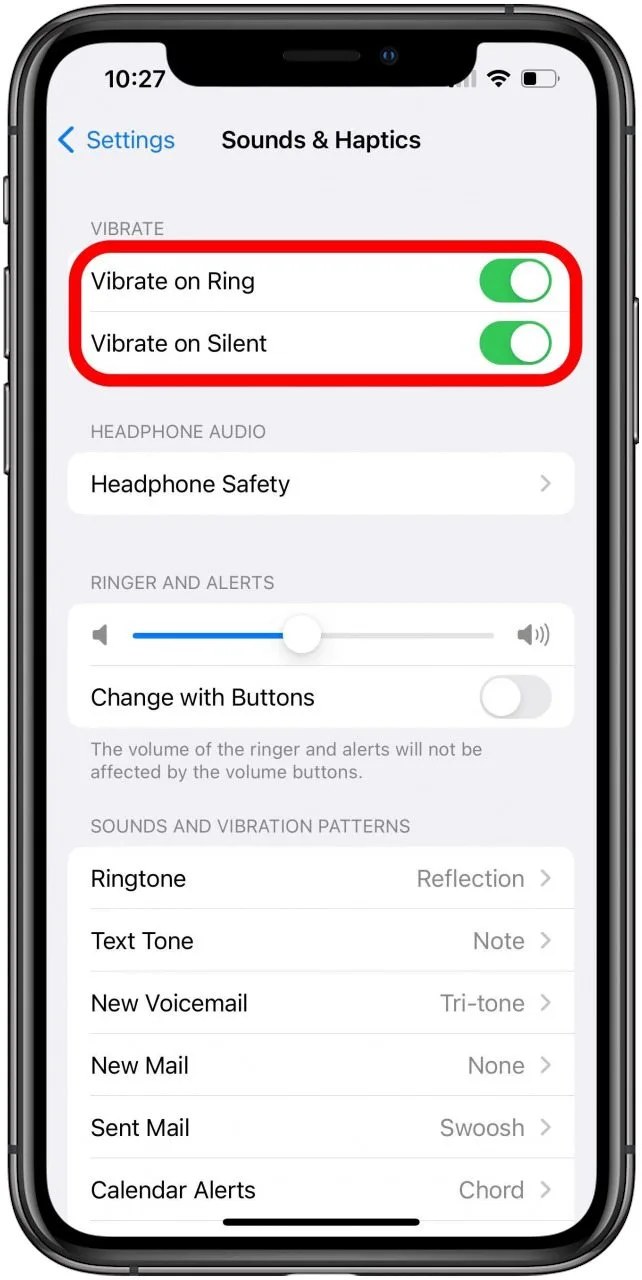
- Tap Sounds & Haptics.
- Look for the Vibrate section near the top of the screen.
- Turn on the switch next to Vibrate on Silent.
- Also turn on Vibrate on Ring if you want vibration when your phone is not silent.
- Now flip the Ring/Silent switch on the left edge of your phone toward the back, until you see the orange line.
- Your phone vibrates once briefly to confirm that silent mode is on.
That short vibration when you flip the switch is your confirmation that the setting works. From now on, whenever your phone is silent, incoming calls and messages will make it vibrate instead of playing a sound. The screen will still light up, so you can see who is calling even if the phone is face down on a table and you cannot feel the buzz.
To turn silent mode off again, flip the switch back toward the screen. The orange line disappears, and your phone will ring normally for the next call. You do not need to change the Vibrate on Silent setting each time. Once it is on, it stays on, and the switch alone controls whether your phone is silent or not.
If you only want vibration for calls but not for messages, or the other way around, the basic Vibrate on Silent switch cannot separate them. The custom vibration patterns in Method 3 can help with that, because you can set a different pattern for each type of alert. For most people, though, turning on Vibrate on Silent is enough, and it is the setting that our guide on how to turn on vibration on iPhone 15 explains in detail as well.
Method 2: Set Haptics to Always Play in Sounds & Haptics
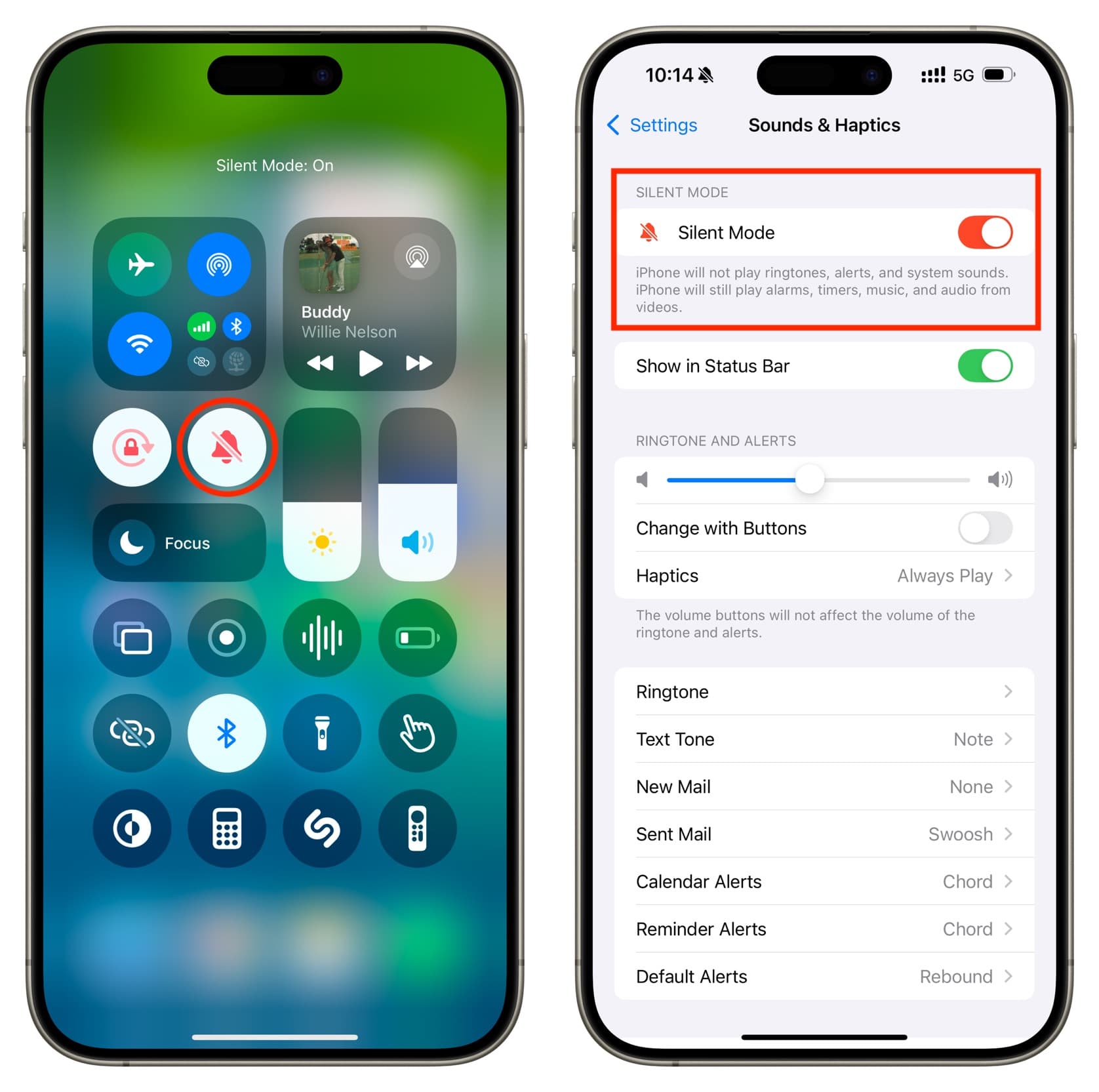
On newer versions of iOS, the vibration controls appear under the name Haptics instead of the older Vibrate toggles. The idea is the same, but the menu looks slightly different. If you do not see a Vibrate section in your Settings app, your phone is using the newer layout, and this method is the one to follow.
- Open the Settings app on your iPhone 15.
- Tap Sounds & Haptics.
- Find the Haptics row and tap it.
- Choose Always Play from the list of options.
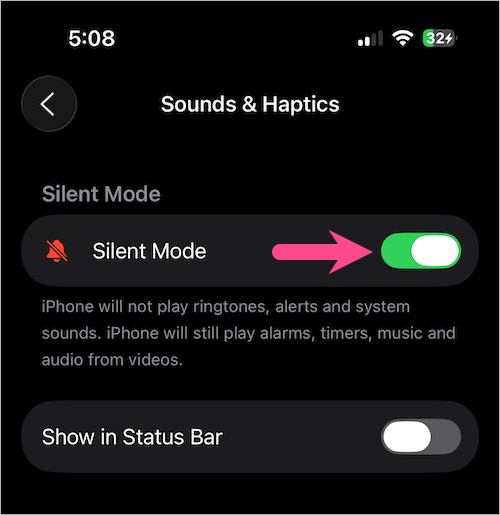
- Go back to the Sounds & Haptics screen and check that Silent Mode is on if you want the phone silent.
- Ask a friend to call you, or send yourself a test message, and feel for the vibration.
Always Play means your iPhone will vibrate for calls, alerts, and system feedback even when silent mode is on. The other options in the same menu are Play in Silent Mode, which vibrates only when the phone is silent, and Never Play, which turns vibration off completely. If your phone is not vibrating at all, Never Play is often the cause, so Always Play is the safest choice.
While you are on this screen, look at the Ringtone and Alerts volume slider just above the Haptics row. This slider controls how loud your phone rings when silent mode is off. It does not affect vibration strength, so moving it will not make the buzz stronger or weaker. Vibration strength is fixed by the phone, and the only way to make it feel stronger is to choose a longer or more repeated vibration pattern.
Below the Haptics row, you will see a list of sounds: Ringtone, Text Tone, New Mail, Calendar Alerts, and more. Each one has its own vibration pattern, and tapping one lets you change both its sound and its vibration. That is useful if you want a strong buzz for phone calls but a gentle tap for emails. We will look at custom patterns in the next method.
Method 3: Create a Custom Vibration Pattern for Calls and Messages
A custom vibration pattern lets you feel the difference between a call, a message, and an email without looking at your phone. You create the pattern by tapping on the screen, and your iPhone records the rhythm of your taps. A long buzz for calls and two short taps for messages is a combination many people find easy to recognise.
- Open the Settings app and tap Sounds & Haptics.
- Tap Ringtone under the Sounds and Vibration Patterns section.
- Tap Vibration at the top of the screen.
- Tap Create New Vibration at the bottom of the list.
- Tap on the large blank area to record your pattern. A short tap makes a short buzz, and holding your finger down makes a long buzz.
- Tap Stop when you are happy with the pattern, then tap Play to feel it back.
- Tap Save, give your pattern a clear name such as Strong Call Buzz, and tap Save again.
- Your new pattern is now selected for your ringtone. Repeat the same steps under Text Tone to give messages a different pattern.
Keep your pattern simple. A pattern with one long buzz followed by two short buzzes is easy to feel and easy to remember. A pattern that is too complicated can be hard to tell apart from the standard one, which defeats the purpose. Test the pattern by asking someone to call you while the phone is in your pocket, and see if you can recognise it without looking.
You can also set a special vibration for one important person, so you know it is them without checking the screen. Open the Contacts app, choose the person, tap Edit, then tap Ringtone, then tap Vibration, and pick the pattern you made for them. You can do the same for their text tone. This is a handy trick for a partner, a parent, or a boss whose calls you never want to miss.
If you ever want to go back to the standard vibration, open the same Vibration menu and choose Default. Your custom patterns stay saved in the list, so you can switch back to them later without recording them again. To delete a pattern you no longer use, swipe left on its name in the list and tap Delete.
Make Sure Alarms Still Vibrate and Sound
Many people worry that silent mode will silence their morning alarm, but it will not. Alarms in the Clock app are designed to sound even when your iPhone is on silent, and they also vibrate. That is true whether you use the Ring/Silent switch or a Focus mode. Your alarm is safe, and you will still wake up on time.
To check this, open the Clock app and tap Alarm at the bottom. Look at the alarm you use in the morning and make sure its switch is on. Tap the alarm, then tap Sound, and choose a sound you will notice.
At the top of the Sound screen, tap Vibration and pick a pattern that feels strong. A strong vibration plus a loud sound is the most reliable combination for heavy sleepers.
One exception is worth knowing about. If you set a timer or an alarm inside a third-party app, that app may follow the silent mode setting instead of the Clock app rules. If a reminder from another app did not wake you, check that app’s own notification settings. For anything important, use the built-in Clock app, because its alarms are the ones Apple guarantees will sound through silent mode.
The same rule applies to emergency alerts. Government alerts and emergency notifications are not silenced by the Ring/Silent switch. They will sound and vibrate so that you do not miss them. You can manage these in Settings, then Notifications, then scroll down to Government Alerts, but it is best to leave them on.
Tips for Using Vibrate on Silent Every Day
Keep your phone in a pocket or against your body when you need to feel every vibration. A phone lying flat on a wooden desk buzzes loudly enough to hear, but a phone on a soft bed or a sofa cushion may not be felt at all. If you put your phone down, place it on a hard surface with the screen facing down so the vibration is easier to notice.
Use the LED flash for alerts as an extra signal. Go to Settings, then Accessibility, then Audio and Visual, and turn on LED Flash for Alerts. Your phone’s camera flash will blink when a call or message arrives. This is useful in a noisy room where you cannot hear the phone, or in a dark room where the screen light is not enough.
Check your vibration setting after every major iOS update. Updates sometimes reset sound and haptics settings, and you may not notice until you miss a call. After an update, open Settings, then Sounds & Haptics, and confirm that Vibrate on Silent or Haptics is still set the way you want it. A ten-second check can save you a missed call later.
If you want complete silence at night but still need to feel emergency calls, use a Focus mode instead of the switch. In Settings, then Focus, then Do Not Disturb, you can allow calls from specific people while silencing everyone else. Their calls will still vibrate, and all other notifications will stay quiet. This gives you the best of both worlds while you sleep.
Troubleshooting: iPhone 15 Not Vibrating on Silent
If your iPhone 15 does not vibrate on silent, start with the simplest checks. First, open Settings, then Sounds & Haptics, and confirm that Vibrate on Silent is on, or that Haptics is set to Always Play. Second, check that the Ring/Silent switch is actually flipped to silent, with the orange line visible.
Third, make sure Do Not Disturb is off in Control Center. One of these three checks fixes the problem for most people.
If the settings look correct but the phone still does not vibrate, restart your iPhone. Press and quickly release the Volume Up button, then press and quickly release the Volume Down button, then press and hold the Side button until the Apple logo appears. A restart clears small software glitches that can stop the vibration motor from responding. Test the vibration again after the phone turns back on.
A phone that never vibrates, even when silent mode is off and Vibrate on Ring is on, may have a hardware problem with the vibration motor, which Apple calls the Taptic Engine. Try turning vibration off and on again in Settings, then test with a call. If it still does not vibrate in any situation, contact Apple Support or visit an Apple Store, because the motor may need a repair. Do not open the phone yourself, as that will void the warranty.
Also check whether a specific app is the problem rather than the phone itself. If calls vibrate but WhatsApp messages do not, open Settings, then Notifications, then WhatsApp, and make sure Sounds and Badges are allowed. Some apps have their own vibration setting inside the app, so check the app’s own settings menu too.
If only one app is silent, the cause is almost always in that app’s notification settings, not in your phone. And if you want to stop vibration completely at some point, our guide on how to turn off vibration on iPhone 15 shows the reverse steps.
Frequently Asked Questions
Does silent mode turn off vibration on iPhone 15?
No, silent mode only turns off sounds. Vibration is controlled separately by the Vibrate on Silent setting in Settings, then Sounds & Haptics. If that setting is on, your phone will vibrate for calls and messages while it is silent. If it is off, the phone will stay completely quiet.
How do I make my iPhone 15 vibrate on silent?
Open Settings, tap Sounds & Haptics, and turn on Vibrate on Silent. On newer iOS versions, tap Haptics instead and choose Always Play. Then flip the Ring/Silent switch on the left edge of your phone toward the back until you see the orange line. Your phone will vibrate once to confirm silent mode is on.
Will my alarm still go off if my iPhone 15 is on silent?
Yes. Alarms set in the built-in Clock app will sound and vibrate even when silent mode is on. This is by design, so you will not oversleep. The same is true for timers in the Clock app.
Alarms from third-party apps may behave differently, so use the Clock app for anything important.
Can I make vibration stronger on iPhone 15?
You cannot change the vibration strength directly, but you can create a custom vibration pattern with longer buzzes that are easier to feel. Go to Settings, then Sounds & Haptics, then Ringtone, then Vibration, then Create New Vibration, and record a pattern with long presses. A longer pattern feels stronger than the short default buzz.
Why is my iPhone 15 not vibrating for text messages on silent?
First, check that Vibrate on Silent is on in Settings, then Sounds & Haptics. Then check the Text Tone vibration by tapping Text Tone in the same menu and making sure a vibration pattern is selected. If a specific contact is silent, check whether you muted their conversation in the Messages app by swiping left on the chat and looking for a crossed-out bell icon.
Does Do Not Disturb stop vibration on iPhone 15?
Do Not Disturb can stop vibration for notifications it silences, depending on your Focus settings. Open Settings, then Focus, then Do Not Disturb, and look at the People section to see who is allowed to reach you. Calls and messages from allowed people will still vibrate. Everything else stays silent until you turn the Focus mode off.
Can I set a different vibration for one contact?
Yes. Open the Contacts app, choose the person, tap Edit, then tap Ringtone, then Vibration, and choose or create a pattern just for them. You can also set a separate pattern for their text tone. This way you can tell who is calling from the buzz alone, without looking at the screen.
Conclusion
Making your iPhone 15 vibrate on silent is a simple two-part setup: turn on Vibrate on Silent in Settings, then flip the Ring/Silent switch on the side of your phone. Once both are set, your phone will buzz for every call and message while staying completely quiet. The Haptics menu on newer iOS versions gives you the same control under a slightly different name, so check for Always Play if you do not see the older toggles.
Custom vibration patterns take this one step further, because they let you feel the difference between a call, a message, and one important person. Set up one strong pattern for calls and a shorter one for messages, and test them with a friend before you rely on them. If vibration ever stops working, check the settings first, restart the phone, and only then think about a repair. With these steps, your iPhone 15 will keep you connected without ever making a sound, and if you want the reverse setup, our guide on how to put iPhone 15 on silent and our guide on how to put phone on vibrate iPhone 15 cover both sides of the same setting.