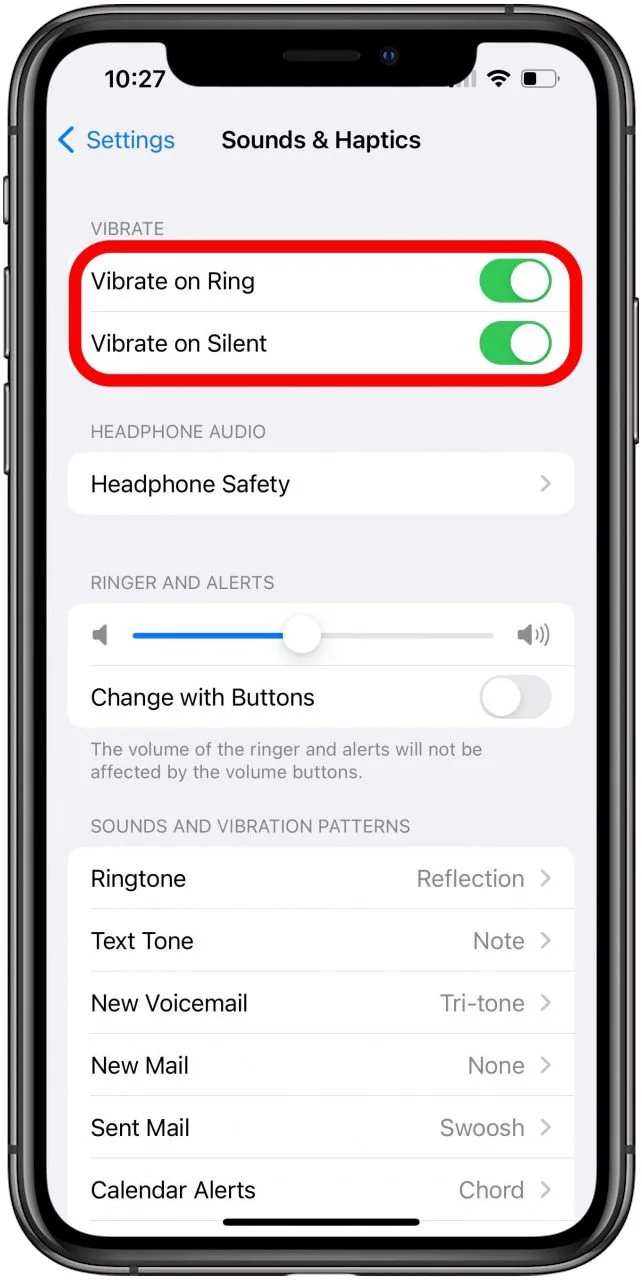
Vibrate on iPhone 18 sounds simple, but it has more settings than most owners expect. There is a vibration for calls, a vibration for messages, a vibration in silent mode, and a vibration when the ringer is on. Each one has its own switch, and turning on one does not always turn on the others. That is why many people turn vibrate on, then miss a call because the phone stayed still.
This guide explains how to put vibrate on iPhone 18, step by step, for every situation: when the phone rings, when it is silent, and for text messages. It also explains how to make a custom vibration, how to stop vibration completely, and what to do when vibrate does not work. The main setting is in Settings, under Sounds and Haptics, then Haptics.
Before you start, decide what you want. Do you want the phone to vibrate instead of ringing, or as well as ringing? Do you want it to vibrate when it is silent, or only when the ringer is on? Your answer decides which switches to turn on, and this guide covers each combination.
How to Put Vibrate On for Calls
The fastest way to make your iPhone 18 vibrate for calls is to change the Haptics setting. Open Settings, then tap Sounds and Haptics. Near the top, tap Haptics. You will see four options: Always Play, Play in Silent Mode, Play in Ring Mode, and Never Play.
Choose Always Play if you want the phone to vibrate for calls and alerts whether the ringer is on or off. This is the best choice for most people, because you will feel every call, in every mode. Choose Play in Silent Mode if you only want vibration when the ringer is off. Choose Play in Ring Mode if you only want vibration when the ringer is on. Choose Never Play if you want no vibration at all.
For most owners, Always Play is the right setting. It means you will feel a call in a meeting, in a noisy street, and at night, whether the phone is ringing or silent. If you find the vibration annoying, change it to Play in Silent Mode, so the phone only vibrates when it is not ringing.
After you choose a setting, test it. Ask someone to call you, and put the phone on a table. You should feel and hear a short vibration when the call comes in. If you feel nothing, check the next sections, because another setting may be blocking it.
How to Put Vibrate On in Silent Mode
Silent mode and vibration are linked, and this is where most confusion happens. When you put your iPhone 18 in silent mode, the ringer stops, but the phone should still vibrate. If it does not, the Haptics setting is probably wrong.
First, put the phone in silent mode. On the standard iPhone 18, flip the Ring/Silent switch so orange shows. On iPhone 18 Pro and Pro Max, press and hold the Action Button until the silent icon appears. Then open Settings, tap Sounds and Haptics, tap Haptics, and choose Always Play or Play in Silent Mode. Never Play and Play in Ring Mode will both stop vibration in silent mode.
Test it again. Ask someone to call you while the phone is silent. The phone should vibrate, even though it does not ring. If it still does not vibrate, check that the phone is not in Do Not Disturb, which can block vibration as well. Our guide on how to make iPhone 15 vibrate on silent covers this in more detail.
How to Put Vibrate On for Text Messages
Calls and messages have separate vibration settings, and many owners only set one. To make your phone vibrate for text messages, open Settings, tap Sounds and Haptics, then scroll down to Text Tone. Tap it, then tap Vibration at the top of the screen.
On the Vibration screen, choose a pattern. Standard is the default, and it is a short, simple vibration. You can also choose one of the other patterns, such as Accent, Heartbeat, or Symphony, which feel different and are easier to tell apart from a call vibration.
If you want a vibration that is different for one person, open the Contacts app, find the person, tap Edit, tap Text Tone, then tap Vibration, and choose a pattern just for them. This is useful if you want to know who is texting without looking at the screen. You can do the same for calls by choosing Ringtone, then Vibration, in the same contact.
Remember that the main Haptics setting still controls whether any vibration plays at all. If Haptics is set to Never Play, your message vibration will not play, even if you chose a pattern here. Set Haptics to Always Play first, then choose your message vibration.
How to Make a Custom Vibration
If the built-in patterns do not suit you, you can make your own. This is useful if you want a long vibration for important calls, or a short one for messages, so you can tell them apart by feel.
Open Settings, tap Sounds and Haptics, then tap Ringtone. At the top, tap Vibration, then tap Create New Vibration. A screen will appear with a large button. Tap the screen in the pattern you want. For example, tap three times quickly for a short pattern, or press and hold for a long vibration. When you are happy with the pattern, tap Stop, then tap Save, and give it a name.
Your new vibration will now appear in the list, and you can choose it for calls, messages, or a single contact. To use it for calls, go back to Ringtone, tap Vibration, and choose your new pattern. To use it for messages, do the same under Text Tone.
If you make a mistake, tap Record again to start over. You can make as many custom vibrations as you like, and you can delete one by swiping left on it in the list and tapping Delete.
How to Put Vibrate On with the Action Button and Switch
There is no single button that turns vibration on and off. The switch and the Action Button control the ringer, not vibration. Vibration is controlled by the Haptics setting, as explained above. However, the two work together, and it helps to understand how.
When the ringer is on and Haptics is set to Always Play, your phone will ring and vibrate at the same time. When the ringer is off and Haptics is set to Always Play, your phone will vibrate but not ring. When the ringer is on and Haptics is set to Play in Silent Mode, your phone will ring but not vibrate. This is why the Haptics setting matters more than the switch for vibration.
If you want to feel every call and message, set Haptics to Always Play and leave the ringer on. If you want to feel calls but not hear them, set Haptics to Always Play and put the phone in silent mode. If you want to hear calls but not feel them, set Haptics to Never Play.
For a full guide to the silent switch itself, see how to put iPhone 15 on silent, and for the Pro button, see how to use the Action Button on iPhone 15.
How to Turn Vibrate Off
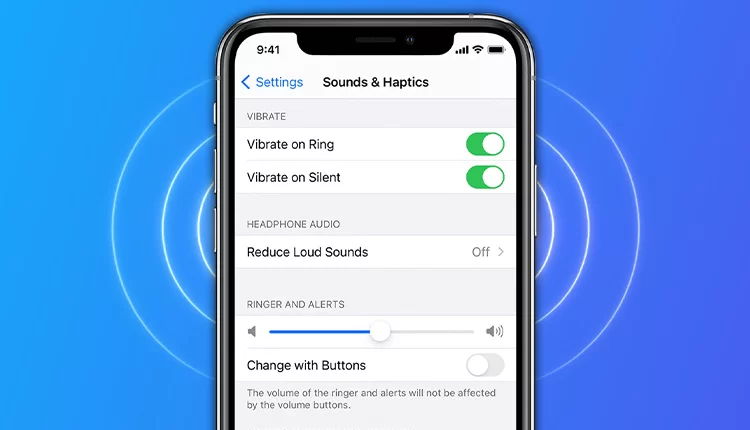
Sometimes you want the opposite: no vibration at all. This is useful at night, in a quiet room, or if the vibration sound bothers you. To turn vibration off completely, open Settings, tap Sounds and Haptics, tap Haptics, and choose Never Play.
This turns off vibration for calls, messages, and alerts, in both ring mode and silent mode. Your phone will still ring if the ringer is on, and it will still light up for calls, but it will not vibrate.
If you only want to stop vibration for one thing, such as messages, change that one setting instead. Open Settings, tap Sounds and Haptics, tap Text Tone, tap Vibration, and choose None. Calls will still vibrate, but messages will not. Our guide on how to turn vibrate off iPhone 15 covers this in detail.
Note that turning off Haptics also turns off the small vibration you feel when you type, when you use the Home Screen, and when you get a system alert. If you miss that feedback, set Haptics back to Always Play and turn off vibration for calls only, using the per-contact settings.
Why Vibrate Is Not Working on iPhone 18
If vibrate is turned on but your phone does not vibrate, work through these checks in order. Most problems are caused by a single setting.
First, check Haptics. Open Settings, tap Sounds and Haptics, tap Haptics, and make sure it is not set to Never Play. If it is set to Play in Ring Mode, it will not vibrate in silent mode. If it is set to Play in Silent Mode, it will not vibrate when the ringer is on. Choose Always Play to test.
Second, check Do Not Disturb. If Do Not Disturb is on, it can silence vibration as well as sound. Swipe down from the top-right corner, tap Focus, and turn off Do Not Disturb. Then test again.
Third, check the vibration pattern. Open Settings, tap Sounds and Haptics, tap Ringtone, tap Vibration, and make sure it is not set to None. If it is set to None, your phone will not vibrate for calls, even if Haptics is on. Choose Standard or a custom pattern.
Fourth, check Accessibility settings. Open Settings, tap Accessibility, tap Touch, then tap Vibration. Make sure Vibration is turned on. This is a master switch. If it is off, no vibration will play at all, no matter what the other settings say. This is a common cause, because the switch is hidden in Accessibility and many owners do not know it exists.
Fifth, restart your iPhone. A software glitch can stop the vibration motor. Press and hold the Side Button and either Volume Button, drag the power slider, then press and hold the Side Button to turn the phone back on. If a normal restart does not help, see how to force restart iPhone 15.
Sixth, check for a software update. Open Settings, tap General, then tap Software Update. Install any update that is available, as Apple has fixed vibration bugs in past updates.
If none of these steps help, the vibration motor itself may be faulty. This is rare, but it can happen after a drop or water damage. Back up your phone and contact Apple Support. If your phone is under warranty, a faulty vibration motor is usually covered.
Vibrate and Battery Life
Vibration uses very little battery, but it does use some. The vibration motor is a small part that spins to make the phone shake, and it uses power each time it runs. In normal use, this is a tiny amount, and you will not notice it in your battery life.
If your battery is draining fast, vibration is almost never the cause. A more likely cause is the screen, an app running in the background, or a poor signal. Check Settings, then Battery, to see what uses the most power. Our guide on how to save battery on iPhone 15 explains the main causes.
If you want to save a small amount of battery, turn off vibration for messages, which can vibrate many times a day. Keep vibration for calls, which are less frequent and more important. This gives you the best balance between feeling important calls and saving battery.
Tips for Using Vibrate Well
Use different patterns for calls and messages, so you can tell them apart without looking. For example, use a long pattern for calls and a short pattern for messages. Your brain will learn the difference quickly.
Set a special vibration for important contacts, such as family or your boss. Open their contact, tap Edit, tap Ringtone, tap Vibration, and choose a pattern that stands out. You will know it is them before you look at the screen.
Keep your phone in a pocket, not in a bag, if you rely on vibration. Vibration is easy to feel in a pocket, but hard to feel in a bag, especially if the bag is full. If you keep your phone in a bag, turn the ringer on as well, so you do not miss calls.
If you wear an Apple Watch, the watch will also tap your wrist when a call comes in. This is often easier to feel than the phone vibrating in a pocket. You can change the watch vibration in the Watch app, under Sounds and Haptics.
Frequently Asked Questions
How do I put vibrate on iPhone 18?
Open Settings, tap Sounds and Haptics, tap Haptics, and choose Always Play. Then make sure Ringtone Vibration is not set to None. Your phone will now vibrate for calls in both ring mode and silent mode.
Why is my iPhone 18 not vibrating?
The most common causes are Haptics set to Never Play, Vibration set to None for calls, Do Not Disturb turned on, or the master Vibration switch turned off in Settings, then Accessibility, then Touch. Check those in order, then restart your phone.
How do I make my iPhone 18 vibrate in silent mode?
Put the phone in silent mode, then open Settings, tap Sounds and Haptics, tap Haptics, and choose Always Play or Play in Silent Mode. Your phone will vibrate for calls even though it does not ring.
Can I set a different vibration for one person?
Yes. Open Contacts, find the person, tap Edit, tap Ringtone or Text Tone, tap Vibration, and choose a pattern just for them.
Does vibrate drain the battery?
It uses very little battery. The screen, apps, and signal use far more. Turning off message vibration saves a small amount, but you will not notice a big difference.
For related help, see how to turn on vibrate on iPhone 15, how to put phone on vibrate iPhone 15, and how to turn off vibration on iPhone 15. If your phone is not ringing at all, how to turn ringer on iPhone 15 will help.
