
Vibration is one of the simplest features on the iPhone 15, and also one of the most useful. When your phone vibrates, you feel a call or a message even when you cannot hear it. It works in a meeting, in a noisy street, or when the phone is in your pocket and the ringer would be no use at all.
Turning on vibrate on the iPhone 15 takes less than a minute. Everything happens in the Settings app, under Sounds and Haptics. There are no apps to download and nothing to pay for. You just switch on the right toggles, and your phone starts buzzing for calls, messages, and alerts.
This guide shows you every way to turn vibrate on. You will learn the main switch for calls, the separate switch for silent mode, how to pick a vibration pattern, and how to set a different vibration for one special contact. It also covers what to do when vibration does not work.
Before You Start
First, check which iPhone 15 model you have. The steps in this guide work on the iPhone 15, iPhone 15 Plus, iPhone 15 Pro, and iPhone 15 Pro Max. The menus look the same on all four models, because they all run the same version of iOS.
Second, know the difference between vibrate and silent. Vibrate means the phone buzzes instead of, or as well as, ringing. Silent means the phone makes no sound at all. You can have both at once: a phone that is silent but still vibrates is the most common setup, because you feel the call without disturbing anyone.
Third, make sure your phone is charged and unlocked. You need to open Settings, which takes a few taps. If your phone is very low on battery, plug it in first so it does not switch off halfway through.
Finally, remember that the iPhone 15 has two different vibration controls that people often mix up. One controls vibration when the phone rings. The other controls vibration when the phone is silent. You need to switch on the one that matches how you use your phone, and most people switch on both.
Method 1: Turn On Vibrate for Calls and Alerts
This is the main method, and it covers most situations. It makes your iPhone 15 vibrate whenever a call, message, or alert comes in while the ringer is on.
Open the Settings app on your Home Screen. It is the grey icon with gears on it. If you cannot find it, swipe down on the Home Screen and type Sounds in the search bar at the top, then tap the result.
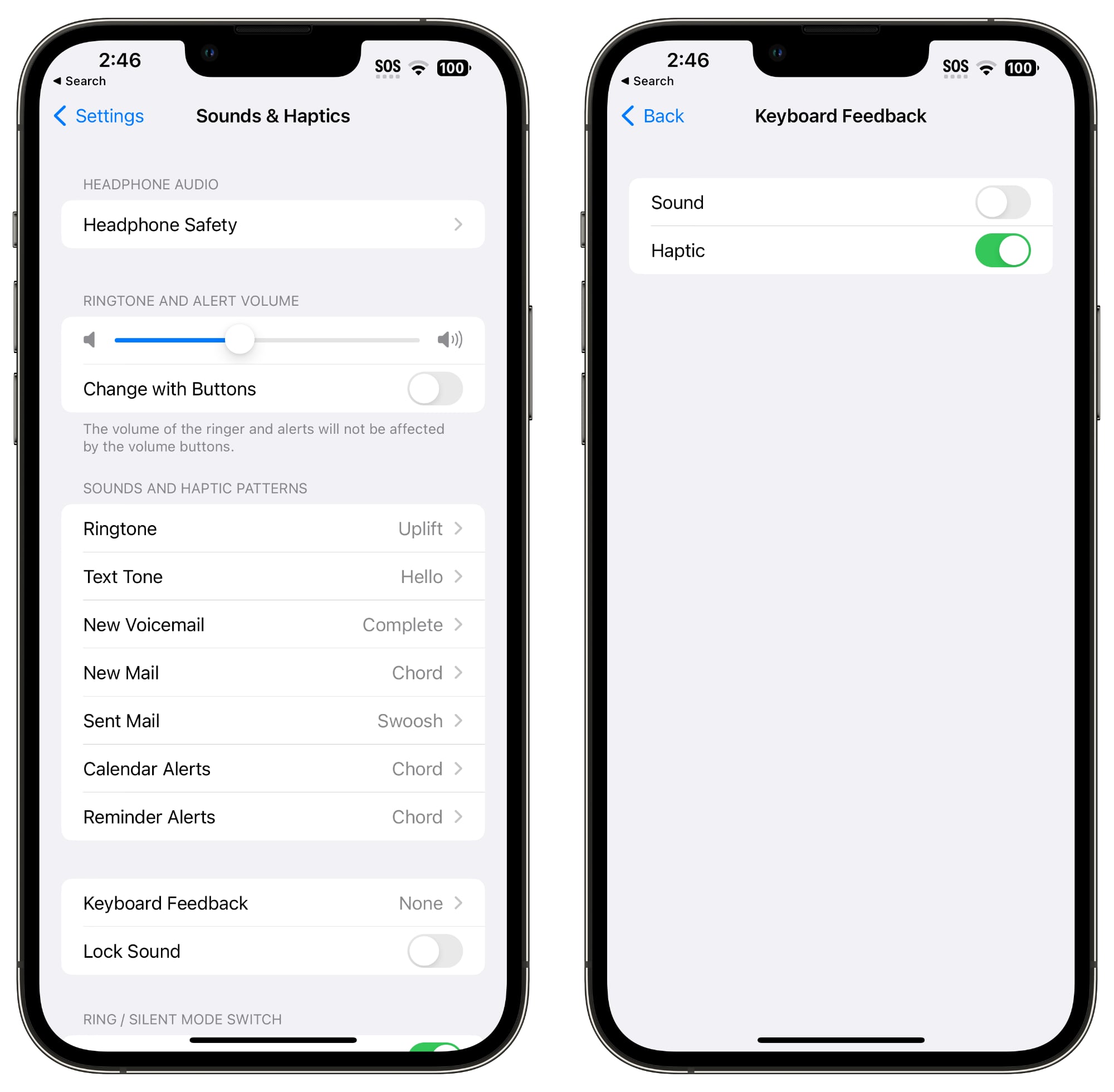
Scroll down in Settings and tap Sounds and Haptics. This is the menu that controls every sound and vibration on your phone, from the ringtone to the click when you lock the screen.
At the top of the Sounds and Haptics screen, you will see the volume slider for ringtones and alerts. Just below it are the vibration controls. Look for the option called Play Haptics in Ring Mode. On some versions of iOS this is shown as Vibrate on Ring, but it is the same switch.
Tap the toggle next to it so it turns green. Green means the setting is on. From now on, your iPhone 15 will vibrate every time it rings, as well as playing the ringtone.
Test it straight away. Ask someone to call you, or set a short alarm. You should feel a buzz the moment the call or alarm starts. If you feel nothing, check that the toggle is still green and that your phone is not in a mode that blocks vibrations, such as Do Not Disturb.
This one switch covers calls, text messages, and most app notifications. It is the single most important setting in this guide, and for most people it is the only one they ever need.
Method 2: Turn On Vibrate in Silent Mode
Silent mode is where vibration matters most. When your phone is silent, vibration is the only way you know someone is calling. If this switch is off, a silent phone is a phone you will miss calls on.
Go back to Settings, then Sounds and Haptics, the same menu as Method 1. This time, look for the option called Play Haptics in Silent Mode. On some versions of iOS it appears as Vibrate on Silent.
Tap the toggle so it turns green. Now your iPhone 15 will vibrate when it is silent and a call or message arrives. The ringer stays off, so nobody hears anything, but you feel the buzz in your pocket or on the desk.
Next, put the phone into silent mode to check it works. On the standard iPhone 15 and iPhone 15 Plus, flick the small Ring/Silent switch on the left edge of the phone, just above the volume buttons. When you see the orange colour in the switch, the phone is silent.
On the iPhone 15 Pro and iPhone 15 Pro Max, there is no switch. Instead, press and hold the Action Button on the left edge, above the volume buttons, until you see the Silent mode banner at the top of the screen. You can also open Control Centre by swiping down from the top-right corner and tapping the bell icon.
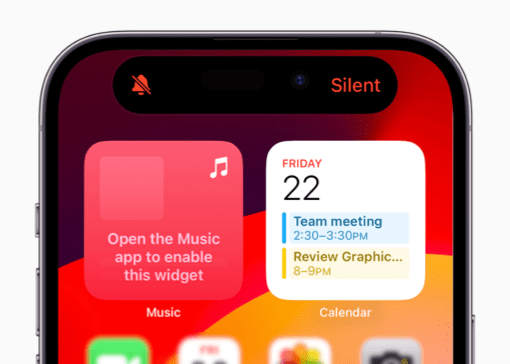
When silent mode is on, a small bell icon with a line through it appears in the Dynamic Island at the top of the screen. That is your confirmation that the phone is silent. Now ask someone to call you. You should feel the vibration even though the phone makes no sound.
Many people keep this switch on all the time and leave the ring-mode switch on too. That way the phone vibrates whether it is ringing out loud or sitting silent, and you never miss a call either way. If you want the full picture on silent mode itself, see our guide on how to put iPhone 15 on silent.
Method 3: Pick a Vibration Pattern and Set Custom Vibrations
The default vibration on the iPhone 15 is a single steady buzz. It works, but it feels the same for every call, message, and alert. You can change that by picking a different pattern, so you can tell a call from a text without looking at the screen.
Go to Settings, then Sounds and Haptics, then tap Ringtone. At the top of the Ringtone screen, tap Haptics. You will see a list of vibration patterns with names like Accent, Alert, Heartbeat, Quick, Rapid, S.O.S., Staccato, and Symphony.
Tap any pattern to feel it. The phone buzzes in that pattern the moment you tap it, so you can try them all in a few seconds. When you find one you like, leave it selected — the blue tick shows your choice — and tap the back arrow. That pattern now applies to your ringtone.
You can do the same for text messages. Go back to Sounds and Haptics, tap Text Tone, then tap Haptics at the top, and pick a different pattern. A short, sharp pattern like Quick works well for messages, because it feels different from the longer buzz of a phone call.
You can also create your own vibration pattern. On the Haptics screen, tap Create New Vibration under the Custom heading. Then tap the screen in any rhythm you like — short taps, long holds, or a mix of both. Tap Stop when you are done, then tap Play to feel it back.
If you like it, tap Save, give it a name, and it appears in your pattern list.
For one special contact, you can go further. Open the Contacts app, tap the person, tap Edit, then tap Ringtone, then Haptics, and pick a pattern just for them. Now you will know it is your partner or your boss calling before you even look at the phone. You can set a custom text tone vibration for them the same way, under Text Tone.
Alarms have their own vibration setting too. Open the Clock app, tap Alarm, then tap the alarm you want to change, then Sound, then Vibration at the top.
Pick a strong pattern like S.O.S. or Alert for a morning alarm, so the buzz is hard to sleep through. If you want the alarm to vibrate and nothing else, set its sound to None and keep the vibration on.
Keyboard haptics are a separate setting, and they make typing feel better. In Sounds and Haptics, scroll down to Keyboard Feedback and switch on Haptics. Now you feel a tiny tap for every key you press. It does not affect calls or alerts, but it makes the phone feel more responsive in your hands.
Tips for Using Vibrate on iPhone 15
Keep your phone in a pocket, not loose in a bag, when you rely on vibration. A phone buried under books or clothes muffles the buzz, and you will miss the call anyway. A pocket close to your body carries the vibration straight to you.
Put the phone face down on a hard surface if you want to feel it from across the room. A phone on a wooden desk buzzes loudly enough to hear as well as feel, which is handy in a quiet office. On a soft sofa or bed, the same vibration almost disappears.
Use different patterns for calls and messages. A long pattern for calls and a short one for texts means you can tell them apart without taking the phone out of your pocket. That small trick saves you from checking the screen every time it buzzes.
Turn vibration off at night if it wakes you up. A phone buzzing on a bedside table can be louder than a quiet ringtone. Either switch off Play Haptics in Silent Mode before bed, or turn on Do Not Disturb, which silences vibrations as well as sounds.
Check your case if the vibration feels weak. A thick, heavy case absorbs the buzz before it reaches your hand. Try the phone without the case and see if the vibration feels stronger. If it does, a slimmer case will make a real difference.
Remember that vibration uses a small amount of battery. It is not much — far less than the screen or mobile data — but if your battery is running low, switching vibration off for a few hours will stretch the charge a little further.
Troubleshooting: Vibrate Not Working on iPhone 15
If your iPhone 15 does not vibrate at all, work through these checks in order. Most vibration problems are a setting that got switched off, not a broken phone.
First, check the two toggles in Settings, under Sounds and Haptics. Make sure Play Haptics in Ring Mode is on if you expect vibration while the phone rings, and Play Haptics in Silent Mode is on if you expect it while the phone is silent. One of these is off in most cases where vibration seems broken.
Second, check Do Not Disturb and Focus modes. When Do Not Disturb is on, the phone silences calls, messages, and vibrations from most people. Swipe down from the top-right corner to open Control Centre and look at the Focus button. If it says Do Not Disturb, tap it to switch it off, then test again.
Third, check the System Haptics switch. In Sounds and Haptics, scroll down to the System Sounds and Haptics section and make sure System Haptics is switched on. When this is off, the phone stops playing haptics for system controls and interactions, which can make the whole phone feel dead.
Fourth, check the vibration pattern itself. Go to Settings, then Sounds and Haptics, then Ringtone, then Haptics. If the pattern is set to None, the phone will not vibrate for calls at all, no matter what the toggles say. Pick any other pattern and test again.
Fifth, restart your iPhone. Press and hold the side button and either volume button together, drag the power-off slider, wait 30 seconds, then press and hold the side button until the Apple logo appears. A restart clears small software glitches, and vibration is one of the things a glitch can quietly switch off. If your phone ever freezes completely and will not restart this way, our guide on how to force restart iPhone 15 shows the button sequence that works when the screen does not respond.
Sixth, check for a software update. Go to Settings, then General, then Software Update. Apple sometimes fixes vibration and haptics bugs in updates. If an update is available, install it over Wi-Fi with the phone plugged in.
If none of that works, test the vibration motor itself. Go to Settings, then Sounds and Haptics, then Ringtone, then Haptics, and tap a pattern. If you feel nothing at all, even with every toggle on, the vibration motor may be faulty.
That is a hardware problem, and it needs a repair. Book an appointment at an Apple Store or an authorised service provider, and back up your phone before you go.
One more thing to check: if vibration works for calls but not for one app, the problem is in that app. Open Settings, scroll down to the app, and check its notification settings. Some apps have their own vibration switch inside the app itself, under its own settings menu.
Frequently Asked Questions
How do I turn on vibrate on iPhone 15?
Open Settings, tap Sounds and Haptics, and switch on Play Haptics in Ring Mode. That makes the phone vibrate when it rings. Also switch on Play Haptics in Silent Mode if you want it to vibrate when the phone is silent. Both toggles sit just under the ringtone volume slider.
Why is my iPhone 15 not vibrating on silent?
The most common reason is that Play Haptics in Silent Mode is switched off. Go to Settings, then Sounds and Haptics, and turn that toggle on. Also check that Do Not Disturb is off, because it blocks vibrations as well as sounds. If both are correct, check that the ringtone vibration pattern is not set to None.
Can I make my iPhone 15 vibrate only, with no sound?
Yes. Put the phone in silent mode using the Ring/Silent switch or the Action Button, and make sure Play Haptics in Silent Mode is switched on. The phone will then vibrate for calls and messages without making any sound. For a full walkthrough of the silent side, see our guide on how to turn on vibration on iPhone 15.
How do I change the vibration pattern on iPhone 15?
Go to Settings, then Sounds and Haptics, then Ringtone, then Haptics at the top of the screen. Tap any pattern to feel it, and leave the one you like selected. You can also tap Create New Vibration to tap out your own rhythm and save it with a name.
Does vibrate work when my iPhone 15 is on Do Not Disturb?
By default, no. Do Not Disturb silences calls, alerts, and vibrations from most people. You can allow calls from certain contacts by going to Settings, then Focus, then Do Not Disturb, then People, and adding them to the allowed list. Calls from those people will then ring and vibrate as normal.
Can I set a different vibration for one contact?
Yes. Open Contacts, tap the person, tap Edit, then tap Ringtone, then Haptics, and choose a pattern just for them. You can set a different text tone vibration for the same contact under Text Tone. This is the easiest way to know who is calling without looking at the screen.
Will turning on vibrate drain my battery?
Only slightly. The vibration motor uses a small amount of power each time it runs, but it is far less than the screen, Wi-Fi, or mobile data use. For most people, the battery difference is too small to notice. If your battery is very low, switching vibration off will help a little, but charging the phone matters far more.
Final Thoughts
Turning on vibrate on the iPhone 15 is a two-switch job: one for ring mode, one for silent mode. Switch both on, pick a pattern you like, and your phone will buzz for every call and message, whether it is ringing out loud or sitting silent in your pocket.
The custom patterns are worth five minutes of your time. A different buzz for calls, texts, and one special contact turns vibration from a simple alert into a quiet way of knowing what is happening without ever looking at the screen. And if you ever want the opposite — a phone that stays completely still — our guide on how to turn off vibration on iPhone 15 shows you how to switch it all off again, while our guide on how to turn the ringer on iPhone 15 covers the sound side of the same settings.