
Turning the ringer on your iPhone 15 sounds simple, but many people find their phone still stays silent after they try. The reason is that the iPhone has more than one way to silence a call. The physical switch, the volume buttons, the Settings screen, and Focus modes can all affect whether you hear the ringtone.
This guide explains every way to turn the ringer on, starting with the quickest one. You will learn how to use the Ring/Silent switch, how to raise the ringer volume with the buttons, how to set the volume in Settings, and how to check the settings that can silence the phone without you noticing.
By the end, you will know exactly which control was keeping your phone quiet, and you will be able to fix it in seconds the next time it happens. Nothing in this guide deletes data or changes your apps, so you can try each step safely.
The ringer is the sound your phone makes for incoming calls. It is different from media volume, which controls music and videos, and it is different from the alarm volume, which is tied to the ringer. When the ringer is off or too quiet, you can miss important calls, so it is worth getting the settings right.
How the iPhone 15 Ringer Works
On the standard iPhone 15 and iPhone 15 Plus, the ringer is controlled by a small physical switch on the left edge of the phone, just above the volume buttons. When the switch is pushed towards the front of the phone, with no orange showing, the ringer is on. When it is pushed towards the back, with an orange strip visible, the phone is silent.
On the iPhone 15 Pro and iPhone 15 Pro Max, there is no silent switch. Instead, there is an Action Button in the same place. Pressing and holding the Action Button switches between ring and silent, and a small banner appears on the screen to tell you which mode you have chosen. You can also change what the Action Button does in Settings, so check that it is still set to Silent Mode if it does not seem to work.
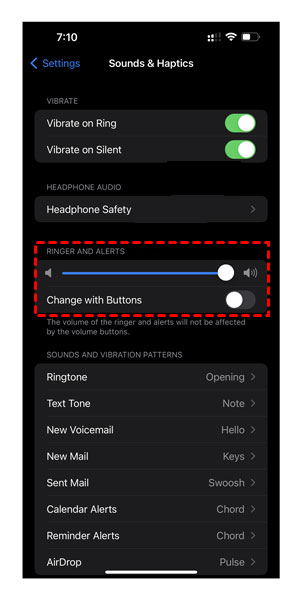
The ringer volume is set separately from the switch. Even with the ringer switched on, the volume may be so low that you cannot hear it. The volume is controlled in Settings, under Sounds and Haptics, with a slider called Ringer and Alerts. The volume buttons on the side can also change it, but only if a setting called Change with Buttons is switched on.
Other features can silence the ringer too. Do Not Disturb and other Focus modes silence calls by design. The Silence Unknown Callers setting sends calls from numbers not in your contacts straight to voicemail. A connected Bluetooth device, such as headphones or a car stereo, can also take the ringtone away from the phone speaker.
That is why fixing a silent ringer is a matter of checking a short list, not just flipping one switch. Work through the methods below in order, and you will find the cause quickly.
Before You Start
Before you change any setting, check the obvious things first. Make sure the phone is not in a case that covers the switch or the buttons. A tight case can hold the silent switch in the wrong position, or press a volume button without you noticing.
Check that the phone has some charge and is not in Low Power Mode for a reason that matters here. Low Power Mode does not silence the ringer, but a phone with a flat battery will not ring at all, so charge it if the battery is very low.
Ask someone to call you while you test, or use another phone to call your number. Testing with a real call is the only sure way to know the ringer works. A volume slider that looks right on screen does not always mean the speaker is working.
Think about when the problem started. Did the ringer stop working after you changed a setting, after an update, or after you connected a new Bluetooth device? The answer often points straight to the cause, and it saves you from changing settings that were fine.
Finally, check that the ringtone itself is set to something you can hear. Go to Settings, then Sounds and Haptics, then Ringtone, and tap a few tones. If you cannot hear any of them, the problem may be the speaker rather than the ringer setting. If you can hear them, the speaker is fine, and the problem is in the settings.
Method 1: Turn the Ringer On with the Ring/Silent Switch
This is the fastest method on the iPhone 15 and iPhone 15 Plus, and it takes only a second. It is also the most common cause of a silent phone, because the switch is easy to knock by accident when the phone is in a pocket or a bag.
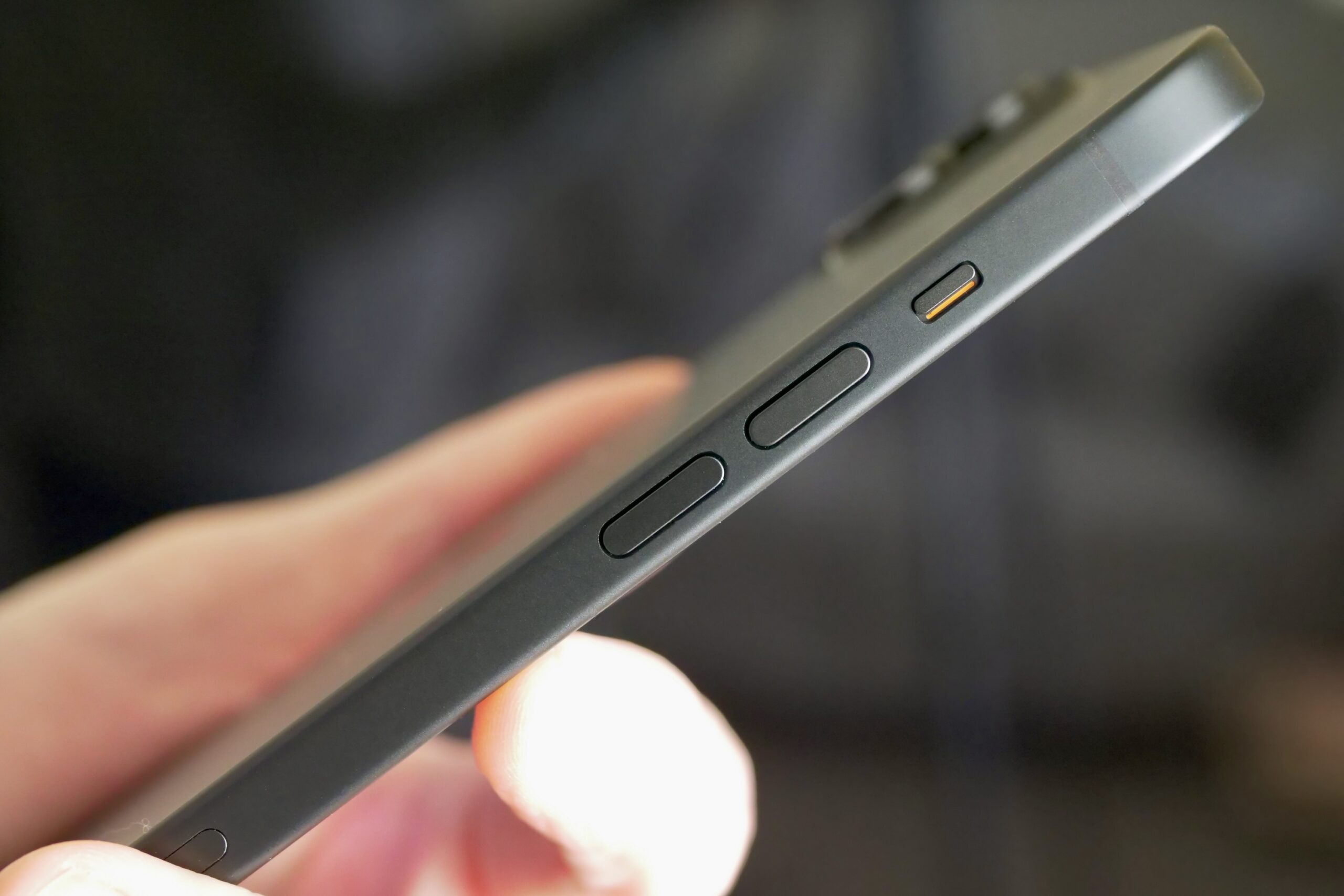
Follow these steps:
- Hold your iPhone 15 so you can see the left edge.
- Find the small switch above the two volume buttons.
- Look at the switch. If you can see an orange strip, the phone is on silent.
- Push the switch towards the front of the phone, so the orange strip disappears.
- The screen shows a small banner saying Ring, and the phone may vibrate briefly.
- Ask someone to call you, or call your own number from another phone, to check that it rings.
If the switch feels loose or does not stay in place, the phone may need a repair. Do not force the switch, and do not wedge anything into it. You can still turn the ringer on in Settings, as explained in Method 3, while you arrange a repair.
On iPhone 15 Pro and iPhone 15 Pro Max, use the Action Button instead. Press and hold the Action Button, which sits above the volume buttons on the left edge, until you feel a vibration and see a banner on the screen. If the banner says Silent, press and hold again to switch back to Ring. If nothing happens, open Settings, tap Action Button, and check that it is set to Silent Mode.
After you switch the ringer on, check the volume as well. The switch turns the ringer on, but it does not raise the volume. If the volume is set very low, the phone may still be hard to hear. Method 2 explains how to raise it.
Method 2: Turn Up the Ringer with the Volume Buttons
The volume buttons on the left edge of your iPhone 15 can change the ringer volume, but only if the right setting is switched on. Many people press the volume up button and wonder why the ringtone does not get louder. The answer is usually that Change with Buttons is off, so the buttons only control media volume.
Follow these steps to turn the setting on and raise the volume:
- Open Settings on your iPhone 15.
- Tap Sounds and Haptics.
- Find the Ringer and Alerts section, about halfway down the screen.
- Check the switch next to Change with Buttons. If it is off, tap it to switch it on.
- Now press the volume up button on the left edge of the phone.
- A volume indicator appears on the screen. Keep pressing until it reaches the level you want.
- Tap the Ringer and Alerts slider as well, and drag it to the right if you want the ringer louder still.
When Change with Buttons is on, the volume buttons change the ringer volume when no media is playing, and they change the media volume when music or a video is playing. When it is off, the buttons never change the ringer volume, and you must use the slider in Settings instead.
Some people prefer to keep Change with Buttons off, so that pressing a volume button by accident in a pocket does not silence their ringer. That is a fair choice, but it means you must remember to use the slider in Settings whenever you want to change the ringer volume. Choose the option that suits how you use the phone, and stick with it.
Test the volume after you change it. The slider shows the level, but your ears are the real test. Ask someone to call you, and listen from another room. A ringer that sounds loud in your hand may be hard to hear from a bag or a jacket pocket.
Method 3: Turn the Ringer On in Settings
If the switch and the buttons do not solve the problem, the Settings screen is the next place to look. It shows the ringer volume, the vibration settings, and the ringtone itself, all in one place.
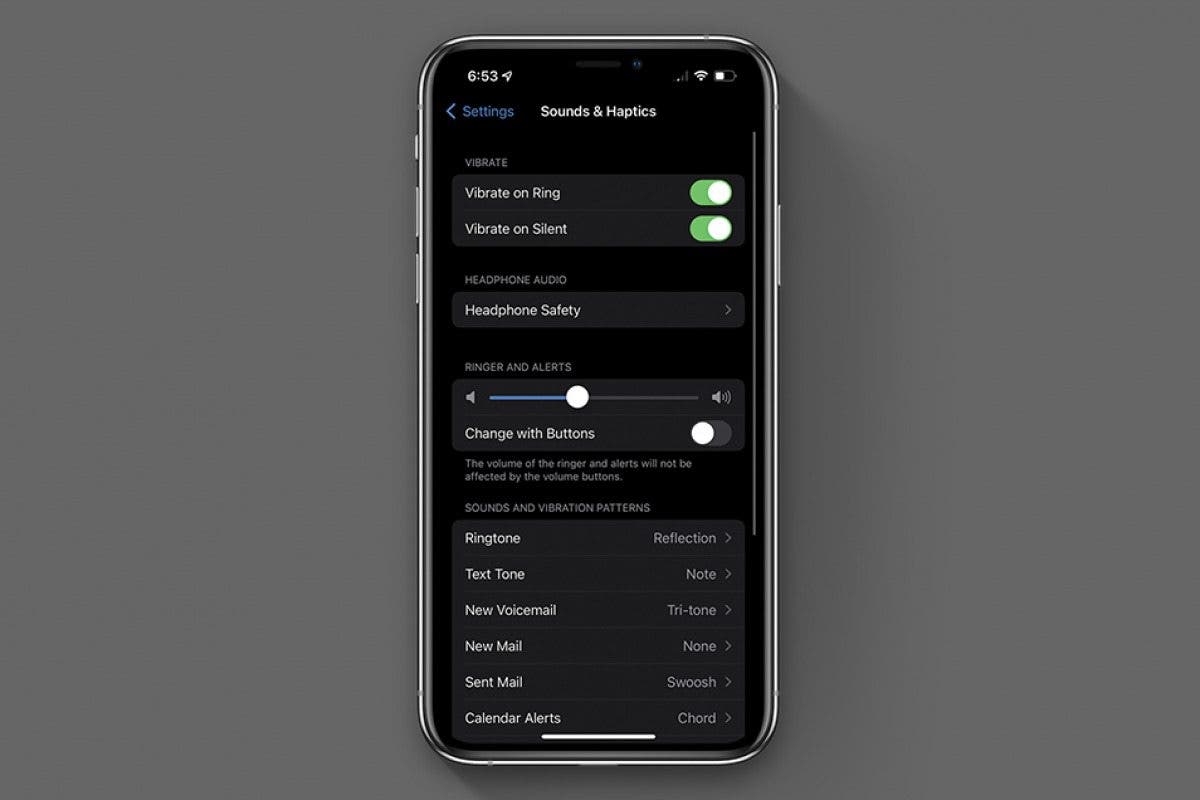
Follow these steps:
- Open Settings and tap Sounds and Haptics.
- Look at the Ringer and Alerts slider. Drag it to the right, to at least the middle, and ideally higher.
- Check that Change with Buttons is switched on, if you want the side buttons to control the ringer.
- Tap Ringtone and choose a tone. Pick one that is loud and clear, such as Reflection or Opening.
- Tap the back arrow to return to Sounds and Haptics.
- Check the Vibrate section at the top. Switch on Vibrate on Ring if you want the phone to vibrate as well as ring.
- Ask someone to call you and check that the phone rings at the new volume.
While you are on this screen, check the ringtone volume against the media volume. They are separate, and a phone can play music loudly while its ringer is almost silent. The Ringer and Alerts slider is the only one that controls calls, so do not be misled by the media volume.
If the slider will not move, or it jumps back to a low level, restart the phone and try again. A simple restart clears many small settings glitches. Our guide on how to force restart your iPhone 15 explains the button sequence if the screen is frozen.
If you share the phone with a child, or someone else changed the ringtone to a very quiet one, changing it back to a standard tone often solves the problem at once. A soft piano tone may sound pleasant in a quiet room, but it is easy to miss in a busy street.
Check Focus, Do Not Disturb, and Silence Unknown Callers
If the switch is on and the volume is up, but the phone still does not ring, a Focus mode is the most likely cause. Do Not Disturb and other Focus modes silence calls by design, and they can turn on automatically on a schedule or when you arrive at a place.
Follow these steps to check:
- Open Settings and tap Focus.
- Tap Do Not Disturb and check whether it is switched on.
- If it is on, switch it off, or tap the schedule below it and remove any automatic schedule you do not want.
- Go back and check the other Focus modes, such as Sleep, Work, and Personal, in the same way.
- Swipe down from the top right corner to open Control Centre, and check that no Focus icon is highlighted.
- Ask someone to call you and check that the phone rings.
A small moon icon in the status bar means Do Not Disturb is on. If you see it, the phone will stay silent even though the ringer switch is on. Tap the moon in Control Centre to switch it off.
Next, check Silence Unknown Callers. Go to Settings, tap Phone, and look for Silence Unknown Callers. If it is on, calls from numbers not saved in your contacts go straight to voicemail without ringing.
This is useful for blocking spam, but it also silences calls from a doctor, a delivery driver, or anyone else whose number you have not saved. Switch it off if you are missing calls from new numbers.
Also check Call Forwarding in the same Phone settings screen. If calls are forwarded to another number, your phone may not ring at all. Switch it off unless you set it up on purpose.
Finally, check whether the phone is connected to Bluetooth headphones or a car stereo. When a Bluetooth device is connected, the ringtone may play through that device instead of the phone speaker. Swipe into Control Centre, tap the Bluetooth icon to disconnect, and test the ringer again. Our guide on how to turn on vibration on iPhone 15 also explains how vibration works alongside the ringer, which helps when the phone is in a pocket.
Use Control Centre and Siri to Manage the Ringer
Control Centre gives you a quick way to check Focus and volume without opening Settings. Swipe down from the top right corner of the screen, and look at the icons. A highlighted Focus icon means a Focus mode is on. Tap it to switch it off.
You can also use Siri to change the ringer. Press and hold the side button, or say Hey Siri, then say Turn off Do Not Disturb or Turn up the volume. Siri can switch Focus off and raise the volume, but it cannot flip the physical silent switch, so check the switch by hand as well. Our guide on how to get Siri on iPhone 15 explains how to set Siri up if it does not respond.
Another useful trick is to set a different ringtone for important contacts. Open Contacts, choose a person, tap Edit, tap Ringtone, and choose a loud, distinct tone. That way, even if the general ringer is quiet, you will recognise a call from that person at once.
If you want the phone to vibrate as well as ring, switch on Vibrate on Ring in Sounds and Haptics. Vibration is a useful backup when the phone is in a pocket or a bag, where the speaker is muffled. If you want to turn vibration off again later, our guide on how to turn off vibration on iPhone 15 walks through the same screen.
Tips for Never Missing a Call Again
Set the ringer volume to at least two thirds of the slider, and test it from another room. A volume that sounds fine in your hand can be hard to hear through a coat pocket or a handbag. A louder ringer is a small price to pay for never missing a call.
Keep Change with Buttons on if you like using the side buttons, or off if you often press them by accident. There is no right answer, only the one that fits how you carry the phone. Whichever you choose, remember where the setting lives, so you can change it again later.
Check the silent switch every time you take the phone out of a pocket or a bag. The switch is small and easy to knock, and a quick glance takes less than a second. Making it a habit saves you from hours of wondering why nobody called.
Use a loud ringtone with a clear pattern, and avoid soft tones that fade in slowly. A tone that starts quietly may not catch your attention in a noisy place. Standard tones such as Reflection, Opening, and Bulletin are designed to be heard, so they are a safe choice.
Keep your contacts up to date, so Silence Unknown Callers does not block people you know. When a new doctor, school, or delivery service calls, save the number straight away. That way, the next call from that number will ring normally.
Troubleshooting: When the Ringer Still Will Not Turn On
If the switch is on, the volume is up, Focus is off, and the phone still does not ring, the problem may be the speaker. Play a song or a video and listen. If you cannot hear any sound at all, the speaker may be blocked or damaged.
Check the speaker grille at the bottom of the phone for dust or lint, and clean it gently with a soft brush. Our guide on how to clean the iPhone 15 charging port includes safe cleaning advice that also applies to the speaker area.
If music plays fine but calls do not ring, the problem is in the call settings, not the speaker. Check Silence Unknown Callers again, check Call Forwarding, and check whether the caller is blocked. Go to Settings, tap Phone, tap Blocked Contacts, and make sure the person is not on the list by mistake.
If the phone rings for some people but not others, the cause is usually a per-contact ringtone set to None, or a contact blocked by accident. Open the contact, tap Edit, tap Ringtone, and choose a normal tone instead of None.
If the ringer worked yesterday and stopped today, think about what changed. A new case, a new Bluetooth device, a software update, or a Focus schedule can all silence the phone. Undo the most recent change first, and test the ringer again after each step.
If the phone rings but the sound is distorted or crackly, the speaker may be damaged by water or a drop. Turn the volume down a little and test again. If the distortion stays at every volume, have the speaker checked by Apple or an authorised repair shop. Do not try to open the phone yourself.
If nothing in this guide works, restart the phone and try again. A restart clears temporary software glitches that can silence the ringer. If a restart does not help, reset all settings in Settings, then General, then Transfer or Reset iPhone, then Reset All Settings. This keeps your photos and apps, but returns all settings, including sound settings, to their defaults.
Frequently Asked Questions
How do I turn the ringer on my iPhone 15?
On iPhone 15 and iPhone 15 Plus, push the Ring/Silent switch on the left edge towards the front of the phone, so no orange is showing. On iPhone 15 Pro and Pro Max, press and hold the Action Button until the screen says Ring. Then raise the volume in Settings, under Sounds and Haptics, using the Ringer and Alerts slider.
Why is my iPhone 15 not ringing even though the ringer is on?
The most common causes are Do Not Disturb or another Focus mode, Silence Unknown Callers, a Bluetooth device taking the sound, or a ringer volume set too low. Check the Focus settings, the Phone settings, and the Ringer and Alerts slider in Sounds and Haptics, and test with a real call.
Do the volume buttons control the ringer on iPhone 15?
Yes, but only if Change with Buttons is switched on in Settings, under Sounds and Haptics. When it is off, the volume buttons only control media volume, and you must use the Ringer and Alerts slider to change the ringer volume. Switch the setting on if you want the buttons to work for the ringer.
What is the difference between ringer volume and media volume?
Ringer volume controls the sound of incoming calls and alerts, and it is set with the Ringer and Alerts slider. Media volume controls music, videos, and games, and it changes with the volume buttons while media is playing. A phone can have loud media and a quiet ringer at the same time, so check both separately.
Why does my iPhone 15 only vibrate and not ring?
The phone is probably on silent, or the ringer volume is set very low. Check the Ring/Silent switch, make sure no orange is showing, and drag the Ringer and Alerts slider to the right. Also check that Vibrate on Ring is on if you want both vibration and sound together.
Can Do Not Disturb silence my ringer even when the switch is on?
Yes. Do Not Disturb and other Focus modes silence calls by design, no matter what position the physical switch is in. Look for a moon icon in the status bar, open Control Centre, and switch the Focus mode off. Also check for any automatic Focus schedule in Settings, under Focus.
How do I make my iPhone 15 ring louder?
Open Settings, tap Sounds and Haptics, and drag the Ringer and Alerts slider to the right. Choose a loud ringtone, such as Reflection or Opening, and switch on Vibrate on Ring as well. Test the volume from another room, because a ringer that sounds loud in your hand may be muffled in a pocket or bag.
Conclusion
Turning the ringer on your iPhone 15 is usually a matter of one switch and one slider. Push the Ring/Silent switch so no orange is showing, or press and hold the Action Button on a Pro model until the screen says Ring. Then open Settings, go to Sounds and Haptics, and drag the Ringer and Alerts slider up to a level you can hear from another room.
If the phone still stays silent, check the settings that can override the switch. Switch off Do Not Disturb, check Silence Unknown Callers, disconnect any Bluetooth device, and make sure the ringtone is set to a loud tone. Work through the list in order, and test with a real call after each change.
Once the ringer is working, keep it that way with a few habits. Check the switch when you take the phone out of a pocket, keep the volume at a level you can hear, and save new numbers to your contacts. With those habits, you will hear the next important call the first time it rings.