Your iPhone 15 has a large, capable battery, yet it can still feel like the charge runs out too fast. A long day of calls, maps, videos, and messages will drain any phone. The good news is that most battery drain comes from settings you can change in a few minutes, not from a fault with the phone itself.
This guide shows you how to save battery on iPhone 15 with essential tips and tricks that actually work. You will learn how to use Low Power Mode, read the Battery settings to find the apps that use the most power, and tame the screen, background refresh, and location services. We also cover charging habits and Battery Health, so your battery stays strong for longer.
Every method here uses only the built-in Settings app. You do not need to download anything, buy an accessory, or change how you use your phone in a big way. Small changes add up, and by the end of this guide you should notice your battery lasting clearly longer through the day.
Before You Start
Before changing settings, take a minute to see where your battery is actually going. Open Settings, tap Battery, and look at the battery usage list. It shows which apps used the most power over the last 24 hours and the last 10 days. If one app sits far above the rest, that app is your main problem.
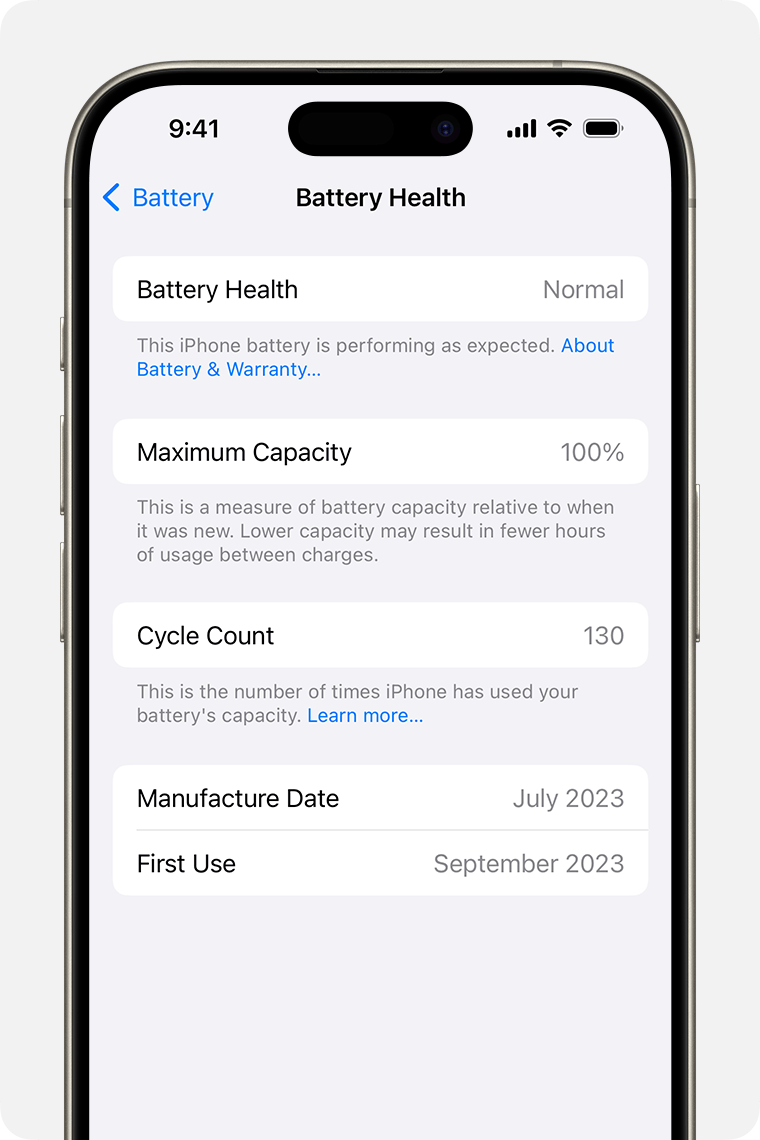
Check your Maximum Capacity while you are there. Tap Battery Health & Charging on the Battery screen.
Maximum Capacity tells you how much charge your battery can still hold compared with when it was new. A new iPhone 15 shows 100 percent, and the number falls slowly over time as the battery ages. This is normal for every rechargeable battery.
Make sure your phone is charged to at least 50 percent before you start testing changes. Some battery features behave differently when the charge is very low, and Low Power Mode can switch itself on at 20 percent. Starting with a decent charge lets you see the real effect of each change.
Finally, remember that battery life depends on how you use the phone. A day of video streaming and navigation will always use more power than a day of light messaging. The goal is not to stop using your phone. It is to stop the hidden waste, so the power goes to the things you actually want to do.
Method 1: Use Low Power Mode and Read Your Battery Settings
Low Power Mode is the single fastest way to save battery on iPhone 15. It is built into iOS, it takes seconds to turn on, and it works right away. When it is on, your iPhone reduces background activity such as mail fetch, automatic downloads, and some visual effects. Your phone still works normally for calls, messages, and browsing.
You can tell Low Power Mode is on because the battery icon in the status bar turns yellow. The phone turns it off by itself once the battery charges to 80 percent or more. You can also turn it off by hand at any time.
- Open Settings and tap Battery.
- Turn on the switch next to Low Power Mode.
- To turn it on faster, open Control Centre by swiping down from the top-right corner, then tap the battery icon if you have added it there.
- To add the button to Control Centre, go to Settings, tap Control Centre, and add Low Power Mode to the list.

Use Low Power Mode whenever you know you will be away from a charger for a long time. Turn it on before a long journey, a busy workday, or a night out. You do not need to wait until the battery warning appears at 20 percent. Switching it on early saves far more power than switching it on when the battery is nearly empty.
Next, learn to read the Battery screen properly. The graph at the top shows your battery level and activity over the last 24 hours or the last 10 days. Below it, the app list shows how much battery each app used.
Tap an app in the list to see whether it used power on screen or in the background. An app that uses a lot of power in the background is a good candidate for the changes in Method 3.
The Battery screen also shows when your phone was last charged and to what level. If the graph shows the battery dropping steeply while the phone was idle, something is running in the background. That is usually an app refreshing content, fetching mail, or tracking your location. The methods below will help you find it and stop it.
One more useful habit is to check the Battery screen once a week. Battery hogs change over time, especially after you install a new app or an app updates. A weekly check takes less than a minute and stops a single hungry app from quietly eating your charge every day.
Method 2: Tame the Screen, Brightness, and Auto-Lock
The screen is the biggest battery user on any iPhone, including the iPhone 15. The brighter the screen and the longer it stays on, the faster the battery drains. This is good news, because the screen is also one of the easiest things to control.
Start with brightness. Your iPhone 15 has a bright, beautiful display, but it rarely needs to run at full brightness indoors. Swipe down from the top-right corner to open Control Centre, then drag the brightness slider down to a comfortable level. You will be surprised how little brightness you need in a normal room.
Turn on Auto-Brightness so the phone adjusts itself. Go to Settings, tap Accessibility, tap Display & Text Size, and scroll down to Auto-Brightness. When this is on, the phone dims the screen in dark rooms and brightens it in sunlight. It saves power without you having to think about it.
Next, shorten Auto-Lock. Auto-Lock decides how quickly the screen turns off when you are not using the phone. A long Auto-Lock time means the screen can stay lit in your pocket or on a table, wasting power for no reason. A short time means the screen sleeps quickly.
- Open Settings and tap Display & Brightness.
- Tap Auto-Lock.
- Choose 30 Seconds or 1 Minute.
- Press the Side button to lock the screen by hand whenever you finish using the phone.
Turning the screen off by hand is a habit worth building. Every time you put the phone down, press the Side button once. It takes less than a second, and it stops the screen from staying on for the full Auto-Lock period. If you want a full walkthrough of locking the screen, see our guide on how to turn off the iPhone 15 screen.
Dark Mode can also help a little, because the iPhone 15 uses an OLED display. On an OLED screen, black pixels use very little power. Turn on Dark Mode in Settings, under Display & Brightness, or add it to Control Centre. It will not double your battery life, but it trims power use in apps that support it, and many people find it easier on the eyes at night.
Finally, look at Raise to Wake and Always On Display if your model has it. Raise to Wake lights the screen every time you pick the phone up, which adds up over a day. Turn it off in Settings, under Display & Brightness, if you do not need it.
On iPhone 15 Pro and Pro Max, Always On Display keeps the Lock Screen visible all day. Turn it off in the same place if battery life matters more to you than glancing at the time.
Method 3: Control Apps, Background Refresh, and Location Services
Apps are the second-biggest source of battery drain, and they waste power in ways you never see. An app can keep working after you close it, checking for new content, updating its feed, or tracking where you are. A few settings changes can stop most of this hidden work.
Start with Background App Refresh. This feature lets apps fetch new content in the background so it is ready when you open them. It is handy for news and social apps, but many apps do not need it. A shopping app or a game does not need to refresh itself while you are doing something else.
- Open Settings and tap General.
- Tap Background App Refresh.
- Turn it off completely, or turn it off only for apps that do not need it.
- Choose Wi-Fi only instead of Wi-Fi & Mobile Data if you want to keep it for a few apps.
Be selective rather than turning everything off. Keep Background App Refresh on for apps where fresh content matters, such as your mail app or a messaging app. Turn it off for games, shopping apps, and apps you open only now and then. You will still get new content when you open the app; it will just load at that moment instead of in advance.
Next, check Location Services. Location is useful for maps and ride-hailing apps, but many apps ask for it when they do not need it. An app that tracks your location all day will drain the battery steadily, even when you are not using it.
- Open Settings and tap Privacy & Security.
- Tap Location Services.
- Go through the list and set each app to Never, Ask Next Time, While Using the App, or Always.
- Choose While Using the App for most apps, and Never for apps that have no reason to know where you are.
Pay special attention to apps set to Always. Only navigation and fitness apps usually need that setting. If a social media app or a shopping app is set to Always, change it to While Using the App. You can also turn off the small arrow icons for System Services you do not use, such as location-based suggestions, but leave Emergency Calls and Find My alone.
Notifications are another quiet battery drain. Every notification lights the screen, plays a sound, or vibrates the phone.
Go to Settings, tap Notifications, and turn off notifications for apps that do not need to interrupt you. Group chats and shopping apps are common culprits. Fewer notifications means fewer times the screen wakes up.
Close Safari tabs you no longer need. Open tabs can keep pages active in the background, especially pages with video or live updates. If you have dozens of tabs open, take a minute to clear them out. Our guide on how to close all tabs on iPhone 15 shows the fastest way to do it in one go.
Finally, delete apps you never use. An unused app can still run background tasks, send notifications, and check for updates.
Press and hold the app icon, tap Remove App, and then tap Delete App. If you need it again later, you can download it again from the App Store. A lighter phone is a longer-lasting phone.
Charging Habits That Protect Your Battery
How you charge your iPhone 15 matters as much as how you use it. The battery is a lithium-ion battery, and it ages fastest when it is kept at very high or very low charge for long periods. Small changes to your charging routine can keep Maximum Capacity higher for longer.
Turn on Optimized Battery Charging. Go to Settings, tap Battery, then tap Battery Health & Charging, and make sure Optimized Battery Charging is on. This feature learns your daily routine and waits to finish charging past 80 percent until just before you usually pick the phone up. It reduces the time the battery spends fully charged, which slows ageing.
You can also set a charge limit if your iPhone offers that option on the same screen. Limiting the charge to 80 percent is a good choice if you charge overnight and rarely need a full battery the next day. If you have a long day ahead, charge to 100 percent. The limit is a tool, not a rule, so use it when it fits your day.
Avoid letting the battery sit at 0 percent for a long time. If your phone dies, charge it as soon as you can. A battery that stays empty for days can lose capacity faster. At the other end, try not to leave the phone plugged in and fully charged for days at a time, such as on a charger all weekend.
Heat is the real enemy of battery health. Do not leave your iPhone in a hot car, in direct sunlight, or under a pillow while it charges. If the phone feels very warm while charging, take it out of a thick case and move it somewhere cooler. Your iPhone may also pause charging or show a temperature warning if it gets too hot, which is its way of protecting the battery.
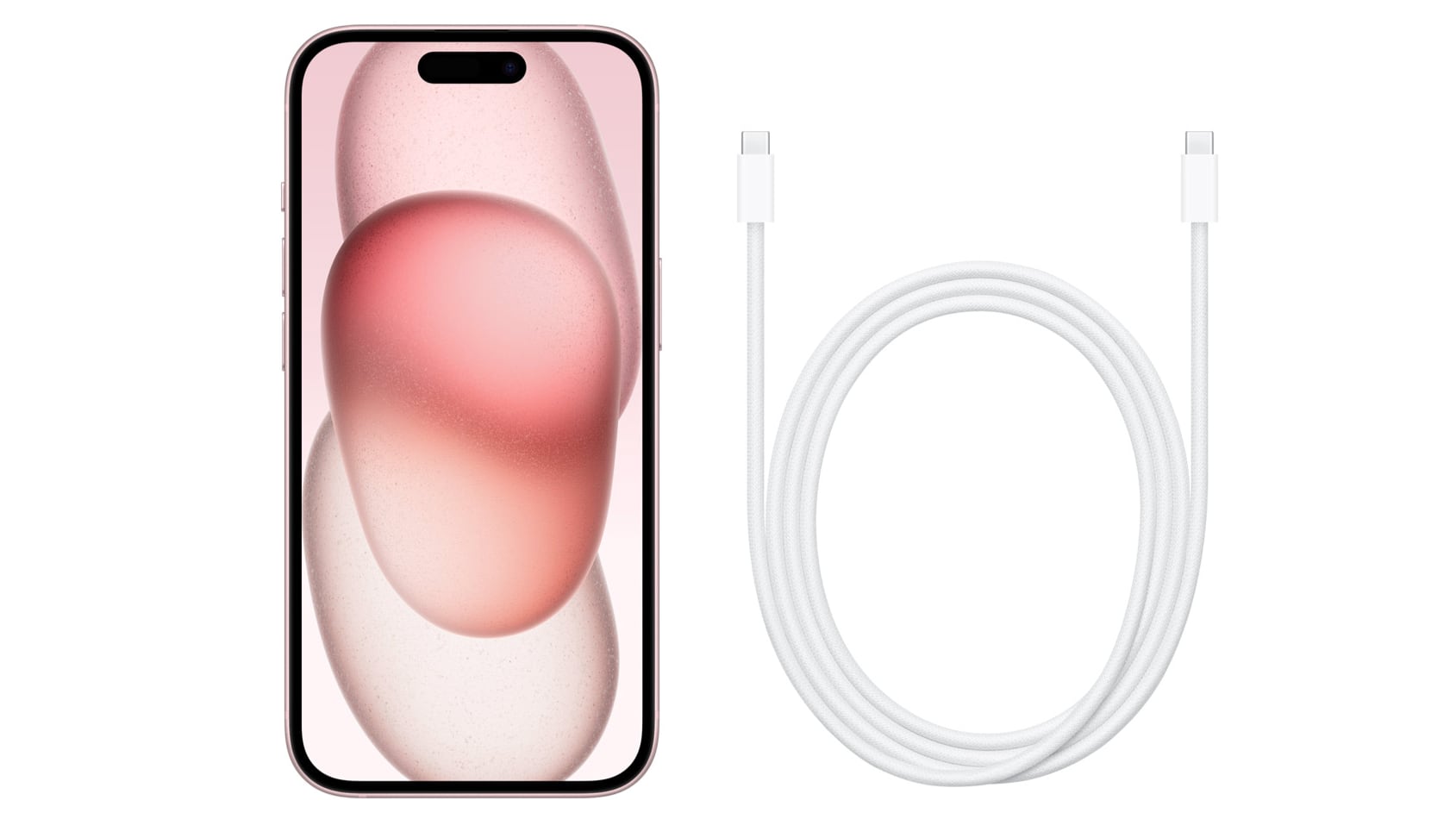
Use a good-quality USB-C cable and power adapter. The iPhone 15 uses USB-C charging, which is different from the older Lightning connector. A damaged or very cheap cable can charge slowly or unreliably.
If charging feels slow or the cable fits loosely, first check whether the port needs cleaning. See our step-by-step guide on how to clean the iPhone 15 charging port before you buy a new cable.
Wireless charging is convenient, but it creates more heat than a cable. If you use a wireless charger every night, take the phone out of a thick case and make sure the charger and phone are lined up properly. A phone that keeps slipping off-centre will charge slowly and run warm. A cable is the cooler and faster choice when battery health is your priority.
More Tips to Make Your Battery Last Longer
Turn off Wi-Fi and Bluetooth when you are not using them, but do not obsess over it. Wi-Fi uses less power than mobile data, so staying on Wi-Fi at home or at work actually saves battery. The real drain comes when the phone keeps searching for a signal in a weak coverage area.
If you are in a place with no signal, such as a basement or a remote area, turn on Airplane Mode. Your phone uses a lot of power searching for a network it cannot find. Airplane Mode stops that search at once. You can still use Wi-Fi in Airplane Mode if you turn it back on separately.
Personal Hotspot is one of the heaviest battery users of all. Sharing your mobile data with a laptop or tablet keeps the radios working hard and heats the phone up. Use it only when you need it, and turn it off as soon as you finish. If you are not sure how to switch it on and off, read our guide on how to turn on hotspot on iPhone 15.
Turn off features you do not use. Haptic feedback, keyboard clicks, and excessive motion effects all use a little power. Go to Settings, tap Sounds & Haptics, and turn off Keyboard Feedback if you do not need it. In Settings, under Accessibility, then Motion, you can turn on Reduce Motion to cut down on animations.
Keep your apps and iOS updated. Apple and app developers regularly fix bugs that waste battery, so an update can sometimes solve a drain problem on its own. Go to Settings, tap General, then Software Update to check for an iOS update. In the App Store, tap your profile picture to see app updates waiting to install.
Use Wi-Fi Calling and FaceTime Audio where possible. A long phone call over a weak mobile signal uses more power than the same call over Wi-Fi. If you are at home with good Wi-Fi, make the call over Wi-Fi and let the mobile radio rest.
- Keep brightness low and Auto-Lock short.
- Use Low Power Mode before a long day, not after the battery is nearly gone.
- Turn off Background App Refresh for apps that do not need it.
- Set Location Services to While Using the App for most apps.
- Charge with a good USB-C cable and keep the phone cool.
- Check the Battery screen once a week for new battery hogs.
Troubleshooting: When the Battery Still Drains Fast
If you have tried the steps above and the battery still drops quickly, start by restarting the phone. A restart clears temporary glitches and stops apps that are stuck running in the background. Press and hold the Side button and a Volume button, drag the power-off slider, wait a few seconds, then press and hold the Side button to turn the phone back on.
Check the Battery screen again after a restart and a few hours of normal use. Look for one app using far more power than everything else. If a single app is the culprit, update it, turn off its background refresh and location access, or delete it and install it again. A fresh install often fixes a buggy app that is draining power.
Think about what changed recently. Did the fast drain start after you installed a new app, changed a setting, or travelled to a new place? New apps, weak signal areas, and extreme heat are the most common causes of sudden battery drain. Undo the recent change first, and the problem often goes away with it.
Watch for a battery that drops in big jumps, such as from 40 percent to 10 percent in minutes, or a phone that shuts down while the battery still shows charge. That can point to a battery that is worn out or a problem that needs a closer look. Check Maximum Capacity in Settings, under Battery, then Battery Health & Charging. If the capacity is low and the phone shows a service message, contact Apple Support or visit an Apple Store or authorised service provider for a battery check.
Do not use battery-saving apps from the App Store that promise to boost or clean your battery. iOS does not let third-party apps manage the battery, so these apps cannot do what they claim. The settings in this guide are the real tools. Anything else is likely to waste your time or your money.
Frequently Asked Questions
Does Low Power Mode damage my iPhone 15 battery?
No, Low Power Mode does not damage the battery. It simply reduces background activity such as mail fetch, automatic downloads, and some visual effects until you charge the phone. It is an official Apple feature and is safe to use every day. The phone turns it off by itself once the battery charges to 80 percent or more.
Should I charge my iPhone 15 to 100 percent every time?
You can charge to 100 percent when you need a full day of power, but the battery ages more slowly if it does not sit at 100 percent for long periods. Turn on Optimized Battery Charging so the phone waits to finish charging until just before you need it. If you rarely need a full charge, using an 80 percent charge limit on days when it is offered is a sensible habit.
Is it bad to leave my iPhone 15 charging overnight?
Leaving the phone charging overnight is fine for most people, especially with Optimized Battery Charging turned on. The phone stops charging at 80 percent and finishes just before you wake up. The main thing to avoid is heat, so do not charge the phone under a pillow or in a thick case in a warm room.
Why does my iPhone 15 battery drain overnight?
Some drain overnight is normal, but a large drop usually means an app is working in the background. Check Settings, then Battery, and look at which apps used power while the screen was off. Turn off Background App Refresh and location access for the worst offenders. Turning on Low Power Mode before bed and switching on Airplane Mode in a weak signal area also help.
Does Dark Mode really save battery on iPhone 15?
Dark Mode saves a small amount of battery on the iPhone 15 because it uses an OLED display, where black pixels use very little power. The saving is modest, not dramatic, and it is biggest in apps with dark screens. It is worth using if you like the look, but it is not a replacement for the bigger fixes such as brightness, Background App Refresh, and location settings.
When should I replace my iPhone 15 battery?
Consider a battery replacement when Maximum Capacity has fallen a lot and you notice the phone dying early or shutting down unexpectedly. You can check the number in Settings, under Battery, then Battery Health & Charging. If the phone shows a service message or the battery health is poor, contact Apple Support or visit an Apple Store or authorised service provider for advice.
Does closing apps from the App Switcher save battery?
Closing apps from the App Switcher does not usually save battery, and Apple does not recommend doing it all the time. Apps in the background are frozen and use almost no power. It is better to fix the real causes of drain, such as Background App Refresh and location access. Only force-close an app if it is frozen or misbehaving.
Conclusion
Saving battery on iPhone 15 is mostly about stopping hidden waste. Low Power Mode gives you instant relief, the Battery screen shows you exactly which apps are responsible, and a few changes to brightness, Auto-Lock, Background App Refresh, and Location Services cut the daily drain. Good charging habits and Optimized Battery Charging then protect the battery for the long term.
Start with the three methods in this guide, then check the Battery screen once a week to catch new battery hogs early. You do not need to use every tip at once, and you do not need to stop enjoying your phone. Pick the changes that fit your day, and your iPhone 15 should carry you comfortably from morning to night.