Making an iPhone 18 vibrate is about more than just turning the ringer off. Vibration is a setting in its own right, with its own on and off switches, its own patterns, and its own faults when it stops working. If your phone does not vibrate when a call comes in, the cause is usually a setting that has been turned off, not a broken phone — and it is usually fixed in under a minute.
This guide explains how to make iPhone 18 vibrate, step by step. It covers turning vibration on in Settings, choosing and creating vibration patterns, making the phone vibrate for calls, messages, and alerts, and what to do when the phone will not vibrate at all.
The short answer is this: go to Settings, then Sounds and Haptics, and turn on Vibrate on Ring and Vibrate on Silent. Then tap Ringtone, then Vibration, and choose a pattern you can feel easily. Test it with a call from another phone, and if it does not buzz, restart the phone and check the settings again.
Vibration matters because it is the alert you feel, not the one you hear. In a noisy street, in a meeting, or in a pocket, the buzz is often the only signal that reaches you. Getting it set up properly means you will not miss calls, even when you cannot hear the phone ring.
Turn On Vibration in Settings
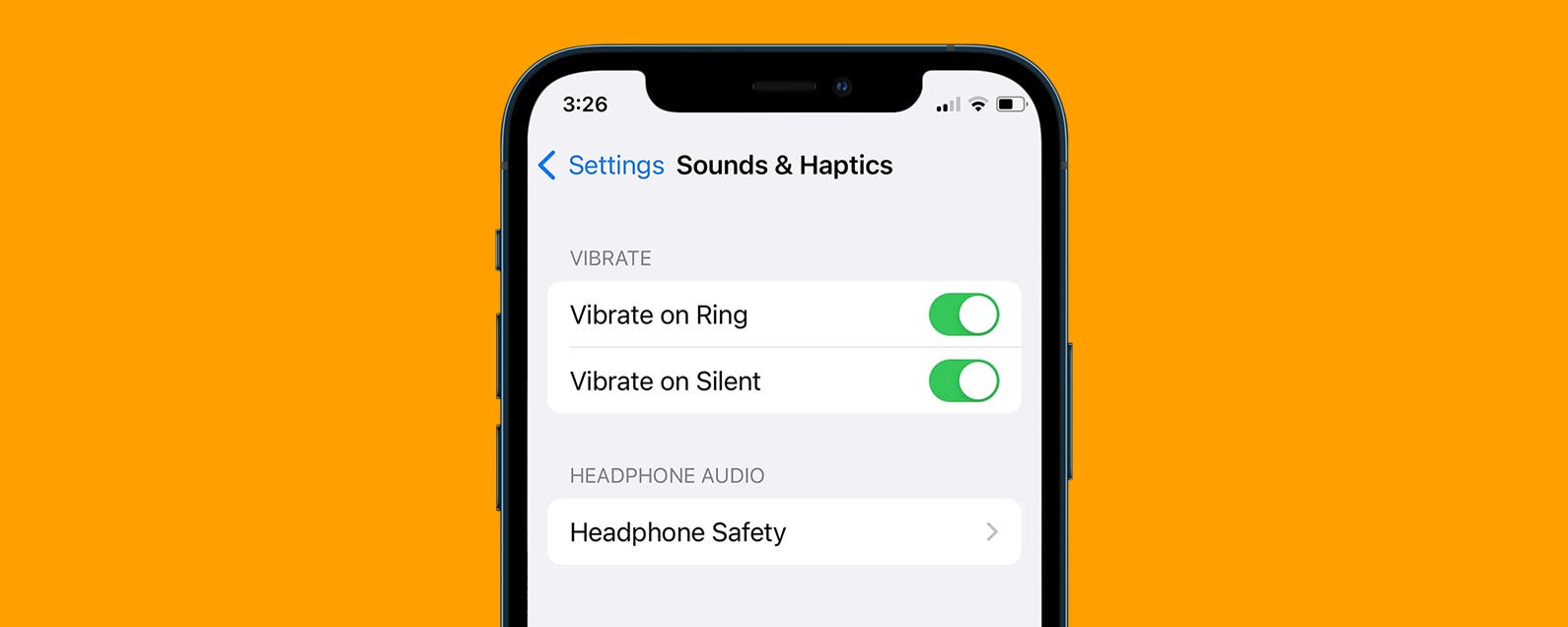
Open Settings, then tap Sounds and Haptics. Near the top of the screen, you will see two vibration switches: Vibrate on Ring and Vibrate on Silent. Turn both of them on. Vibrate on Ring makes the phone buzz when the ringer is on, and Vibrate on Silent makes it buzz when the ringer is off.
Both switches matter, because the phone behaves differently in each mode. If only Vibrate on Ring is on, the phone will buzz when it rings, but it will be completely silent in silent mode, and you will miss calls. If only Vibrate on Silent is on, the phone will buzz in silent mode but not when it rings, which is the opposite of what most people want.
Leave both switches on unless you have a specific reason to turn one off. The battery cost of vibration is tiny, and the benefit — feeling a call in a noisy place, or in a pocket — is large. The only time to turn vibration off is when even a buzz would be rude, such as in a theatre or a place of worship.
Below the vibration switches, you will see System Haptics, which controls the small vibrations the phone makes when you tap, swipe, or use the keyboard. Turn it on if you want that feedback, and off if you find it distracting. It does not control call vibration, so turning it off will not stop the phone from buzzing for a call.
Choose a Vibration Pattern
A vibration pattern is the rhythm the phone buzzes in when a call comes in. To choose one, go to Settings, then Sounds and Haptics, then Ringtone, then Vibration. You will see a list of built-in patterns, including Accent, Heartbeat, Rapid, and Staccato, plus a Standard pattern and a None option.
Tap each pattern to feel it. The phone will buzz in that rhythm so you can judge it. A short pattern such as Staccato is easy to miss, while a longer pattern such as Heartbeat is much easier to feel through a pocket or a case. Choose the one you notice most easily, not the one that sounds most interesting on paper.
The pattern you choose applies to the ringtone, but you can set different patterns for different alerts. Tap Text Tone, then Vibration, and choose a pattern for messages that is different from your ringtone pattern. That way, you can tell whether the buzz is a call or a message without looking at the phone.
You can also set a pattern for a specific contact. Open Contacts, choose the person, tap Edit, then Ringtone, then Vibration, and pick a pattern for that person. A call from your partner can then feel different from a call from your boss, which is useful when you are deciding whether to answer.

Create a Custom Vibration Pattern
If none of the built-in patterns feels right, create your own. Go to Settings, then Sounds and Haptics, then Ringtone, then Vibration, and tap Create New Vibration. A screen will appear with a large area to tap, and a timer that runs for a few seconds.
Tap the screen in the rhythm you want. Tap quickly for short buzzes, hold your finger down for a long buzz, and leave gaps for pauses. The phone records the timing of your taps, and plays it back so you can feel what you have made. If you do not like it, tap Record again and try a different rhythm.
When you are happy with the pattern, tap Save and give it a name, such as Long Buzz or Two Taps. The pattern will appear in the vibration list, and you can choose it for your ringtone, for a text tone, or for a specific contact. You can create as many custom patterns as you like, and delete the ones you do not use.
A good custom pattern is simple and distinctive. Three long buzzes, or two short buzzes followed by a long one, are easy to recognise and hard to confuse with a random vibration from another device. Avoid a pattern that is too complicated, because you will not remember it when the phone buzzes in your pocket.
Make iPhone 18 Vibrate for Calls and Messages
For calls, vibration is controlled by Vibrate on Ring and Vibrate on Silent, which you have already turned on. For messages, go to Settings, then Sounds and Haptics, then Text Tone, and make sure the vibration is not set to None. If it is set to None, the phone will not buzz for messages at all, even if call vibration is working.
For mail, calendar, and other alerts, go to the same Sounds and Haptics screen and tap the alert you want to change. Each one has its own sound and vibration setting, so you can make calendar alerts buzz strongly, because they are usually time-sensitive, and make mail alerts buzz gently, because they rarely are.
For app notifications, go to Settings, then Notifications, choose the app, and make sure Sounds is turned on. If Sounds is off for an app, the phone will not vibrate for that app’s notifications, even if vibration is on everywhere else. That is a common cause of a phone that vibrates for calls but not for messages from a particular app.
Test each type of alert after you set it up. Ask someone to call you, then ask them to send you a message, and feel for the buzz each time. If one type works and another does not, the problem is in that alert’s own setting, not in the phone’s vibration motor.
Make Vibration Easier to Feel
If you miss calls because you do not feel the vibration, the first fix is a longer pattern. Choose Heartbeat or Rapid, or create a custom pattern with three long buzzes, and test it in the pocket where you carry the phone. A pattern that is obvious in your hand can be invisible in a thick coat.
A thick case can muffle vibration. Try the phone without the case, and see whether the buzz feels stronger. If it does, consider a thinner case, or carry the phone in a pocket rather than a bag when you are waiting for an important call. A wallet case, with cards inside, is especially good at muffling vibration.
Where you put the phone matters too. On a wooden desk, the vibration is loud and clear, because the desk amplifies it. On a bed, a sofa, or a pile of clothes, the vibration is absorbed and easy to miss. If you put the phone down while waiting for a call, put it on a hard surface, face down.
If you wear the phone in a belt clip or a bag, the vibration may be too far from your body to feel. Carry it in a trouser pocket or a jacket pocket when you are waiting for a call, and keep it close to your body. That small change makes more difference than any setting.

Fix an iPhone 18 That Will Not Vibrate
If the phone does not vibrate at all, check the settings first. Go to Settings, then Sounds and Haptics, and make sure Vibrate on Ring and Vibrate on Silent are both on, and that the ringtone vibration is not set to None. Check also that Do Not Disturb is off, because it can silence vibration for most calls.
Restart the phone. A restart clears temporary faults in the software that controls the vibration motor, and it is the first fix Apple Support will suggest. Quickly press volume up, quickly press volume down, then press and hold the side button until the Apple logo appears, then test the vibration again with a call.
Check for a software update. Go to Settings, then General, then Software Update, and install any update that is waiting. Apple occasionally fixes vibration bugs in updates, and an outdated version of iOS can cause the motor to behave oddly, especially after a major update.
If the phone still does not vibrate after a restart and an update, the vibration motor itself may be faulty. The motor is a small part inside the phone, and it can fail after a drop or after water damage. Contact Apple Support, because the motor needs a repair, not a settings change. Our guide on how to turn on vibration on iPhone 15 covers the vibration switches in Settings if you want to double-check those first.
Vibration and Accessibility
Vibration is an accessibility feature as well as a convenience. If you have difficulty hearing, vibration is often the main way you know the phone is ringing, and getting it right matters more than it does for most people. Choose a strong, distinctive pattern, and consider a custom pattern that you can recognise instantly.
You can also turn on LED Flash for Alerts, which makes the camera flash blink when a call or message arrives. Go to Settings, then Accessibility, then Audio and Visual, and turn on LED Flash for Alerts. That gives you a visual signal to go with the vibration, which is useful in a bright room where the screen is hard to see.
For a stronger alert, combine vibration with a loud ringtone and a bright screen. Go to Settings, then Accessibility, then Audio and Visual, and check that the phone is not set to mono audio or a low volume. A combination of sound, vibration, and light is much harder to miss than any one of them alone.
If you use hearing aids, check that they are paired correctly, because a hearing aid can change how the phone routes sound and vibration. Go to Settings, then Accessibility, then Hearing Devices, and make sure your aids are connected. If the phone behaves oddly with hearing aids paired, unpair them and test vibration again.
Turn Vibration Off When You Do Not Need It
To turn vibration off, go to Settings, then Sounds and Haptics, and turn off Vibrate on Ring and Vibrate on Silent. The phone will still ring, but it will not buzz. That is useful when the phone is on a hard surface and the vibration is loud enough to disturb other people, such as in a quiet office.
You can also turn vibration off for a single alert, rather than for the whole phone. Go to Settings, then Sounds and Haptics, tap the alert, then Vibration, and choose None. That stops the buzz for that alert, while leaving vibration on for calls and messages that matter.
Remember to turn vibration back on afterwards if you rely on it. Many people turn it off for a meeting and then miss calls for days because the phone is ringing in a bag where they cannot hear it. If you miss calls, check Settings, then Sounds and Haptics, and make sure vibration is on for the mode you are in.
A good habit is to check the vibration settings once a month, along with the ringer volume and the silent switch. Settings can change after an update, or after someone else uses your phone, and a monthly check takes ten seconds and saves you from a week of missed calls.
Frequently Asked Questions
How do I make my iPhone 18 vibrate for calls? Go to Settings, then Sounds and Haptics, and turn on Vibrate on Ring and Vibrate on Silent, then choose a vibration pattern under Ringtone, then Vibration.
Can I create my own vibration pattern? Yes. Go to Settings, then Sounds and Haptics, then Ringtone, then Vibration, and tap Create New Vibration. Tap the screen in the rhythm you want, then save it.
Why does my iPhone 18 not vibrate? Check that Vibrate on Ring and Vibrate on Silent are on, that the ringtone vibration is not set to None, and that Do Not Disturb is off. Restart the phone if it still does not buzz.
Does vibration drain the battery? Very little. The vibration motor uses a tiny amount of power compared with the screen and the processor, so leaving vibration on will not noticeably affect battery life.
Can I set a different vibration for one contact? Yes. Open Contacts, choose the person, tap Edit, then Ringtone, then Vibration, and pick a pattern for that contact.
Feel the Call, Even When You Cannot Hear It
Making an iPhone 18 vibrate is a settings job: turn vibration on for ring and silent, choose a pattern you can feel, and test it with a real call. A custom pattern, a different buzz for messages, and a hard surface to rest the phone on all make vibration easier to notice.
If the phone will not buzz at all after a restart and a settings check, get the motor checked. Otherwise, vibration is the quiet alert that makes sure you never miss a call.
Related iPhone 18 guides: how to turn on vibration on iPhone 15, how to make iPhone 15 vibrate on silent, how to set vibrate on iPhone 15, and how to turn off vibration on iPhone 15.