
Your iPhone 15 has stopped responding, and the screen will not move no matter what you tap or swipe. The display may be frozen on an app, stuck on a black screen, or caught on the Apple logo. When the touch screen does not work, the usual on-screen controls are useless.
A hard reset with buttons is the fix for exactly this situation. It uses only the physical buttons on the sides of your iPhone 15, so it works even when the screen is completely unresponsive. The whole process takes less than a minute, and it does not delete any of your photos, messages, apps, or settings.
This guide walks you through the exact button sequence step by step. You will learn where each button is, how to time the presses correctly, what to do if the first attempt fails, and when a hard reset is the right choice instead of a normal restart.
What Is a Hard Reset on iPhone 15?
A hard reset is also called a force restart. It forces your iPhone to shut down and start up again, even when the software has frozen and the touch screen does not respond. Apple built this button combination into the iPhone for exactly this kind of problem.
A hard reset is not the same as a normal restart. A normal restart uses the slide to power off slider on the screen, so it only works when the display responds to touch. A hard reset uses only the physical buttons, so it works when the screen is frozen, black, or stuck.
A hard reset is also very different from a factory reset. A factory reset erases everything on your phone and returns it to the state it was in when it left the factory. A hard reset erases nothing at all. Your photos, contacts, messages, and apps stay exactly where they were.
Think of a hard reset like restarting a computer that has frozen. You are not deleting files or reinstalling anything. You are simply giving the software a clean start so it can load properly again. Most of the time, the phone comes back working normally within a minute.
Before You Start: Find the Buttons
Before you press anything, take a few seconds to find the three buttons by touch. The Volume Up and Volume Down buttons sit on the left edge of the iPhone 15. The Volume Up button is the upper one, and the Volume Down button is directly below it. The Side button sits alone on the right edge of the phone.
On the regular iPhone 15 and iPhone 15 Plus, there is also a small Ring/Silent switch above the volume buttons on the left edge. You do not need this switch for a hard reset, so ignore it. On the iPhone 15 Pro and iPhone 15 Pro Max, the switch is replaced by the Action button, which you also do not need here.
Remove any case that covers the buttons tightly. A thick or stiff case can stop a button from pressing all the way down, and this is a common reason the sequence seems to fail on the first try. If your case has stiff button covers, take the case off before you begin.
Check the battery before you start. A phone with a fully drained battery will not respond to a hard reset at all. Plug your iPhone 15 into a charger with a USB-C cable and wait for a few minutes. If the battery icon or the Apple logo appears on the screen, let the phone charge for a while before you try the button sequence.
If your charging cable feels loose or the phone does not seem to charge, the charging port may be dirty. Our guide on how to clean the iPhone 15 charging port shows how to check and clean it safely before you assume the battery is the problem.
Method 1: Hard Reset iPhone 15 With Buttons (Force Restart)
This is the main method in this guide, and it is the method Apple recommends when an iPhone will not respond. The timing matters, so read the steps once before you start. The first two presses must be quick taps, one after the other, and only the final press is a long hold.
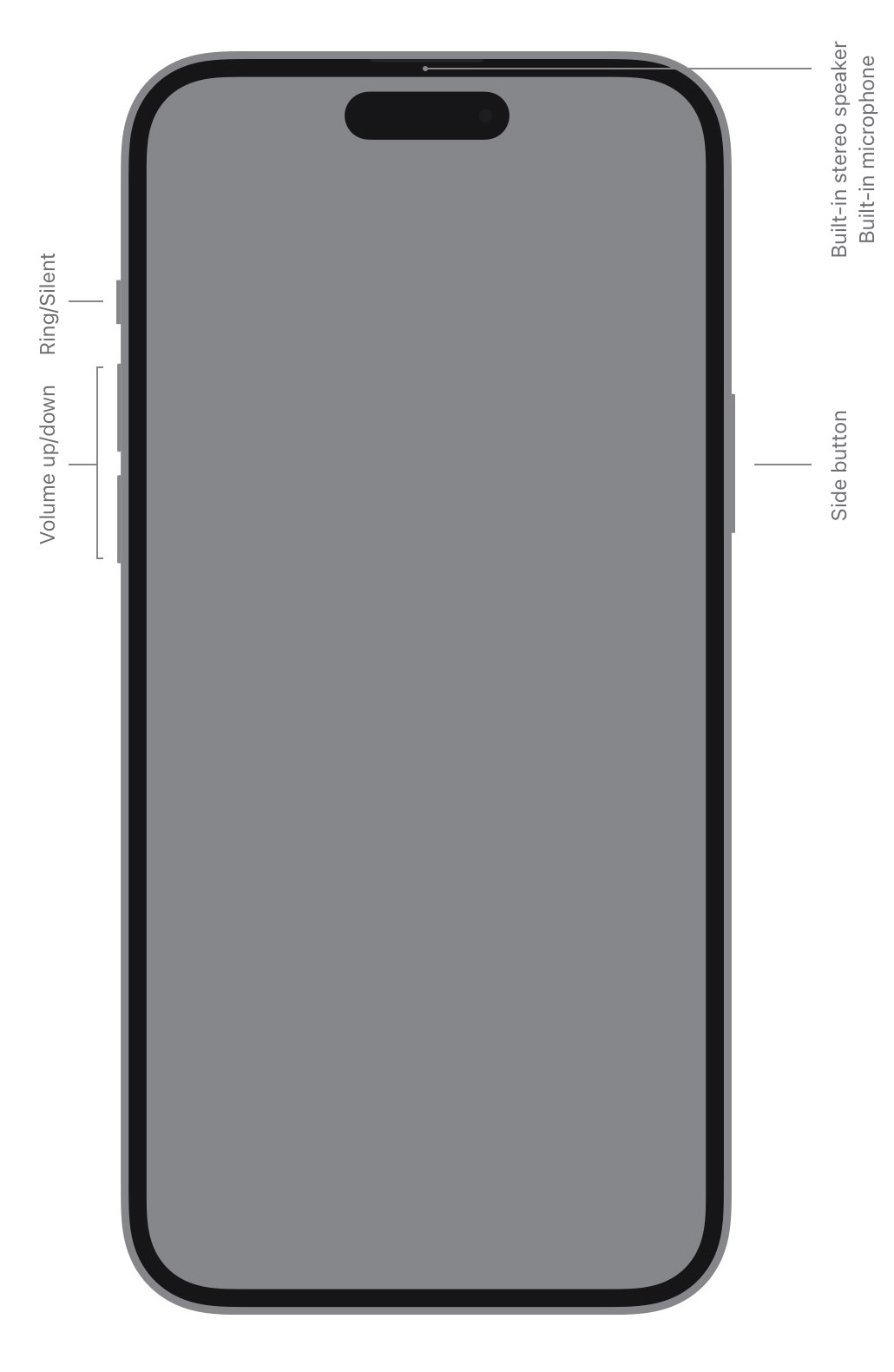
Follow these steps exactly:
- Press and quickly release the Volume Up button. Press the upper button on the left edge once and let go right away. Do not hold it down. This first press tells the phone to prepare for the force restart sequence.
- Press and quickly release the Volume Down button. Press the lower button on the left edge once and let go right away, just like the first step. Do this immediately after the Volume Up press, without waiting in between.
- Press and hold the Side button. Press the button on the right edge and keep holding it down. Do not let go yet, even if the screen goes black or the slide to power off slider appears.
- Keep holding until the Apple logo appears. This usually takes about ten seconds, but it can take a little longer. Ignore the power off slider if it shows up on the screen, and keep holding the Side button.
- Release the Side button. As soon as you see the white Apple logo on a black screen, let go of the button. Your iPhone 15 will finish starting up on its own from this point.
- Wait for the lock screen. Give the phone thirty seconds to a minute to load. Enter your passcode when the lock screen appears, and check whether the screen responds normally again.
The most common mistake is holding the Volume Up or Volume Down button for too long. Each of those presses should be a quick tap that lasts less than a second. Only the Side button gets a long hold.
The second most common mistake is letting go of the Side button too early. If you release it when the screen goes black or when the power off slider appears, the force restart will not happen. Keep holding until the Apple logo shows up, and only then let go.
If nothing happens on your first try, wait a few seconds and try the whole sequence again. The timing matters, and many people get it right on the second attempt. Make each press quick and clear, and do not rush the final hold.
Method 2: Restart iPhone 15 Normally When the Screen Works
A normal restart is the gentler option, and you should use it whenever the screen still responds to touch. It closes apps cleanly, clears temporary memory, and fixes many small glitches without forcing anything. Try this method first if you can still use the screen.
Use a normal restart when your phone is slow, an app keeps crashing, or the battery seems to drain faster than usual. It is a good first step for minor problems, and it is the method to try before a hard reset when you have the choice.
Here is how to restart your iPhone 15 normally:
- Press and hold the Side button and either Volume button together. Hold the Side button on the right edge and one of the Volume buttons on the left edge at the same time. Keep holding them until the power off slider appears on the screen.
- Drag the slide to power off slider to the right. Place your finger on the slider and drag it all the way to the right. Your iPhone will shut down completely within about thirty seconds.
- Wait for the screen to go fully black. Give the phone a few seconds after the screen turns off. This makes sure the phone has fully shut down before you turn it back on.
- Press and hold the Side button to turn it back on. Hold the Side button until the Apple logo appears on the screen, then let go. Your iPhone will start up normally.
You can also restart from Settings if the buttons are hard to press. Open Settings, tap General, scroll to the bottom, and tap Shut Down. Then drag the slider to turn the phone off, and press the Side button to turn it back on.
If your screen is frozen and you cannot drag the slider, the normal restart will not work. That is the moment to switch back to Method 1 and use the button-only hard reset instead. Our step-by-step guide on how to force restart iPhone 15 covers the same button sequence in more detail if you want a second walkthrough.
Method 3: Hard Reset When the Phone Is Stuck on the Apple Logo
Sometimes an iPhone 15 gets stuck on the Apple logo after an update or after a hard reset itself. The logo stays on the screen and the phone never reaches the lock screen. The button sequence is the same, but the approach is a little different, because you need to be patient and repeat the sequence.
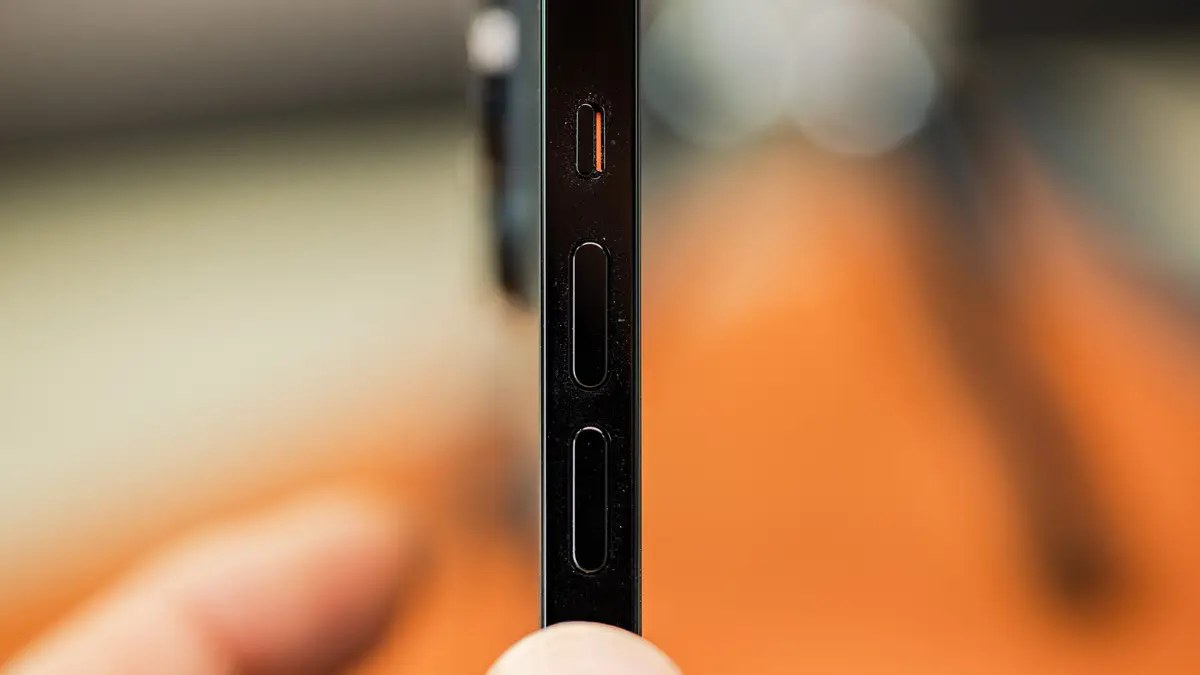
Here is what to do when the phone is stuck on the Apple logo:
- Try the hard reset sequence once. Press and quickly release Volume Up, press and quickly release Volume Down, then press and hold the Side button until the Apple logo appears. Release the Side button and wait a full minute.
- Try the sequence a second time if nothing changes. If the logo stays on the screen for more than a few minutes, repeat the exact same sequence. Some phones need two attempts before the startup completes.
- Charge the phone for at least thirty minutes. Plug the phone into a wall charger with a USB-C cable and leave it alone. A low battery during startup can make the phone look stuck when it is simply out of power.
- Try the sequence again while the phone is charging. With the cable connected, repeat the Volume Up, Volume Down, and Side button sequence. If the phone starts normally, leave it charging until the battery is above twenty percent.
- Connect to a computer if it still will not start. If the phone stays stuck on the Apple logo after several tries, connect it to a Mac or a Windows PC with a USB-C cable and open Finder or iTunes. The computer can check whether the phone needs an update or a restore.
Do not keep pressing the buttons over and over without waiting between attempts. Each attempt needs time to work, and rapid repeated attempts can make it harder to tell whether the phone is responding. Wait at least a minute after each try before you try again.
If your iPhone 15 is stuck in SOS mode instead of on the Apple logo, the fix is different. Our guide on how to get iPhone 15 out of SOS mode explains how to check your signal, restart the phone, and reset the network settings to get back to normal service.
When Should You Hard Reset Your iPhone 15?
A hard reset is a safe troubleshooting step, but it is not something you need to do every day. Use it when the phone is frozen, the screen is black, an app has locked up the whole phone, or the touch screen does not respond at all. In these cases, a hard reset is the fastest way to get the phone working again.
You can also use a hard reset when the phone is stuck on the Apple logo, stuck in a restart loop, or frozen during a software update. These are all signs that the software has stalled, and a force restart gives it a clean start without touching your data.
Do not use a hard reset as a routine way to close apps or save battery. For everyday slowness, a normal restart is better, because it lets the software shut down cleanly. Save the hard reset for moments when the phone will not respond to anything else.
If you find yourself hard resetting the same phone every day, something deeper is wrong. A single app may be crashing the system, the storage may be nearly full, or the software may need an update. In that case, check which app was open when the freeze happened, free up storage in Settings, and install any available software update.
Tips for a Successful Hard Reset
Timing is everything in the button sequence. The two volume presses should be fast taps, almost like double-clicking a mouse. The Side button hold should be steady and patient. If you rush the hold or release too early, the phone will simply turn off the screen instead of restarting.
Use the tip of your finger, not the flat of your thumb, to press the volume buttons. This gives you a cleaner press and makes it easier to release quickly. If your fingers are cold or the buttons feel stiff, take the case off and try again.
Hold the phone firmly in one hand while you press the buttons with the other. Trying to do the whole sequence with one hand often leads to slow or weak presses. A steady grip makes each press clear and deliberate.
Watch the screen during the Side button hold. You will usually see the screen go black first, then the slide to power off slider may appear, and finally the Apple logo shows up. Keep holding through all of these stages until the logo appears.
After the phone restarts, give it a minute before you open apps. The phone is still loading services in the background, and opening a heavy app too quickly can make it feel slow or unresponsive. Unlock the phone, wait for the home screen to settle, and then use it normally.
Troubleshooting: Hard Reset Not Working
If the button sequence does nothing at all, check the buttons themselves. Press each volume button and the Side button one at a time and feel for a clear click. If a button feels stuck, mushy, or does not click, the case may be pressing on it, or the button may be damaged.
If the phone shows no sign of life, charge it first. Connect it to a wall charger, not a computer USB port, and wait at least fifteen minutes. Then try the hard reset sequence again while the phone is still connected to the charger. A dead battery is the most common reason a hard reset appears to fail.
If the Apple logo appears but then disappears and the screen goes black again, the battery may be too low to finish starting up. Leave the phone charging for thirty minutes without touching it, then try the sequence once more. If the same loop keeps happening, the battery or the charging cable may need attention.
If the phone restarts but freezes again within minutes, an app or a setting is likely the cause. After the restart, delete any app you installed just before the problem started. You can also check your storage in Settings, then General, then iPhone Storage, and free up space if the phone is nearly full.

If the screen stays black after several attempts, connect the phone to a computer. On a Mac, open Finder and select your iPhone. On a Windows PC, open iTunes or the Apple Devices app. The computer will usually offer to update or restore the phone, which can fix software that will not start on its own.
If none of these steps work, contact Apple Support or visit an Apple Store. A phone that will not respond to a hard reset, charging, and a computer connection may have a hardware problem, such as a damaged button or a failing battery. Do not try to open the phone yourself, because that can void the warranty and cause more damage.
New iPhone owners who are still learning the basics may also want to read our guide on how to set up iPhone 15 for beginners. It covers the first steps after unboxing, including the passcode, Apple ID, and the settings that make the phone easier to use every day.
Frequently Asked Questions
Does a hard reset delete my photos and data?
No. A hard reset, or force restart, only restarts the software. It does not erase your photos, messages, contacts, apps, or settings.
Your data stays exactly as it was before the reset. A factory reset is the option that erases everything, and a hard reset is not the same thing.
How long should I hold the Side button during a hard reset?
Hold the Side button until the Apple logo appears on the screen. This usually takes about ten seconds, but it can take a little longer on some phones. If you release the button when the screen goes black or when the power off slider appears, the force restart will not happen, so keep holding until you see the logo.
What is the difference between a hard reset and a force restart?
There is no difference. Hard reset and force restart are two names for the same button sequence on the iPhone 15. Both mean pressing Volume Up, then Volume Down, then holding the Side button until the Apple logo appears. Apple uses the term force restart in its support documents.
Can I hard reset my iPhone 15 with buttons if the screen is black?
Yes. That is exactly what the button method is for. The hard reset uses only the physical buttons, so it works even when the screen is black or frozen. If the screen stays black after the reset, charge the phone for at least fifteen minutes and try the sequence again while it is charging.
Why is my iPhone 15 still frozen after a hard reset?
If the phone freezes again right after a restart, an app, a full storage, or a software problem is usually the cause. Delete any app you installed just before the problem started, free up storage in Settings, and check for a software update. If the phone keeps freezing, connect it to a computer and check for an update or a restore.
Is it safe to hard reset my iPhone 15 often?
A hard reset is safe, but it should not be a daily habit. It is designed for moments when the phone will not respond. If you need to hard reset the phone every day, something deeper is wrong, such as a faulty app, nearly full storage, or outdated software. Fix the underlying cause instead of resetting the phone again and again.
What should I do if the volume buttons do not work?
First, remove the case and press each button to feel for a clear click. If a button feels stuck or does not click, the case may be the problem, or the button may be damaged. If the buttons still do not work without the case, try the Settings method by going to Settings, then General, then Shut Down. If the screen also does not respond, contact Apple Support, because the phone may need a repair.
Conclusion
Learning how to hard reset an iPhone 15 with buttons is one of the most useful skills for any iPhone owner. The sequence is simple: quick press Volume Up, quick press Volume Down, then hold the Side button until the Apple logo appears. It takes less than a minute, and it does not delete any of your data.
Remember that timing is the key. The two volume presses should be fast taps, and only the Side button gets a long hold. If the first attempt does not work, charge the phone, remove the case, and try again. Most frozen iPhones come back to life on the second try.
Use the hard reset when the screen is frozen, black, or stuck on the Apple logo. Use a normal restart for everyday slowness when the screen still works. If the phone keeps freezing after a reset, check your storage, update the software, and remove any app that was open when the freeze happened.
If nothing in this guide fixes the problem, connect the phone to a computer or contact Apple Support. A phone that will not respond to a hard reset, charging, and a computer connection may have a hardware fault that needs professional repair. For most people, though, the button sequence in this guide is all it takes to get the iPhone 15 working again.