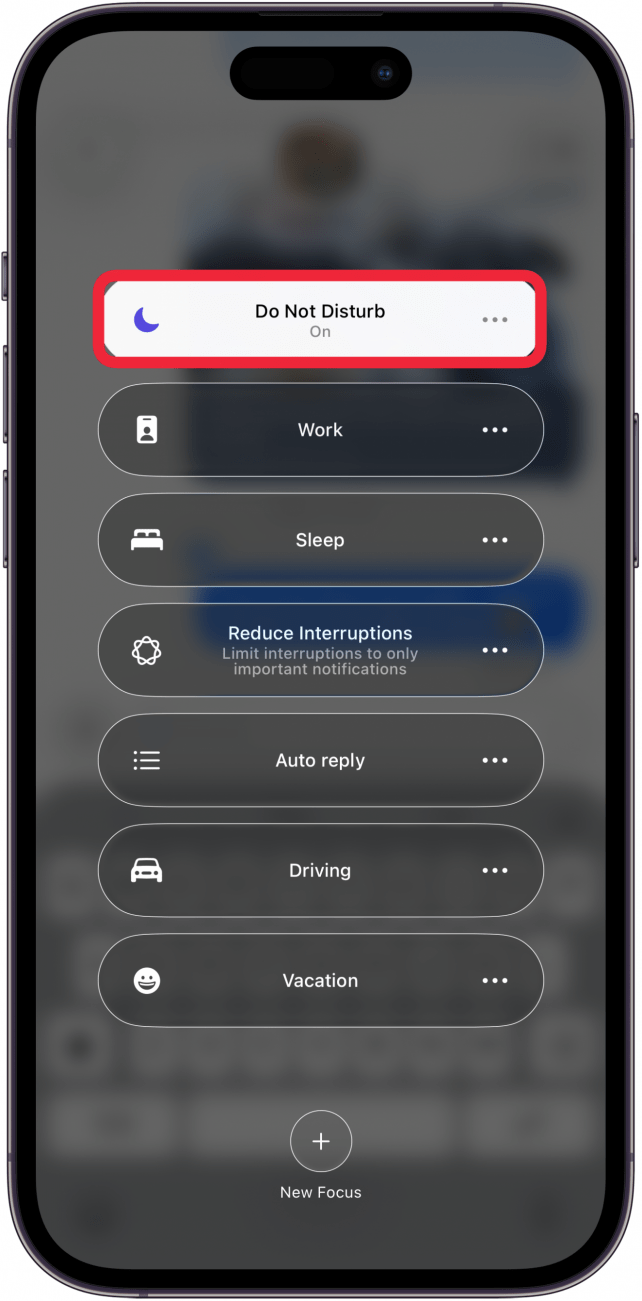
Do Not Disturb is one of the most useful features on the iPhone 15, and also one of the most confusing when it will not turn off. You switch it off, put your phone down, and a few minutes later the little moon icon is back in the status bar. Your calls go quiet again, your messages arrive without a sound, and your friends start asking why you are not replying.
If that sounds familiar, this guide is for you. It shows every way to turn off Do Not Disturb on iPhone 15, from the quick Control Center tap to the deeper settings that keep switching it back on. You will also learn how to stop a schedule, turn off Driving and Sleep focus, and let calls from your favourite people through even while Do Not Disturb is on.
You do not need any extra apps, and you will not lose any data. Every method below uses the built-in Settings app and Control Center, so anyone can follow along. Start with Method 1 for the fastest fix, then work through the other methods if Do Not Disturb keeps coming back on its own.
What Is Do Not Disturb on iPhone 15?
Do Not Disturb is a Focus mode built into your iPhone 15. When it is on, your phone silences incoming calls, alerts and notifications, so nothing disturbs you. Your phone still receives everything in the background, but it does not light up, vibrate or make a sound.
You can tell Do Not Disturb is on by looking for the crescent moon icon. It appears in the status bar at the top of your screen and on your Lock Screen. If you see the moon, a Focus mode is active, and your notifications are being silenced.
Apple groups Do Not Disturb with other Focus modes such as Sleep, Personal, Work and Driving. They all live in the same place, under Settings and in Control Center. That is why turning one off sometimes does not help, because another Focus mode may have taken its place.
Do Not Disturb is different from Silent mode. Silent mode only mutes the ringer, while Do Not Disturb also hides notifications and can change your Lock Screen and Home Screen. If you only want a quieter phone, you may not need Do Not Disturb at all.
Before You Start
Before you change any settings, take a moment to check which Focus mode is actually on. Swipe down from the top right corner of your screen to open Control Center, then look at the Focus button. It will show the name of the active mode, such as Do Not Disturb, Sleep or Driving.
This matters because the fix depends on the mode. Turning off Do Not Disturb will not help if Sleep focus is the one silencing your phone. Knowing the exact name saves you from changing the wrong setting and wondering why nothing worked.
Also check your Lock Screen. The name of the active Focus appears at the bottom of the Lock Screen, next to the Focus button. Tap it and you will see a list of all your Focus modes, with the active one clearly marked.
If you have just set up a new phone, your Focus modes may still be using the default settings from setup. Our step-by-step guide to setting up iPhone 15 explains the first-time setup screens, including the ones that can switch on a Focus schedule without you noticing.
Finally, make sure your iPhone 15 is charged and unlocked before you begin. All of the steps below take less than a minute each, and you can stop as soon as your notifications start coming through normally again.
Method 1: Turn Off Do Not Disturb from Control Center
Control Center is the fastest way to turn off Do Not Disturb on your iPhone 15. It takes two taps, and you do not need to open the Settings app at all. This is the method to use when you turned Do Not Disturb on yourself and just want it off again.
First, unlock your iPhone 15. Then swipe down from the top right corner of the screen, where the battery icon sits. This opens Control Center, a panel of quick controls for Wi-Fi, Bluetooth, brightness and more.
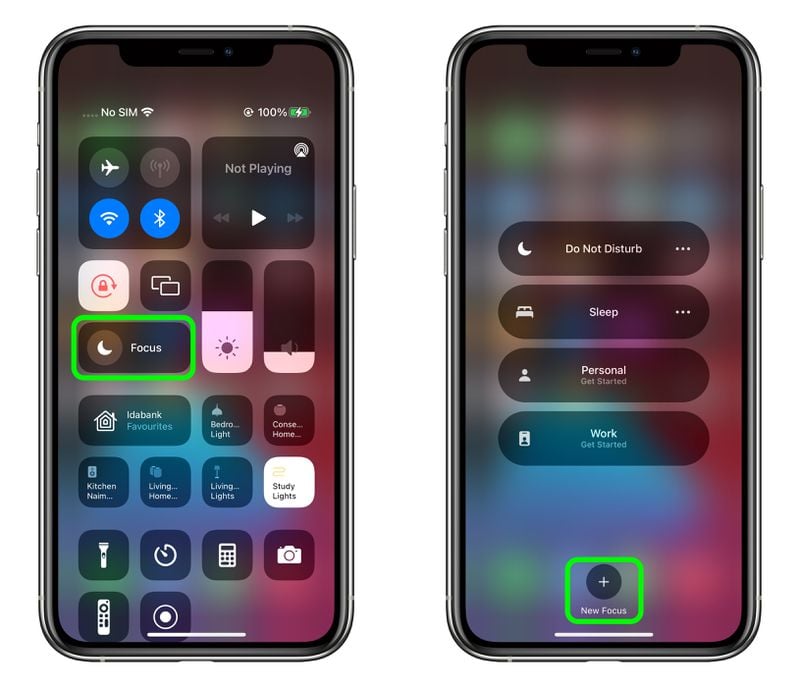
Look for the Focus button, which shows a crescent moon icon and the word Focus. If Do Not Disturb is on, the button will show Do Not Disturb instead of Focus. Tap the button once to open the Focus menu.
In the Focus menu, you will see a list of your Focus modes. Do Not Disturb should be highlighted at the top. Tap Do Not Disturb to turn it off. The highlight disappears, the moon icon leaves the status bar, and your notifications start coming through again.
You can also turn it off from the Lock Screen without opening Control Center. Press and hold the Lock Screen, then tap the Focus button at the bottom. Tap Do Not Disturb to switch it off from there.
If you tap Do Not Disturb in Control Center and it turns itself back on a few seconds later, do not keep tapping. That usually means a schedule or an automatic rule is switching it on again. Move on to Method 3, which shows how to find and remove that rule.
Another quick option is Siri. Press and hold the side button, then say, “Turn off Do Not Disturb.” Siri will switch it off for you. If you have not set Siri up yet, follow our guide to getting Siri on iPhone 15 first, then try the voice command.
Method 2: Turn Off Do Not Disturb in Settings
If Control Center does not work, or you want to check the full settings, use the Settings app. This method gives you more control, and it shows you whether a schedule is attached to Do Not Disturb. It is the best method when you want to be sure the mode is really off.
Open the Settings app on your iPhone 15. It is the grey icon with gears on your Home Screen. Scroll down and tap Focus. You will see a list of your Focus modes, including Do Not Disturb, Personal, Sleep and Work.
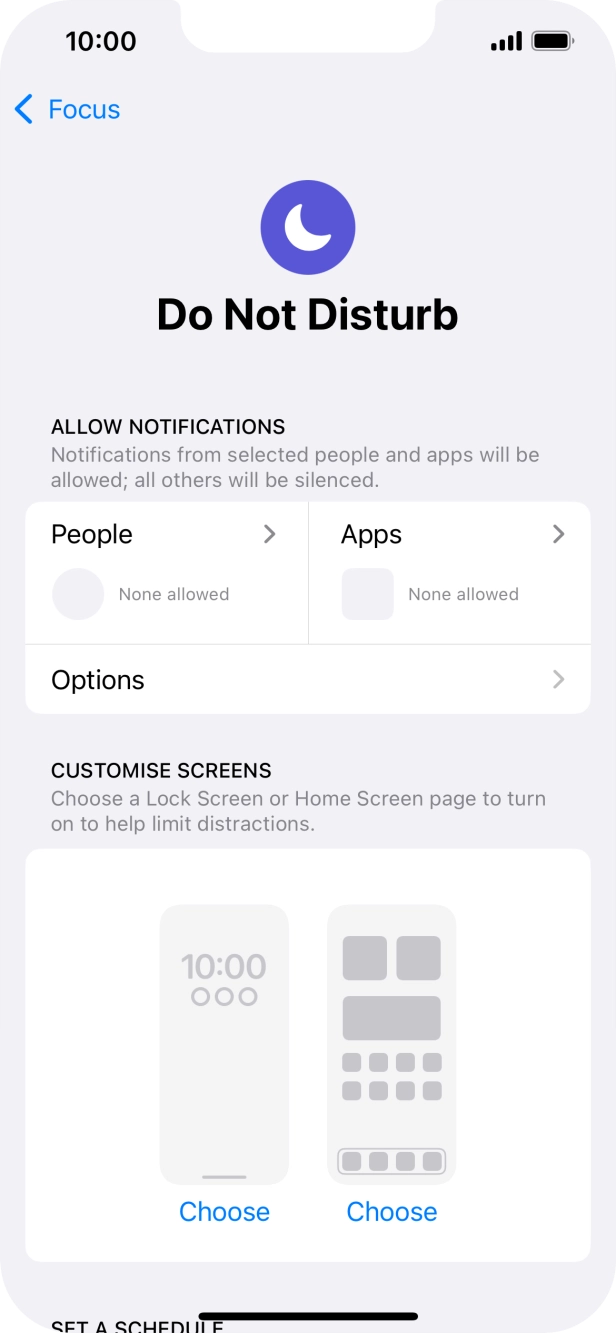
Tap Do Not Disturb to open its settings page. At the top of the page you will see the main Do Not Disturb switch with the crescent moon icon. If the switch is green, Do Not Disturb is on. Tap the switch once to turn it off, and it will turn grey.
While you are on this page, scroll down and look at the section called Turn On Automatically. If you see a schedule listed there, Do Not Disturb will switch itself on again at the set time. Tap the schedule to open it, then turn it off or delete it. This step is covered in full in Method 3.
Also look at the Allowed Notifications section on this page. It shows which people and apps can still reach you while Do Not Disturb is on. If it says None Allowed, nobody can get through. You can change this later if you want to keep Do Not Disturb on but still hear from certain people.
When you have turned the switch off, press the Home indicator or swipe up to leave Settings. Check the top of your screen to confirm the moon icon is gone. If it is gone, Do Not Disturb is off, and your calls and notifications should behave normally.
If the moon icon is still there after you switched it off in Settings, another Focus mode may be active. Go back to Settings, tap Focus, and check each mode in the list. Sleep, Driving and Work can all silence your phone in the same way, and each one needs to be turned off separately.
Method 3: Turn Off a Scheduled or Automatic Focus
This is the method most people miss, and it is the reason Do Not Disturb keeps coming back. Your iPhone 15 can turn Do Not Disturb on by itself, on a schedule, when you arrive somewhere, or when you start driving. Until you remove that automatic rule, turning the mode off by hand only works for a few minutes.
To find the rule, open Settings, tap Focus, then tap Do Not Disturb. Scroll down to the section called Turn On Automatically, or Set a Schedule on some versions. Any schedule or automation you have set will be listed there, with its time or trigger shown underneath.
Tap the schedule to open it. You will see a switch at the top, and options for the days and times it runs. Turn the switch off to stop the schedule. If you never want it again, look for a Delete Schedule option and tap it to remove the schedule completely.
Smart Activation is another automatic rule to check on the same page. When Smart Activation is on, your iPhone learns when you usually want quiet and turns Do Not Disturb on by itself at those times. If Do Not Disturb keeps switching on at the same time every day, Smart Activation may be the cause. Turn it off.
Also check whether Do Not Disturb is linked to a Lock Screen or a Home Screen page. In the Do Not Disturb settings, look for the Customise Screens section. If a Lock Screen is linked, Do Not Disturb can switch on whenever you use that Lock Screen. Tap the linked screen and remove the link, or choose a different Lock Screen without a Focus attached.
If you use the same Apple ID on more than one device, check the Share Across Devices setting at the bottom of the Focus page in Settings. When this is on, turning Do Not Disturb on from your iPad or Mac also turns it on your iPhone 15, and the other way round. Turn it off if your other devices keep silencing your phone.
Turn Off Driving Focus That Keeps Switching On
Driving focus is one of the most common reasons Do Not Disturb seems to turn itself on. Your iPhone can detect when you are in a moving car and silence your notifications automatically. This is a safety feature, but it is frustrating when it triggers on a bus or a train.
Open Settings, tap Focus, then tap Driving. At the top, turn the Driving switch off. Then look for the section about when Driving turns on automatically.
You will see options such as Automatically, When Connected to Car Bluetooth, and Manually. Choose Manually, so Driving only turns on when you switch it on yourself.
If you use CarPlay, check the same setting there. Driving can also start when your phone connects to CarPlay. Changing the setting to Manually stops it from starting on its own, while still letting you turn it on with one tap when you are actually driving.
Remember to check this setting after every long car journey. If Driving is still set to turn on automatically, it will silence your phone again on your next trip, and you will be back to wondering where your notifications went.
Turn Off Sleep Focus That Keeps Switching On
Sleep focus is tied to your sleep schedule, and it can silence your phone every night, or even during the day if the schedule is set wrong. If your phone goes quiet at the same time each evening, Sleep focus is the likely cause.
Open Settings, tap Focus, then tap Sleep. Scroll to the Turn On Automatically section and look for your sleep schedule. Tap the schedule, then turn it off or delete it if you no longer want it. You can also edit the bedtime and wake time so the schedule matches your real routine.
Your sleep schedule is also stored in the Health app. Open Health, tap Browse, then tap Sleep. Scroll to Your Schedule and check the times listed there. If the schedule is wrong, turn it off here, and the Sleep focus will stop switching on at the wrong time.
Another place to check is the Clock app. Open Clock, tap Sleep at the bottom, and look at your schedule. If a bedtime is set, the Sleep focus will follow it. Turn the schedule off or change the times, and your phone will stay loud until you choose otherwise.
Once the schedule is off, go back to Settings, tap Focus, tap Sleep, and make sure the main Sleep switch is off too. The moon icon should be gone from your status bar, and your phone should ring normally again.
How to Allow Calls from Favourites While Do Not Disturb Is On
Sometimes you do not want to turn Do Not Disturb off completely. You want quiet, but you still need to hear from your family, your partner, or your boss. Apple lets you do exactly that, by choosing which people can break through.
Open Settings, tap Focus, then tap Do Not Disturb. Under Allowed Notifications, tap People. At the top, tap Allow Notifications From, then tap Add People. Choose the contacts you want to hear from, and tap Done.
To allow all of your favourites at once, tap Calls From on the People page, then choose Favourites. Now anyone you have marked as a favourite in the Phone app can call you while Do Not Disturb is on. Everyone else stays silenced.
There is one more setting worth turning on: Repeated Calls. When this is on, a second call from the same person within three minutes will ring through, even if that person is not on your allowed list. This is a safety net for genuine emergencies, so leave it on if you can.
You can also allow specific apps to send notifications. On the Do Not Disturb settings page, tap Apps under Allowed Notifications, then choose the apps you need, such as Phone or Messages. Time Sensitive notifications from apps are another option. Turn on the Time Sensitive switch, and important alerts will come through while the rest stay quiet.
If one person must always reach you, no matter what, set up Emergency Bypass for that contact. Open Contacts, tap the person, tap Edit, then tap Ringtone and turn on Emergency Bypass. That contact’s calls and messages will ring through even when Do Not Disturb and Silent mode are both on.
Tips for Using Do Not Disturb on iPhone 15
Do Not Disturb works best when you set it up once and then forget about it. Spend five minutes checking the settings below, and you will stop fighting with the moon icon for good.
First, decide whether you want Do Not Disturb at all, or whether Silent mode is enough. If you only want your phone to stop ringing in meetings, the silent switch on the side of your phone does the job without hiding your notifications. If you want your phone to stop lighting up too, Do Not Disturb is the right tool.
Second, use the three-dot menu in Control Center to set a timer. Press and hold the Focus button in Control Center, tap Do Not Disturb, then tap the three dots. You can turn it on for one hour, until this evening, or until you leave your current location. Timed Focus turns itself off, so you never have to remember to switch it off.
Third, check your vibration settings if your phone still feels silent after turning Do Not Disturb off. Some people find their phone does not vibrate for calls even when the sound is back on. Follow our guide to turning on vibration on iPhone 15 to make sure vibration is enabled for calls and alerts.
Fourth, if you want complete quiet at night without using a Focus mode at all, you can simply mute the sounds you do not need. Our guide to turning off vibration on iPhone 15 shows how to stop your phone buzzing for calls and notifications while keeping everything else normal.
Fifth, keep your Lock Screen tidy. A Focus mode can be linked to a Lock Screen without you realising it, especially if you created a new Lock Screen from a photo or a wallpaper. Press and hold your Lock Screen, tap the Focus button, and check which mode is linked to each of your Lock Screens.
Sixth, remember the quickest way to silence your phone in a hurry. Instead of opening Settings, just swipe down and tap Focus in Control Center. Learning this one gesture saves you from digging through menus every time you walk into a meeting or a cinema.
Finally, if your phone keeps lighting up at night even with Do Not Disturb off, the screen itself may be the problem. Our quick guide to turning off your iPhone 15 screen shows how to put the display to sleep fast, so a bright screen does not wake you up.
Troubleshooting: Do Not Disturb Will Not Turn Off
If you have tried all three methods and Do Not Disturb is still on, work through the checks below. One of them is almost always the cause, and each one takes less than a minute.
First, check for another active Focus mode. Open Settings, tap Focus, and look at each mode in turn. If Sleep, Driving, Personal or Work is on, turn it off. The moon icon can belong to any of them, and the fix is the same for all.
Second, restart your iPhone 15. Press and hold the side button and either volume button until the power-off slider appears, drag the slider, wait thirty seconds, then press and hold the side button to turn the phone back on. A restart clears temporary glitches that can keep a Focus mode stuck.
Third, check the Shortcuts app for an automation. Open Shortcuts, tap Automation at the bottom, and look for any automation that turns on Do Not Disturb. If you find one, tap it and turn it off, or delete it. Automations run silently in the background, so they are easy to forget.
Fourth, check your other Apple devices. If you use an iPad, Mac or Apple Watch with the same Apple ID, and Share Across Devices is on, a Focus turned on from one device will turn on the others. Turn Do Not Disturb off on each device, then turn off Share Across Devices in Settings, then tap Focus.
Fifth, look for a Focus filter in a specific app. Some apps let you set a Focus filter that changes how they behave. Go to Settings, tap Focus, tap Do Not Disturb, then scroll to Focus Filters. If you see a filter you do not recognise, tap it and remove it.
Sixth, check that Focus Status is not confusing you. In Messages, your contacts may see that you have notifications silenced. This is just a status message, and it does not mean Do Not Disturb is still on. Turn off Focus Status in Settings, then tap Focus, then tap Focus Status, if you do not want to share it.
If nothing above works, try turning Do Not Disturb on and then off again in Settings. This sounds strange, but it can reset a stuck setting. Open Settings, tap Focus, tap Do Not Disturb, turn the switch on, wait five seconds, then turn it off. Check the status bar to confirm the moon icon is gone.
As a last step, check for a software update. Open Settings, tap General, then tap Software Update. Install any update that is available, then restart your phone and check Do Not Disturb again. Updates often fix bugs that keep settings stuck.
Frequently Asked Questions
Why does Do Not Disturb keep turning on by itself on iPhone 15?
Do Not Disturb usually turns itself on because of a schedule, Smart Activation, a Sleep schedule, Driving auto-activation, or a Focus linked to your Lock Screen. Open Settings, tap Focus, tap Do Not Disturb, and check the Turn On Automatically section. Turn off or delete any schedule you find there, then check Driving and Sleep in the same way.
How do I turn off Do Not Disturb from the Lock Screen?
Press and hold the Lock Screen, then tap the Focus button at the bottom of the screen. Tap Do Not Disturb to switch it off. You can also swipe down from the top right corner to open Control Center and tap the Focus button there. Both methods work without unlocking your phone fully.
Will turning off Do Not Disturb delete my Focus settings?
No, turning Do Not Disturb off only stops it for now. Your settings, allowed people, allowed apps and schedules stay saved. They will still be there the next time you turn Do Not Disturb on. To remove a schedule for good, you need to delete it from the Turn On Automatically section.
Why am I still not getting notifications after turning Do Not Disturb off?
First, check that another Focus mode such as Sleep or Driving is not still on. Then check that the app itself is allowed to send notifications in Settings, then Notifications. Also check that your phone is not in Silent mode, and that vibration is turned on. A restart usually clears any leftover glitch.
Can I turn off Do Not Disturb for one person only?
You cannot turn Do Not Disturb off for one person, but you can let one person through while it stays on. Add them to your allowed people in Settings, then Focus, then Do Not Disturb, then People. You can also set Emergency Bypass for that contact, so their calls always ring through.
Does Do Not Disturb block alarms on iPhone 15?
No, your alarms still sound when Do Not Disturb is on. Apple designed it that way, so you will not sleep through your morning alarm. The same is true for timers and emergency alerts. If your alarm did not go off, check the alarm itself in the Clock app, and make sure your volume is turned up.
How do I stop my iPhone 15 silencing calls when I am driving?
Open Settings, tap Focus, then tap Driving. Change the automatic setting to Manually, so Driving only turns on when you choose it. If it still starts on its own, check whether it is triggered by CarPlay or by connecting to your car Bluetooth, and turn those triggers off too.
Conclusion
Turning off Do Not Disturb on iPhone 15 is simple once you know where to look. Control Center handles the quick fix, Settings gives you full control, and the Turn On Automatically section stops it from switching itself back on. Most people only need the first two methods, but the third one is the key if the moon icon keeps coming back.
The most common causes are a schedule, Sleep focus, or Driving focus turning on by itself. Check each one in Settings under Focus, and turn off the automatic rules you do not need. Once those are cleared, Do Not Disturb will stay off until you choose to turn it on again.
Now check your own phone. Swipe down from the top right corner, tap Focus, and confirm that Do Not Disturb is off. Then look at the top of your screen and make sure the moon icon is gone. Your calls, messages and notifications should come through normally from now on.
If this guide helped you, keep it saved for the next time your phone goes quiet without warning. And if you want your iPhone 15 to behave exactly the way you like, take a few minutes to set up your allowed people and your schedules properly. A little setup now saves a lot of missed calls later.