Powering down your iPhone 15 is one of the simplest things you can do with the phone, yet many new owners still hesitate before they try it. There is no power button with a clear on and off label, and the side button does several different jobs depending on how you press it. That is why a clear, calm guide helps.
This guide explains how to turn off your iPhone 15 in the normal way, using the buttons and using Settings. It also covers what to do when the screen does not respond, when the phone seems stuck, and when you only want the screen to go dark instead of shutting the whole phone down.
Powering down is not the same as restarting, and it is not the same as locking the screen. When you power down, the phone stops completely. No calls come through, no alarms sound, and no apps run in the background. When you turn it back on, it starts fresh from the Apple logo.
You might power down your phone before a flight, before putting it away for a long time, or when you want a quiet break from notifications. You might also do it to fix a small glitch, such as an app that keeps freezing or a screen that feels slow to respond. A full shutdown gives the phone a clean stop and a clean start.
The good news is that nothing in this guide can harm your phone. Turning it off does not delete your photos, messages, contacts, or apps. Everything stays exactly where it was, and it is all there again when you switch the phone back on.
What Powering Down Means on iPhone 15
When your iPhone 15 is powered down, it is fully off. The screen is black, the processor is not running, and the battery drains only very slowly. This is different from sleep mode, where the screen is dark but the phone is still awake in the background, listening for calls and messages.
It is also different from Airplane Mode. In Airplane Mode the phone is still on, and you can still use apps, listen to music, and take photos. Powering down stops all of that. The phone does nothing at all until you press the side button to wake it again.
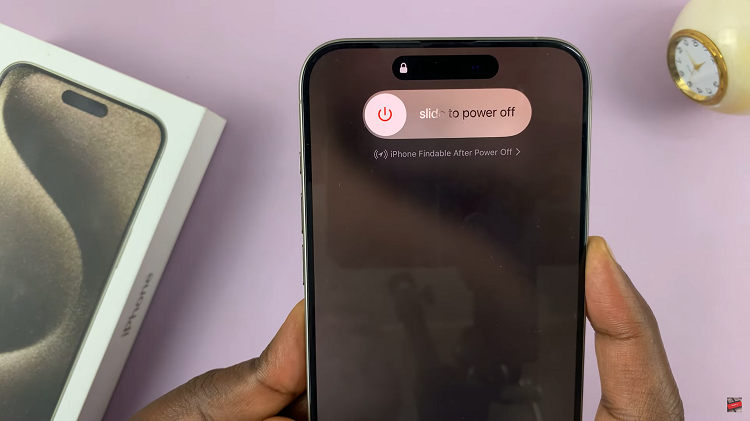
One detail surprises many people. Even after you power down an iPhone 15, the phone can still be found through the Find My network for a short time, if that feature is switched on. Apple shows a small note about this on the power-off screen, saying the iPhone is findable after power off. This is a safety feature, not a fault.
If you want the phone to be completely untraceable, you would need to switch off Find My first, which is not something most people need to do for a normal shutdown. For everyday use, just slide to power off and let the phone do the rest.
Powering down also gives the phone a chance to clear temporary glitches. Many small problems, such as a frozen app or a slow keyboard, disappear after a full shutdown and restart. That is why Apple support often suggests turning the phone off and on again as a first step.
Before You Start
Before you power down, take a moment to finish what you are doing. If you are in the middle of writing a message, save it as a draft or send it first. If you are downloading a large file or updating an app, let it finish, because a shutdown will pause the download.
Check that you know your passcode. When you turn the phone back on, Face ID will not work straight away. You will need to type your passcode to unlock the phone the first time after a restart. This is a security rule built into the iPhone, and it applies every time the phone powers on.
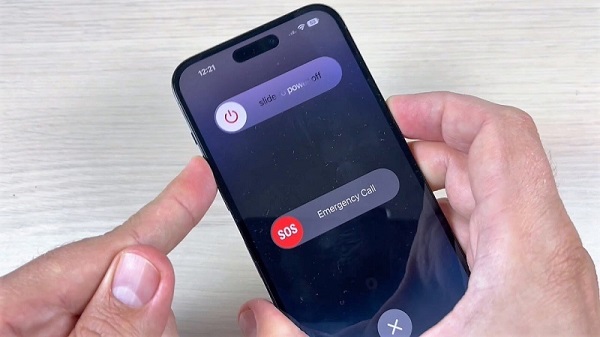
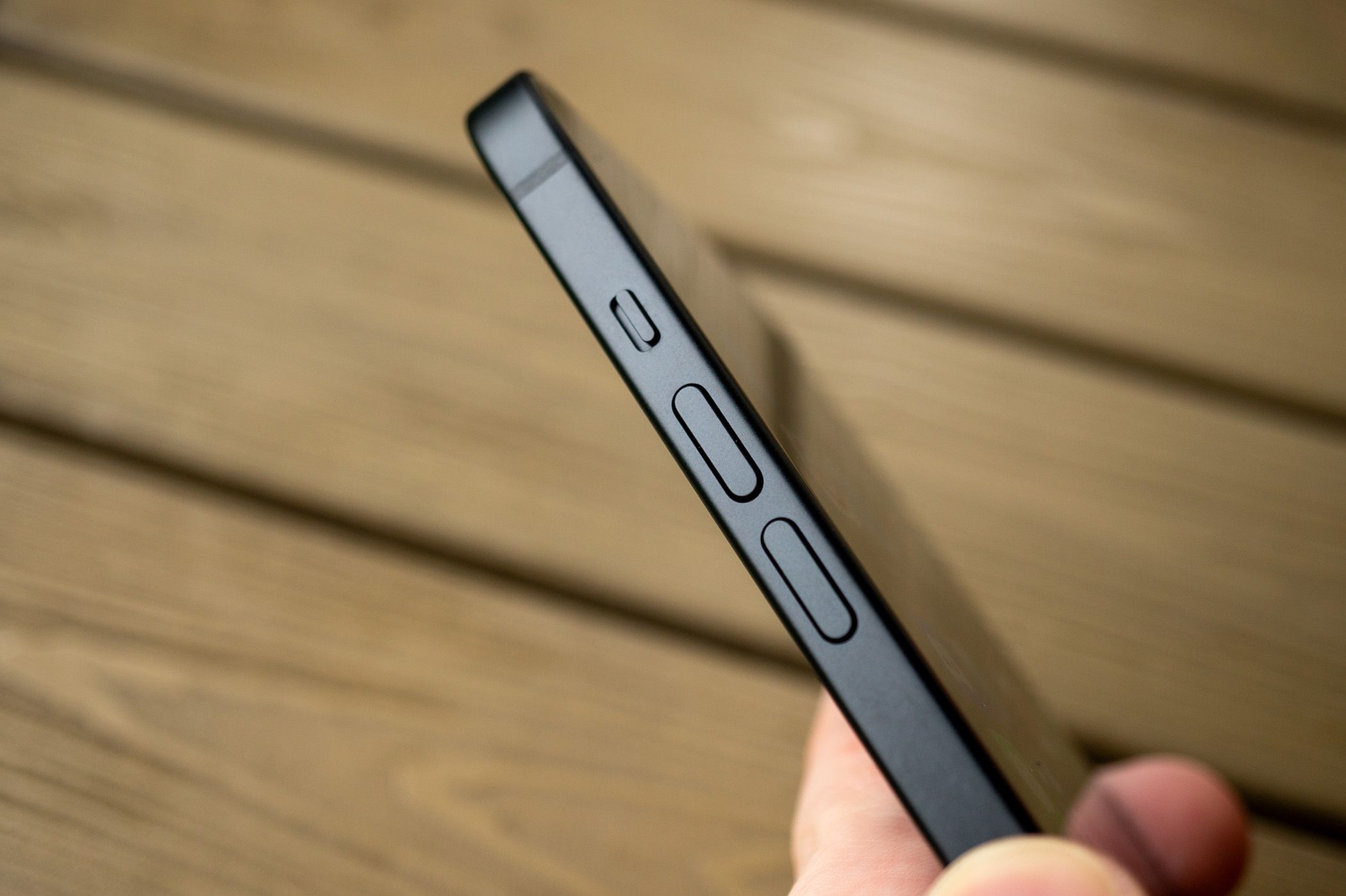
Make sure you know where the buttons are. On the iPhone 15, the side button is on the right edge of the phone. The volume buttons are on the left edge. The power-off screen appears when you press and hold the side button together with either volume button.
If your phone is very low on battery, plug it in before you turn it back on. A phone with a nearly empty battery may not start straight away. It may show a low-battery symbol and need a few minutes of charging first. If you are unsure about charging, our guide on how to clean the iPhone 15 charging port can help if the cable does not seem to connect well.
Finally, remember that alarms will not sound while the phone is off. If you rely on an alarm to wake you up, do not power down the phone overnight. Use silent mode or Do Not Disturb instead, and keep the phone on.
Method 1: Turn Off iPhone 15 with the Buttons
This is the quickest way to power down, and it works on every iPhone 15 model, including the iPhone 15, iPhone 15 Plus, iPhone 15 Pro, and iPhone 15 Pro Max. It takes about ten seconds from start to finish.
Follow these steps:
- Press and hold the side button on the right edge of your iPhone 15.
- At the same time, press and hold either the volume up or the volume down button on the left edge.
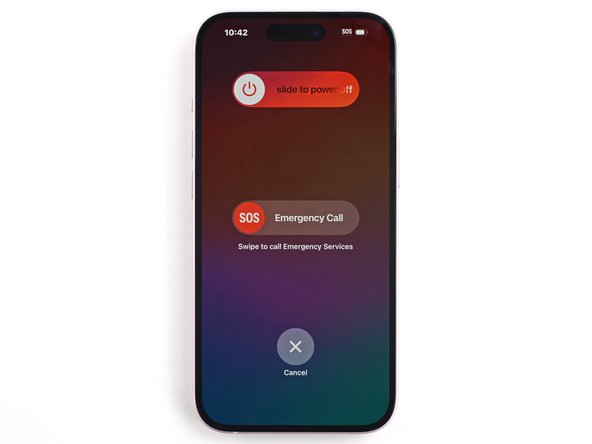
- Keep holding both buttons. After a few seconds, the power-off screen appears.
- You will see a slider at the top that says slide to power off, with a red power icon.
- Place your finger on the white circle and drag it all the way to the right.
- The screen goes dark, and the phone powers down completely within a few seconds.
Do not let go of the buttons too early. If you release them before the slider appears, nothing happens. If you hold them for too long after the slider appears, the phone may start an emergency SOS countdown instead. If you see the SOS slider, just let go of the buttons and use the power-off slider, or tap Cancel at the bottom of the screen.
One common mistake is pressing the side button on its own. A single quick press only locks the screen. A single press and hold on its own opens Siri.
You need the volume button as well to reach the power-off screen. That combination is the key to this method.
Once the screen goes black, the phone is off. Give it a few seconds before you put it away. If you see the Apple logo appear, you may have pressed the side button again by accident. Let the phone finish starting, then repeat the steps to power it down.
Method 2: Turn Off iPhone 15 in Settings
If your buttons are hard to press, or you simply prefer using the screen, you can power down from Settings. This method uses no buttons at all until you turn the phone back on, so it is a good choice if a button feels stiff or unresponsive.
Follow these steps:
- Open the Settings app on your iPhone 15. It has a grey icon with gears.
- Tap General near the bottom of the list.
- Scroll all the way down to the bottom of the General screen.
- Tap Shut Down. It is written in blue text at the very bottom.
- The same slide to power off screen appears.
- Drag the slider to the right, just as in Method 1.
- Wait for the screen to go dark. The phone is now powered down.
This method is useful when you are already in Settings for another reason. For example, you might be checking your storage or your battery health and decide to power down at the same time. It is also the method to use if you want to show someone else how to turn the phone off without explaining the button combination.
Remember that the Shut Down option sits at the very bottom of the General screen, below Transfer or Reset iPhone. If you do not see it, scroll down further. On a small screen, it is easy to stop scrolling too early and miss it.
Some people worry that using Settings to shut down is different from using the buttons. It is not. Both methods take you to the same power-off screen, and both shut the phone down in exactly the same way. Choose whichever feels easier for you.
Method 3: Turn Your iPhone 15 Back On
Powering down is only half the job. You also need to know how to turn the phone back on, because the method is different from switching it off. You cannot wake a powered-down phone by tapping the screen or pressing a volume button.
Follow these steps:
- Press and hold the side button on the right edge of the phone.
- Keep holding it until the white Apple logo appears on the screen.
- Let go of the button and wait. The phone takes a short while to start up.
- When the Lock Screen appears, swipe up from the bottom of the screen.
- Type your passcode when the phone asks for it. Face ID will not work yet.
- Once you have entered the passcode, Face ID starts working again as normal.
If the Apple logo does not appear, the battery may be too low. Plug the phone into a charger and wait a few minutes, then try again. A completely flat battery can take several minutes before it shows any sign of life.
If the phone still does not turn on after charging, the problem may be deeper than a normal shutdown. In that case, a force restart can help. Our guide on how to force restart your iPhone 15 walks through the button sequence step by step.
After the phone starts, give it a minute to settle. Apps may take a moment to reconnect to Wi-Fi and mobile data. Notifications that arrived while the phone was off may appear in a group on the Lock Screen. This is normal, and everything should be back to normal within a minute or two.
Turning Off the Screen Is Not the Same as Powering Down
Many people confuse turning off the screen with turning off the phone. They are very different, and knowing the difference saves a lot of confusion. When you press the side button once, the screen goes dark, but the phone is still on and working in the background.
In that sleep state, calls still come through, messages still arrive, and alarms still sound. The phone is simply saving battery by keeping the screen off. This is what happens every time you lock your phone, and it is what you want most of the time.
Powering down, by contrast, stops everything. No calls, no messages, no alarms, and no background activity. The phone is truly off. If someone calls you while the phone is off, the call goes straight to voicemail, just as it would if the phone had no signal.
If you only want to save battery or stop the screen from distracting you, lock the screen instead of powering down. Our guide on how to turn off the iPhone 15 screen explains the screen settings, including Auto-Lock, which turns the screen off by itself after a set time.
A good rule is simple. Lock the screen for short breaks, and power down only when you want the phone fully off, such as before a flight, during a repair, or when you will not use it for a long time. That way you stay reachable when you need to be, and fully switched off when you do not.
When Powering Down Is a Good Idea
There are a few times when powering down is the right call. The first is before a flight. Airlines ask you to switch off phones or put them in Airplane Mode during takeoff and landing. Powering down fully is the simplest way to follow that rule without worrying about settings.
The second is when the phone is acting strangely. If an app keeps crashing, the screen freezes for a moment, or the phone feels warm for no clear reason, a full shutdown often clears the problem. It closes every app and gives the system a fresh start, which fixes many small software glitches.
The third is before a repair or a clean. If you are wiping the screen, changing a case, or handing the phone to someone else for a check, switching it off first is sensible. It stops accidental taps and protects your privacy while someone else holds the phone.
Powering down is also useful when you will not use the phone for a while. If you are going away and leaving a spare phone at home, switching it off saves battery and keeps it safe. A phone left on will slowly drain its battery and may run flat within a few days.
What you should not do is power down the phone every night. The iPhone is designed to stay on, and it handles overnight charging and background updates on its own. Turning it off every day adds wear to the button and gives you no real benefit. Lock the screen at night and let the phone rest in sleep mode instead.
Tips for Powering Down Smoothly
Keep your passcode somewhere safe, but not on the phone itself. After a restart, the phone asks for the passcode before Face ID works. If you forget it, you cannot get into the phone without a full reset, which erases your data. A passcode written in a notebook at home is far safer than a forgotten one.
Close any important work before you shut down. A half-written email in the Mail app is usually saved as a draft, but not every app saves automatically. If you are editing a photo or a document, save your changes first so nothing is lost.
Wait for the screen to go fully black before you press any button again. If you press the side button while the phone is still shutting down, you may interrupt the process and the phone may start up again. A few seconds of patience avoids the whole cycle repeating.
Charge the phone to at least twenty percent before a long period switched off. A phone stored with a nearly empty battery may not start when you need it. A partial charge keeps the battery healthy and means the phone is ready when you switch it back on.
If you power down often because the battery runs out too fast, the real problem may be battery drain rather than the shutdown itself. Check which apps use the most power in Settings, under Battery, and look for an app running in the background more than it should.
Teach the method to anyone who shares the phone, such as a parent or a child. The button combination is easy to forget if you only use it once in a while. A quick demonstration is worth more than a written note, because the timing of holding both buttons takes a little practice.
Troubleshooting: When Your iPhone 15 Will Not Turn Off
Sometimes the power-off screen does not appear when you hold the buttons. The most common reason is timing. You may be pressing the side button and the volume button at slightly different moments, or letting go too soon. Try again, pressing both at exactly the same time and holding them for a full three seconds.
If the screen is frozen and does not respond to touch, the slider may appear but you cannot drag it. In that case, a force restart is the better option. It uses a quick button sequence that restarts the phone even when the screen is unresponsive. Our guide on how to force restart your iPhone 15 explains the exact presses.
If the phone turns itself back on straight after you power it down, check whether something is pressing the side button. A tight case can hold the button down without you noticing. Take the case off and try again. A case that presses a button by itself should be replaced.
If the phone is plugged into a charger or a computer, it may wake up on its own. Unplug the cable before you power down, and keep it unplugged until the screen is fully black. Plugging the cable back in after a shutdown can sometimes wake the phone, so wait until you are ready to use it again.
If the screen shows the Apple logo and then goes black again in a loop, the phone may have a deeper software problem. Let the battery run down fully, then charge it for at least thirty minutes and try to start it. If the loop continues, the phone may need a restore through a computer, and you should contact Apple Support for help.
If the side button itself feels loose, sticky, or does not click, do not force it. Use the Settings method to shut down instead, and have the button checked by Apple or an authorised repair shop. Forcing a damaged button can make the problem worse.
Finally, if the phone will not power down because an update is running, wait for the update to finish. Interrupting a software update by forcing the phone off can cause serious problems. Let the progress bar complete, then power down normally once the phone is back on the Home Screen.
Powering Down vs Restarting vs Resetting
These three words sound similar, but they mean very different things, and mixing them up can cause worry. Powering down switches the phone fully off. Restarting switches it off and then back on again in one move. Resetting, in the iPhone sense, usually means erasing settings or all content, which is a much bigger step.
A restart is what most people actually want when their phone misbehaves. You can restart by powering down and then turning the phone back on, or by using the force restart sequence if the screen is frozen. Either way, your data stays safe, and the phone simply starts fresh.
A reset is different. Reset All Settings returns your settings to their defaults without deleting your photos or apps.
Erase All Content and Settings wipes the whole phone and returns it to factory condition. You should never tap either of these by accident, and you should always back up before a full erase. If you ever need a full reset, read our guide on how to hard reset your iPhone 15 first, so you understand the difference.
For everyday problems, powering down and turning the phone back on is enough. It is safe, quick, and it fixes most small glitches. Save the bigger steps for bigger problems, and only use them when you have a backup and a clear reason.
Frequently Asked Questions
Does turning off my iPhone 15 delete anything?
No. Powering down does not delete photos, messages, contacts, apps, or settings.
Everything stays on the phone exactly as it was. When you turn the phone back on, all of your data is still there. The only thing that changes is that the phone has fully stopped and started again.
How do I turn off my iPhone 15 without the side button?
Open Settings, tap General, scroll to the bottom, and tap Shut Down. Then drag the slide to power off slider to the right. This method uses the screen only, so it works even if the side button is hard to press or does not respond.
Why does my iPhone 15 show an SOS slider when I try to turn it off?
The power-off screen shows both the slide to power off slider and the SOS Emergency Call slider. If you hold the buttons for too long, the phone may start an emergency countdown. Just let go of the buttons, drag the power-off slider, or tap Cancel to return to the Home Screen.
Will my alarm work if my iPhone 15 is turned off?
No. Alarms do not sound while the phone is powered down, because the phone is fully off. If you need an alarm, keep the phone on and use silent mode or Do Not Disturb instead. Lock the screen and let the phone sleep, and the alarm will sound at the set time.
Can I still be tracked if my iPhone 15 is powered off?
Your iPhone 15 can still be found through the Find My network for a short time after powering down, if Find My is switched on. The power-off screen shows a note saying the iPhone is findable after power off. This is a safety feature to help you locate a lost phone.
How long should I wait before turning my iPhone 15 back on?
You can turn it back on as soon as the screen has gone fully black. There is no need to wait minutes or hours. Press and hold the side button until the Apple logo appears, then wait for the Lock Screen. If the battery is low, charge the phone for a few minutes first.
Is it bad to turn off my iPhone 15 every day?
It is not harmful, but it is not needed either. The iPhone is designed to stay on and manage itself overnight. Turning it off daily gives no real benefit and adds wear to the button. Power down when you have a reason, such as a flight, a repair, or a long break, and let the phone sleep the rest of the time.
Conclusion
Powering down your iPhone 15 is simple once you know the two ways to do it. Hold the side button and a volume button together, then drag the slide to power off slider. Or open Settings, tap General, scroll down, and tap Shut Down. Both lead to the same screen, and both switch the phone fully off in seconds.
Remember the details that matter. Save your work first, know your passcode before you restart, and do not expect alarms to sound while the phone is off. Lock the screen for short breaks, and power down only when you truly want the phone off.
If the phone will not turn off, check your timing on the buttons, try the Settings method, or use a force restart when the screen is frozen. Most problems are small, and a calm step-by-step approach fixes them. Now that you know how to power down and turn your iPhone 15 back on, you can do it with confidence whenever you need to.