
The default alarm sound on your iPhone 15 can get boring fast. After a few weeks of waking up to the same tone, you may start sleeping through it, or you may simply dislike how it sounds. The good news is that changing the alarm sound takes less than a minute.
Your iPhone 15 comes with dozens of built-in alarm sounds, from gentle chimes to loud ringtones. You can also use a song from your music library, pick a classic tone, or even set no sound at all and rely on vibration only. Each alarm can have its own sound, so your morning alarm can sound different from your afternoon reminder.
This simple guide shows you exactly how to change the alarm sound on your iPhone 15. You will learn how to change the sound for one alarm, how to change the sound for a Sleep schedule alarm, how to use a song as your alarm, and what to do when the alarm does not play the sound you picked.
Before You Start
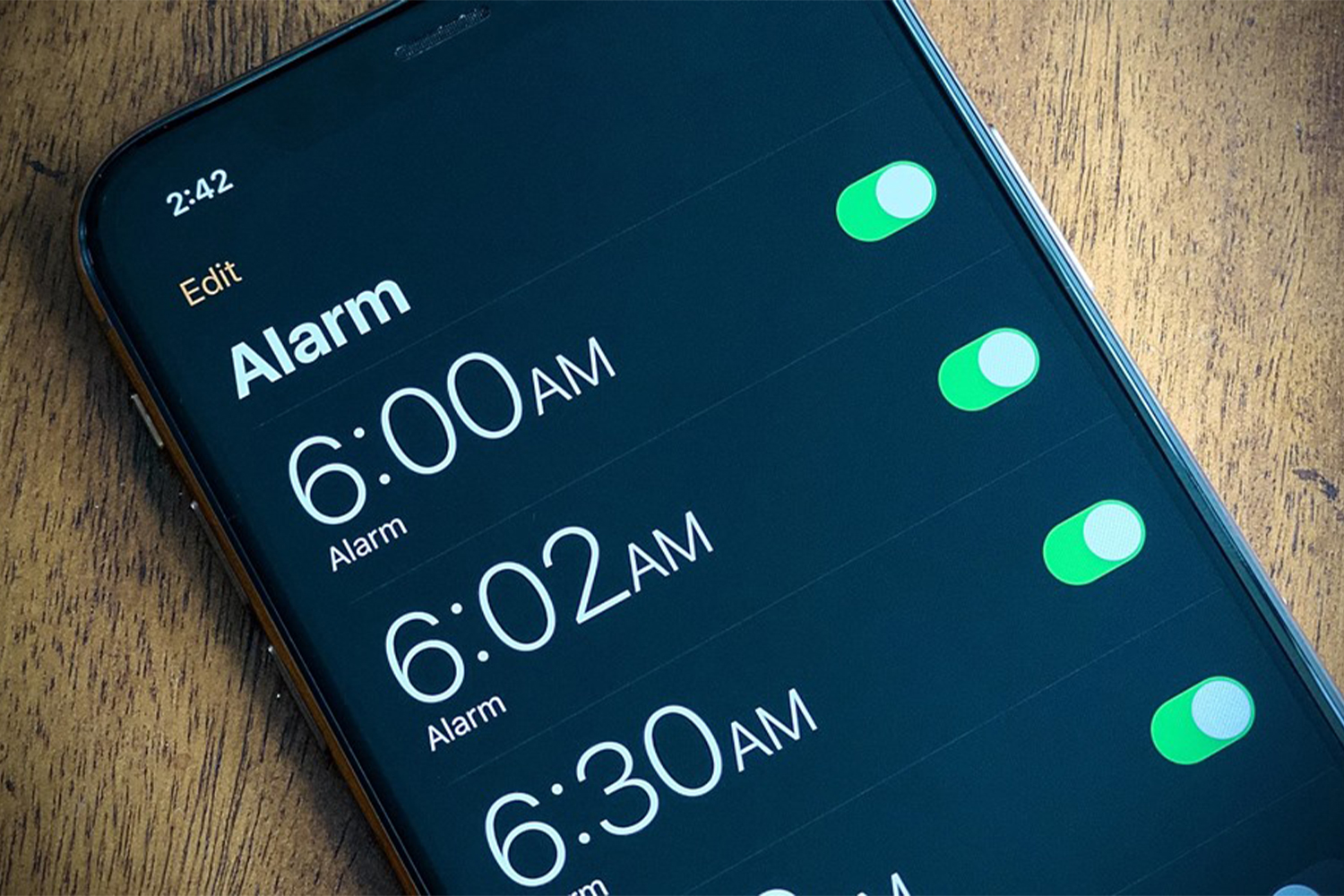
Before you change the alarm sound, open the Clock app and look at your alarms. The Clock app lives on your home screen, and its icon looks like a small clock face. Tap it, then tap the Alarm tab at the bottom of the screen. You will see a list of all the alarms you have set.
Check which alarm you want to change. Each alarm in the list shows its time, its label, and whether it is turned on. If you have more than one alarm, make sure you open the right one. Changing the sound for one alarm does not change the sound for the others.
Make sure your phone is not in silent mode when you test the new sound. The Ring/Silent switch on the left edge of the iPhone 15 controls whether the phone rings, but alarms are designed to play even when the phone is silent. Still, testing with the volume up makes it easier to hear the difference between sounds.
Turn the volume up before you start picking a sound. Press the Volume Up button on the left edge a few times until the volume is high enough to hear clearly. You can also adjust the volume later in Settings under Sounds and Haptics, where the Ringer and Alerts slider controls how loud alarms play.
If you are new to the iPhone and still learning your way around, our guide on how to set up iPhone 15 for beginners covers the basics, including the home screen, the Control Center, and the settings you will use most often.
Method 1: Change the Sound for an Existing Alarm
This is the most common way to change an alarm sound. You open an alarm you already have, tap the Sound option, pick a new tone, and save it. The whole process takes less than a minute.

Follow these steps:
- Open the Clock app. Find the Clock icon on your home screen and tap it. The icon looks like a small analogue clock face.
- Tap the Alarm tab. At the bottom of the screen, you will see World Clock, Alarm, Stopwatch, and Timer. Tap Alarm to see your list of alarms.
- Tap Edit in the top-left corner. This puts the alarm list into edit mode, so you can tap any alarm to change its settings.
- Tap the alarm you want to change. Choose the alarm from the list by tapping on its time. The Edit Alarm screen will open.
- Tap Sound. On the Edit Alarm screen, you will see options for Repeat, Label, Sound, and Snooze. Tap Sound to open the list of available tones.
- Browse the sounds and tap one to hear it. You will see sections for classic tones, ringtones, and other sounds. Tap any sound to play a short preview. Scroll through the list and listen to a few before you decide.
- Tap the checkmark to save. When you find a sound you like, tap the orange checkmark in the top-right corner to go back. Then tap Save in the top-right corner of the Edit Alarm screen to confirm your choice.
Your alarm will now play the new sound the next time it goes off. You do not need to do anything else. The change is saved as soon as you tap Save, and it applies only to that one alarm.
If you want a louder sound that is hard to sleep through, pick one of the classic alarm tones near the top of the list. Tones like Radar and Beacon are sharp and attention-grabbing. If you prefer a gentler wake-up, look for softer tones like Chimes or Night Owl, which start quietly and build up slowly.
Method 2: Change the Sound When You Create a New Alarm
If you are setting a new alarm, you can choose its sound at the same time. This saves you from going back to edit it later, and it is useful when you want different alarms for different purposes.
Here is how to do it:
- Open the Clock app and tap the Alarm tab. This takes you to the same alarm list as before.
- Tap the plus sign in the top-right corner. This opens the Add Alarm screen with a blank alarm ready to set.
- Set the time with the picker. Scroll the hour and minute wheels to pick the time you want. Make sure you choose AM or PM correctly, because this is the most common alarm mistake.
- Tap Sound and pick a tone. Just like editing an alarm, tap Sound, listen to the previews, and choose the one you like. Tap the checkmark to go back to the Add Alarm screen.
- Set the other options if you want. You can set Repeat to choose which days the alarm repeats, add a Label such as Work or Gym, and turn Snooze on or off. These are optional, and you can leave them as they are.
- Tap Save in the top-right corner. Your new alarm appears in the list with the sound you picked. Make sure the toggle next to it is turned on, so the alarm is active.
A useful trick is to give each alarm a different sound for a different purpose. Use a gentle tone for a morning wake-up, a sharp tone for an important meeting, and a soft tone for a reminder to take medicine. When you hear the sound, you will know what it is for without looking at the phone.
If you use vibration to notice alarms, check your vibration settings too. Our guide on how to turn on vibration on iPhone 15 explains how to make sure vibration is on, so your phone shakes as well as rings when an alarm goes off.
Method 3: Change the Sound for a Sleep Schedule Alarm
If you use the Sleep feature in the Health app, your wake-up alarm is managed separately from your regular alarms. It appears at the top of the alarm list under Sleep | Wake Up, and it has its own sound settings. Changing the sound for a normal alarm will not change the sound for your Sleep alarm.
Here is how to change the Sleep alarm sound:
- Open the Clock app and tap the Alarm tab. At the top of the list, you will see the Sleep | Wake Up section with your scheduled wake-up time.
- Tap Change next to the Sleep alarm. This opens the Sleep schedule editor, where you can adjust your bedtime and wake-up time.
- Scroll down to the Alarm Options section. You will see settings for the wake-up sound, snooze, and volume. Tap Sounds and Haptics to see the available wake-up sounds.
- Pick a wake-up sound. The Sleep alarm offers gentle wake-up tones that start quietly and get louder over time. Listen to a few previews and pick the one that suits you. Tap Done to confirm.
- Tap Done on the schedule screen to save. Your Sleep alarm will now use the new sound every morning. The change applies to the whole sleep schedule, not just one day.
You can also change the Sleep alarm sound from the Health app. Open Health, tap Browse, then tap Sleep, and scroll down to your schedule. Tap Edit next to the schedule, then tap Sounds and Haptics to pick a new wake-up tone. Both routes lead to the same setting.
The Sleep alarm sounds are designed to wake you gently. They are usually softer than the regular alarm tones, which makes them a good choice if you dislike being jolted awake. If you need a louder alarm, you may prefer a regular alarm instead of a Sleep alarm, because the regular alarm tones include sharper and louder options.
How to Use a Song as Your Alarm Sound
If you do not like any of the built-in tones, you can use a song from your music library as your alarm sound. Waking up to a favourite song is much nicer than waking up to a buzzer, and it is easy to set up.
Here is how to do it:
- Open the Clock app and go to the Alarm tab. Tap Edit and choose the alarm you want to change, or tap the plus sign to create a new one.
- Tap Sound on the Edit Alarm screen. This opens the list of available sounds.
- Tap Pick a Song under the Songs section. This opens your music library, where you can browse by song, artist, album, or playlist.
- Choose a song and tap it. The song will be added to the sound list. Tap it again in the list to select it as the alarm sound.
- Tap the checkmark, then tap Save. Your alarm will now play the song you picked when it goes off.
The song must be downloaded on your iPhone for it to play as an alarm. If the song is only in the cloud and not stored on the phone, the alarm may fall back to a default tone. To be safe, download the song in the Music app before you pick it as an alarm sound.
Pick a song with a clear and energetic start. A song that begins quietly or slowly may not wake you up, even if you love it. A track with a strong opening works best. You can also pick a short, upbeat song that puts you in a good mood first thing in the morning.
If you use Apple Music, you can pick almost any song in the catalogue. If you use another music app, the song still needs to be in the Apple Music library on your phone. Songs from other apps cannot be picked directly from the alarm sound list.
Tips for Choosing the Best Alarm Sound
The best alarm sound is one you cannot sleep through but do not hate. A tone that is too soft will not wake you, and a tone that is too harsh will start your day with stress. Try a few different sounds over several days until you find one that works for you.
Change your alarm sound every few weeks. Your brain gets used to a sound over time, and a familiar tone becomes easier to sleep through. A fresh sound grabs your attention again, even if it is not louder than the old one.
Use different sounds for different alarms. A loud, sharp tone is good for a wake-up alarm you cannot afford to miss. A gentle tone is better for a reminder alarm during the day. When each alarm has its own sound, you will know what it means the moment you hear it.
Set the alarm volume separately from your media volume. Go to Settings, then Sounds and Haptics, and move the Ringer and Alerts slider to a level that is loud enough to wake you. This slider controls the alarm volume, and it is separate from the volume buttons you use for music and videos.
Turn off the Change with Buttons option if you want a fixed alarm volume. In Settings, under Sounds and Haptics, you will see a switch called Change with Buttons. If this is on, the volume buttons can lower your alarm volume by accident. Turning it off keeps your alarm volume steady every night.
If you rely on vibration as well as sound, make sure vibration is working. Our guide on how to turn off vibration on iPhone 15 also explains how the vibration setting interacts with alarms, so you can check whether it is on or off for your phone.
Troubleshooting: Alarm Sound Not Working
If your alarm goes off but you hear no sound, check the volume first. Go to Settings, then Sounds and Haptics, and check the Ringer and Alerts slider. If it is set very low, the alarm will be almost silent. Move the slider to at least half and test the alarm again.
Check whether the alarm is actually turned on. Open the Clock app, tap the Alarm tab, and look at the toggle next to your alarm. If the toggle is grey and pointing left, the alarm is off.
Tap it so it turns green and points right. An alarm with the toggle off will never ring, no matter what sound you picked.
Check whether you picked None as the sound. On the Edit Alarm screen, tap Sound and scroll to the top of the list. If None is selected, the alarm will only vibrate and will not play any sound. Pick a real tone from the list and save the alarm again.
If you picked a song as the alarm sound and the phone plays a default tone instead, the song may not be downloaded on the phone. Open the Music app, find the song, and download it to your iPhone. Then go back to the alarm, pick the song again, and save it.
Check Do Not Disturb and Focus modes. Alarms are designed to ring even when Do Not Disturb is on, so this is rarely the cause. However, if you use a custom Focus mode with unusual settings, it can affect alerts. Try turning off the Focus mode for one night and see whether the alarm sounds normally.
If the alarm still does not play the sound you picked, delete the alarm and create a new one. Sometimes an old alarm keeps an old setting even after you edit it. Deleting it and starting fresh with the sound you want usually fixes the problem. Set the time, pick the sound, and save the new alarm.
Make sure your iPhone software is up to date. Go to Settings, then General, then Software Update, and install any update that is available. A software bug can sometimes stop alarms from playing correctly, and an update often fixes it.
If none of these steps work, restart your iPhone. Press and hold the Side button and a Volume button together, drag the slide to power off slider, and then hold the Side button to turn the phone back on. A fresh restart clears temporary glitches that can stop alarms from sounding. If the problem continues after a restart, contact Apple Support.
You can also set up voice control to manage alarms hands-free. Our guide on how to get Siri on iPhone 15 shows how to turn on Siri, and once it is ready you can say Hey Siri, set an alarm for 7 AM to create alarms without opening the Clock app.
Frequently Asked Questions
How do I change the alarm sound on my iPhone 15?
Open the Clock app, tap the Alarm tab, tap Edit, and tap the alarm you want to change. Tap Sound, listen to the previews, pick a new tone, tap the checkmark, and then tap Save. The new sound will play the next time that alarm goes off.
Can I use a song as my alarm sound on iPhone 15?
Yes. On the Edit Alarm screen, tap Sound, then tap Pick a Song and choose a song from your music library. The song must be downloaded on your iPhone to play reliably. If the song is only in the cloud, the alarm may fall back to a default tone instead.
Why is my iPhone 15 alarm not making any sound?
The most common causes are a low Ringer and Alerts volume, the alarm toggle turned off, or None selected as the sound. Check the volume in Settings under Sounds and Haptics, make sure the alarm toggle is green in the Clock app, and open the alarm to confirm a real tone is selected. Also make sure the song you picked is downloaded on the phone.
Can I set a different alarm sound for each alarm?
Yes. Each alarm on your iPhone 15 has its own sound setting. Changing the sound for one alarm does not affect the others. This lets you use a loud tone for your morning wake-up alarm and a gentle tone for a daytime reminder.
How do I change the sound of my Sleep schedule alarm?
Open the Clock app, tap the Alarm tab, and tap Change next to the Sleep | Wake Up alarm. Scroll to Alarm Options, tap Sounds and Haptics, and pick a new wake-up sound. The Sleep alarm uses gentler wake-up tones that start quietly and get louder, and this change applies to the whole sleep schedule.
Do iPhone alarms work when the phone is on silent?
Yes. Alarms are designed to play even when the Ring/Silent switch is set to silent and even when Do Not Disturb is on. The alarm volume is controlled by the Ringer and Alerts slider in Settings under Sounds and Haptics, not by the silent switch.
What is the loudest alarm sound on iPhone 15?
The classic alarm tones such as Radar and Beacon are among the loudest and sharpest built-in sounds, and they are hard to sleep through. For the loudest result, pick one of these tones and set the Ringer and Alerts slider in Settings to a high level. Turning off Change with Buttons keeps the volume from dropping by accident.
Conclusion
Changing the alarm sound on your iPhone 15 is quick and easy. Open the Clock app, tap the Alarm tab, edit the alarm you want to change, tap Sound, pick a new tone, and save it. The whole process takes less than a minute, and you can repeat it for every alarm you have.
Remember that each alarm can have its own sound, and your Sleep schedule alarm has separate sound settings of its own. You can also use a song from your music library as an alarm, as long as the song is downloaded on your phone.
Pick a sound you cannot sleep through but do not hate, and change it every few weeks so your brain does not get used to it. Keep the Ringer and Alerts volume high enough to wake you, and check that the alarm toggle is on before you go to bed.
If your alarm ever goes silent, check the volume, the toggle, and the sound setting first. These three checks fix almost every alarm problem. With the right sound picked and the volume set, your iPhone 15 will wake you up reliably every morning.