Is your Windows 11 PC running slowly, crashing, or behaving strangely even after you have tried the usual fixes? Resetting Windows 11 is the built-in way to give your computer a fresh start — and, crucially, you can do it without losing your personal files.
The “Keep my files” option reinstalls Windows while preserving your documents, photos, and videos, removing only your apps and settings. This guide explains exactly how to reset Windows 11 without losing data, what to back up first, what changes and what stays, and what to do when the reset itself goes wrong.
What Does “Reset Without Losing Data” Actually Mean?
When you reset Windows 11 and choose “Keep my files”, Windows reinstalls the operating system and then restores your personal files — the contents of your Desktop, Documents, Pictures, Videos, Music, and Downloads folders, and files stored in your user profile. What it removes is everything else: all the apps and programs you installed yourself (including desktop software and most Microsoft Store apps), all your drivers, and all your system settings, which return to their defaults. Your Microsoft Store apps can be reinstalled quickly afterwards from your Library, but desktop programs such as Office, Chrome, or Photoshop must be installed again by hand.
It is important to understand the boundary. “Keep my files” protects your personal files, but it does not protect files stored in unusual places — for example, files saved directly on the C: drive outside your user folders, or data kept inside an app’s own folder. That is why a backup is still essential before you reset, even though the option promises to keep your data. Think of the reset as safe, but treat the backup as your insurance policy.
Before You Reset: The Essential Checklist
Work through this list before touching the Reset button. First, back up your important files to an external drive, a USB stick, or a cloud service such as OneDrive or Google Drive. Pay special attention to files stored outside your user folders, browser bookmarks and saved passwords, game saves, and any licence keys for software you will need to reinstall.
Second, make sure you know your Microsoft account password and any other account passwords you will need to sign back in afterwards. Third, plug a laptop into mains power and connect to stable Wi-Fi or a wired connection — a reset downloads several gigabytes if you choose cloud download, and losing power halfway through can corrupt the installation.
Fourth, if your drive is encrypted with BitLocker, suspend BitLocker protection before resetting (open the BitLocker panel and click “Suspend protection”), or make sure you have your 48-digit recovery key at hand — Windows may ask for it after the reset. Fifth, remove external drives, USB sticks, and SD cards you do not want touched, so the reset only affects the system drive.
Sixth, write down the list of apps you rely on daily, so reinstalling them afterwards is quick rather than a memory test. Finally, check that you have your Windows product key or digital licence details; on most modern PCs the licence is stored in the firmware and activates automatically, but it costs nothing to confirm under Settings, then System, then Activation.
Method 1: Reset from Settings (The Standard Way)

This is the method most people should use. It works entirely from inside Windows and takes you through the choices step by step.
- Open Settings. You can press the Windows key + I, or click Start and then the gear icon.
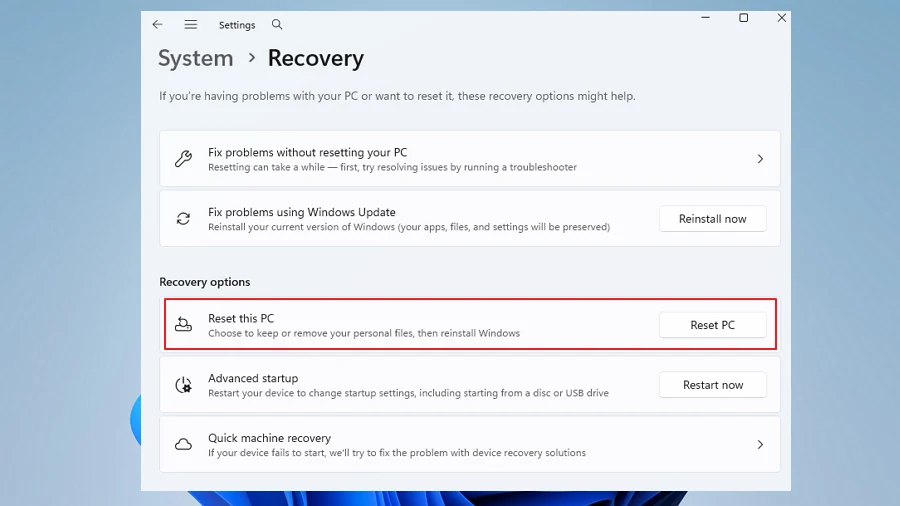
- Go to System, then scroll down and click Recovery.
- Under “Recovery options”, find “Reset this PC” and click the “Reset PC” button next to it.
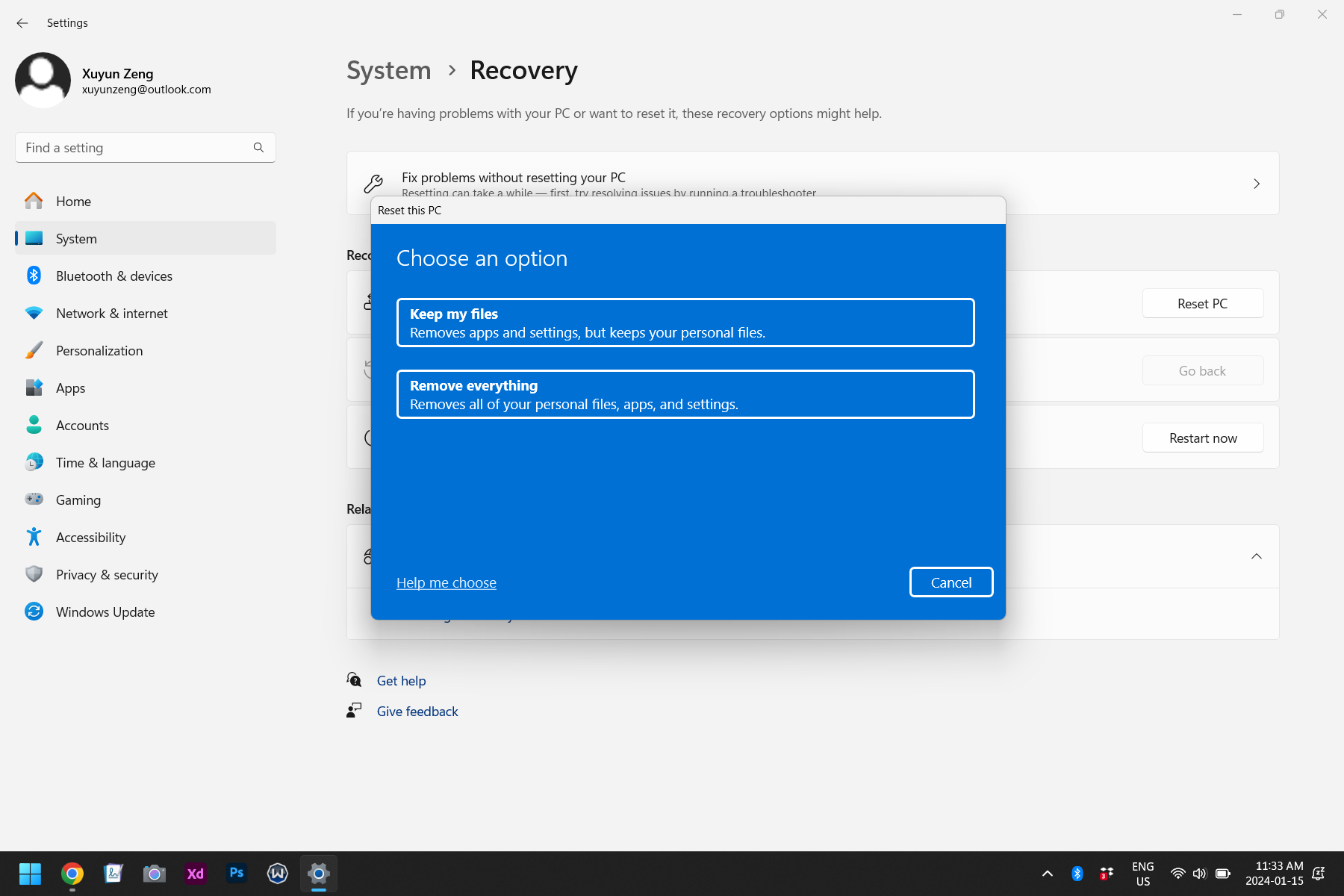
- When the blue “Choose an option” screen appears, click “Keep my files”. This is the option that preserves your personal data.
- Next, choose how Windows should reinstall itself. “Cloud download” downloads a fresh copy of Windows 11 from Microsoft — around 4 GB — and is the best choice if your current installation is damaged, because it does not rely on the files already on your PC. “Local reinstall” uses the files already stored on your computer, which is faster and uses no internet data, but it cannot fix a corrupted system image. If you are unsure, pick Cloud download.
- On the “Additional settings” screen, review your choices. Click “Change settings” if you want to adjust anything — for example, you can choose whether to restore the apps and settings that came with your PC. When you are happy, click Next.
- Windows shows a summary of what will happen: your files will be kept, your apps will be removed, and settings will return to defaults. Read it carefully, then click “Reset”.
- Your PC will restart and the reset will begin. It can take anywhere from 20 minutes to over an hour depending on your hardware and whether you chose cloud download. The screen will show a progress percentage. Do not switch the PC off during this time.
- When the reset finishes, Windows walks you through the first-time setup again: region, keyboard layout, network, Microsoft account sign-in, and privacy choices. Your personal files will be waiting for you in their usual folders.
Method 2: Reset Using “Fix Problems Using Windows Update”

Windows 11 has a gentler repair option that many people miss. On the same System, then Recovery page, look for the “Fix problems using Windows Update” card and click “Reinstall now”. This reinstalls your current version of Windows through Windows Update while preserving your apps, your files, and your settings — unlike a reset, it does not remove your programs.
It is the best first step when Windows is misbehaving but not badly broken: it fixes corrupted system files, restores missing components, and often solves update errors and strange crashes without the disruption of a full reset. If this repair does not solve the problem, move on to Method 1.
Method 3: Reset from the Recovery Environment (When Windows Will Not Start)
If Windows 11 will not boot at all, you can still reset it from the Windows Recovery Environment, known as WinRE. This is the method to use when the PC is stuck on a blue screen, caught in a boot loop, or fails to reach the desktop.
- Start the PC and, when it begins to load, hold the power button to force it off. Repeat this two or three times. On the next start, Windows should enter Automatic Repair and show the recovery screen.
- Alternatively, if you can reach the sign-in screen, hold the Shift key while clicking the power icon and choosing Restart. The PC will boot into the recovery environment.
- On the “Choose an option” screen, click “Troubleshoot”.
- Click “Reset this PC”.
- Choose “Keep my files”, then choose Cloud download or Local reinstall, exactly as in Method 1.
- Follow the prompts and let the reset run. The PC may restart several times.
You can reach the same recovery environment from a Windows 11 installation USB drive: boot from the USB, choose your language, and instead of “Install now”, click “Repair your computer” in the bottom-left corner, then follow the same Troubleshoot, then Reset this PC path.
Method 4: Reset from the Sign-in Screen
There is a shortcut to the recovery environment that does not need Settings at all. On the Windows sign-in screen, click the power icon in the bottom-right corner, then hold the Shift key and click Restart. Keep holding Shift until the blue “Choose an option” screen appears.
From there, click Troubleshoot, then Reset this PC, then “Keep my files”, and continue as in Method 1. This is useful when you can reach the sign-in screen but the desktop itself will not load properly.
What Happens After the Reset?
When the reset completes and you finish the setup screens, your first job is to check that your files are intact. Open File Explorer and look in Documents, Pictures, Desktop, and Downloads. Then open Windows Update under Settings and install every available update — a freshly reset system usually has updates waiting, including security patches and driver updates.
Next, reinstall your apps. Microsoft Store apps can be reinstalled quickly from the Library section of the Store app. Desktop programs need to be downloaded and installed again one by one — work through the list you made before the reset.
After that, restore your settings: your wallpaper and theme, your browser and its extensions, your email accounts, and your printer. Sign in to OneDrive if you use it, and let it sync your files back. If you suspended BitLocker before the reset, turn its protection back on.
Finally, spend a few minutes testing the things that were broken before the reset, to confirm the problem is actually gone. If the PC is noticeably faster and the errors are gone, the reset did its job.
What If the Reset Does Not Solve the Problem?
A reset fixes software problems, but it cannot fix failing hardware. If your PC is still slow, crashing, or showing blue screens after a reset, the cause is likely a dying hard drive, failing RAM, or overheating. Run a disk health check — open Command Prompt as an administrator and type chkdsk C: /f /r — and test your memory with the built-in Windows Memory Diagnostic tool (press the Windows key, type “Windows Memory Diagnostic”, and run it).
Check your temperatures with a free monitoring tool, and clean dust out of the fans and vents. If the drive is old and mechanical, replacing it with an SSD is the single biggest speed improvement you can make. If none of that helps, the problem may be a deeper hardware fault, and a repair shop is the next step.
Tips to Avoid Needing Another Reset
A few habits keep Windows 11 healthy so you do not end up resetting again in six months. Install Windows updates promptly instead of postponing them for weeks. Be careful what you install — free software bundled with extra toolbars and optimisers is a common source of trouble.
Uninstall programs you no longer use, and keep your startup list lean under Settings, then Apps, then Startup. Turn on Storage Sense so temporary files are cleaned up automatically. Use Windows Security or a reputable antivirus and keep it updated.
Create a System Restore point before installing major new software, so you can roll back quickly if something goes wrong — search for “Create a restore point” in the Start menu, open System Protection, and click Create. And keep a regular backup of your files, so the next time something breaks, you are never more than a restore away from safety.
Troubleshooting Reset Problems
“There was a problem resetting your PC.” This is the most common reset error, and it usually means the local recovery image is damaged. Try again choosing Cloud download instead of Local reinstall, because cloud download fetches a fresh image from Microsoft and does not depend on your PC’s stored files. If that also fails, reset from a Windows 11 installation USB drive instead.
The reset is stuck at a percentage for hours. On older PCs with spinning hard drives, a reset can legitimately take two hours or more.
Give it time, and check that the drive activity light is still blinking. If the percentage has not moved at all for several hours and the drive light is dark, hold the power button to switch off, then switch on again — Windows will usually roll back to the previous state, and you can try the reset again or use the USB method.
Windows asks for the BitLocker recovery key during or after the reset. This happens when BitLocker was active and was not suspended before the reset. Enter the 48-digit recovery key from your Microsoft account (account.microsoft.com/devices/recoverykey), a USB drive, or your printed copy. To avoid this next time, suspend BitLocker before starting any reset.
“Keep my files” is missing or greyed out. This can happen when Windows cannot find your user profile properly, or when you are resetting from a recovery drive that lacks the needed files. Try resetting from inside Windows (Method 1) rather than from the recovery environment, or use a Windows 11 installation USB and choose the upgrade option to repair Windows while keeping files.
Files are missing after the reset. First, check the C:\Windows.old folder — Windows sometimes keeps the previous installation there for 10 days, and your files may be inside it under Users and your old username. Also check OneDrive’s recycle bin and your backup drive. If the files are truly gone and there is no backup, recovery software can sometimes retrieve them, but success is not guaranteed — stop using the drive immediately and seek help before writing more data to it.
The PC keeps restarting during the reset. This can be caused by a failing drive, bad RAM, or a loose connection. Try the reset from the installation USB instead, run the memory diagnostic, and check the drive’s health. If the hardware is failing, fix that first — no software reset can repair broken hardware.
Frequently Asked Questions
Will resetting Windows 11 delete my files?
Not if you choose “Keep my files”. Your personal files in your user folders are preserved. Your installed apps and settings are removed, so back up anything unusual before you start.
How long does a reset take?
Typically 20 minutes to an hour on an SSD, and one to three hours on an older hard drive. Cloud download adds the download time, which depends on your internet speed.
Do I need the internet to reset Windows 11?
Only for the Cloud download option, which needs about 4 GB of downloading. Local reinstall works offline, but it cannot repair a damaged system image.
Will I need my product key after a reset?
Usually not. Most modern PCs store the licence in the firmware, and Windows activates automatically after the reset when you sign in with your Microsoft account. Check under Settings, then System, then Activation if you are unsure.
Can I reset Windows 11 without a password?
You need an administrator account to start a reset from Settings. From the recovery environment you can also reset, but you may still be asked for an administrator password. If you have forgotten it, you will need to reset the password first.
What is the difference between reset and a clean install?
A reset reinstalls Windows using the recovery tools on your PC or a cloud download, and the “Keep my files” option preserves your data. A clean install from a USB drive wipes the drive completely and installs a brand-new copy. A reset is easier and safer; a clean install is more thorough.
Should I choose Cloud download or Local reinstall?
Choose Cloud download if your Windows installation is damaged, if updates keep failing, or if Local reinstall has already failed. Choose Local reinstall if your internet is slow or limited, or if you simply want the fastest reset on a healthy system.
Conclusion
Resetting Windows 11 without losing data is straightforward: open Settings, go to System, then Recovery, click Reset PC, choose “Keep my files”, and pick Cloud download or Local reinstall. Back up first, suspend BitLocker if you use it, and give the process enough time.
When it finishes, update Windows, reinstall your apps, and check your files. For most software problems — slowness, crashes, failed updates, and strange errors — a reset is the fastest route back to a healthy PC, and with the “Keep my files” option, your photos, documents, and videos come through it safely.